Om de inhoud en gebruiksgegevens van de Podcatchers te synchroniseren, moet een PC worden opgezet als een Syncconsole, bij de hand-out desk die is aangesloten op de Dockingstations en het internet. Wij leveren deze PC aan u maar als u een extra Syncconsole wilt installeren (bijvoorbeeld op kantoor of bij een partner) kunt u onze synchronisatiesoftware installeren op een gewone PC. Hieronder vindt u de specificaties waaraan een Syncconsole moet voldoen om goed te kunnen werken.
Specificaties
De computer die als Syncconsole wordt ingesteld, moet aan de volgende specificaties voldoen (of deze overtreffen):
Elke nieuwe PC die je in een winkel vindt is meer dan waarschijnlijk goed genoeg.
Operating System: Windows 10 (32- or 64-bit), Windows 11 (32 or 64 bit).
We raden aan een (mini)computer of laptop te kopen die nog steeds USB 2 aansluitingen heeft om de USB HUB's of Docking Stations op aan te sluiten, we hebben problemen gezien met USB 3 connectoren (meestal zijn de USB 2 connectoren in een computer zwart en de USB 3 connectoren zijn blauw).
Do not connect more than 20 Docking Stations (or 200 Podcatchers) to a single sync PC.
Wanneer u USB-hubs gebruikt, sluit u de Docks aan alleen naar de hubs, en de hubs alleen naar de computer. Sluit geen hub aan op andere hubs, want daar hebben we in het verleden veel moeite mee gehad. Als u besluit dit toch te doen, a.u.b. Vermeld dit wanneer u contact met ons opneemt voor ondersteuning bij synchronisatieproblemen.
De PC moet een bekabelde internetverbinding hebben, alleen wifi is onvoldoende.
Intern geheugen (RAM): Minstens 512 MB.
Opslagruimte (harde schijf): Minstens 1 GB. Het wordt sterk aanbevolen om een veel grotere marge te nemen in de hoeveelheid vrije ruimte; bij voorkeur meer dan 100GB om Windows in staat te stellen om lang door te gaan met het installeren van updates.
USB-aansluiting: Ten minste 1 vrije USB 1.1-poort; normaal gesproken heeft u 10 Docks aangesloten op een USB-hub, dus de werkelijke hoeveelheid hangt af van het aantal Dockingstations dat u heeft voor een bepaalde Sync Console. Vergeet niet het totale aantal docks dat op een enkele computer is aangesloten te beperken tot 30.
De PC moet (automatisch) worden geüpdatet met de laatste Windows-updates (met behulp van Windows Update).
De PC moet 24 uur per dag/7 dagen per week worden ingeschakeld.
De PC moet 24 uur per dag en 7 dagen per week op het internet worden aangesloten.
De PC en de aangesloten Dockingstations moeten 24 uur per dag en 7 dagen per week op de stroom worden aangesloten.
U moet 'Administrator'-rechten hebben om de synchronisatiesoftware te kunnen installeren.
Belangrijk voor de IT-afdeling; de Syncconsole moet via de website apps.podcatcher.eu op Port 80 verbinding kunnen maken met onze server.
Opmerking: De Podcatcher Sync-software ondersteunt geen directe verbindingen met het internet via een proxyserver! Er is een workaround voor dit, zie de geavanceerde configuratiepagina voor meer informatie.
Opmerking: Het Podcatcher Sync programma draait niet onder Linux of MacOS.
Opmerking: Gebruik nooit (!) USB-verlengkabels, alleen onze meegeleverde USB-kabels (ongeveer 1,80m/6ft lang). Als u meer lengte nodig heeft, plaats dan de Syncconsole dichterbij of verplaats de Dockingstations. U kunt de USB-kabels niet verlengen zonder dat er ernstige synchronisatieproblemen optreden die zeer moeilijk te diagnosticeren zijn en onoplosbaar zijn voor de helpdesk.
To synchronize content and usage data of the Podcatchers, a PC needs to be setup as a Sync Console near/at the handout desk which is connected to the Dockingstations and Internet. We will provide this PC to you, but if you need an extra Sync Console installed (for instance in the office or at a partner) or if you have to re-install your own PC, you can set up an a regular PC following the steps below. Note: any computer used as a Sync Console must meet deze specificaties.
Installatie
Before a computer can sync Podcatchers, it will need some software so it ‘knows’ how to work with the Guide ID servers and devices. There’s TeamViewer (1) that lets you (and us) connect to the computer remotely (should it be necessary) and the Sync desktop application (2). Afterwards, you’ll need to associate the desktop app’s serial number with your Site (3) so the computer can synchronize your content.
Attentie: if you have not yet received the Docking Stations, you can start the installation steps but you will not be able to complete step 3 because the activation code is not shown and/or the Sync program will say that the Sync service is not running. This is due to a limitation of the Windows driver model. Once you have connected the Docking station(s) and reboot the computer, the activation code will be displayed.
1. Guide-ID TeamViewer
Om ons in staat te stellen u op afstand te helpen, heeft u de mogelijkheid om het TeamViewer Host programma te installeren. Guide-ID kan dit programma gebruiken om u te helpen, indien er problemen zijn tijdens de installatie van het synchronisatie programma of op een ander moment in het proces. Het installeren van dit programma is optioneel, maar wij raden het aan.
Opmerking; Wij raden altijd aan om de Sycconsole op uw 'gast netwerk' aan te sluiten zodat uw interne netwerk te allen tijde beveiligd is. Uw systeembeheerder zal dit voor u kunnen doen aangezien het hun verantwoordelijkheid is.
Zoek het bestand in uw downloads map, klik er met de rechtermuisknop op en kies Voer uit als Beheerder. Neem contact op met uw computer/netwerkbeheerder om deze rechten te verkrijgen als u ze niet hebt.
Klik op het eerste scherm op Volgende .
U wordt gevraagd hoe u het programma wilt gebruiken, kies dan zakelijk/commercieel en klik op 'Volgende'.
De licentieovereenkomst zal worden getoond, accepteer de overeenkomst en klik op 'Volgende'.
U wordt gevraagd om een wachtwoord te kiezen, gebruik het woord Podcatcher en vul een computernaam in, bijvoorbeeld de naam van uw organisatie. If you have multiple Sync Consoles, we recommend naming them something descriptive like “Front desk” or “Podcatcher hand-out temporary tour” along with the name. You don’t have to tick the box for ‘add this computer to my list of computers’. Click ‘Next’.
Klik op Afwerken om de installatie te voltooien.
Na installatie een scherm met Uw ID zal worden getoond. Stuur een e-mail naar helpdesk@guideid.com met dit nummer en een beschrijving van uw computer (waar deze zich bijvoorbeeld bevindt).
2. Installation of the Podcatcher Sync application (Sync Console 2.x)
The Sync Console 2.x application is a Windows service that allows Podcatcher V3 hardware to sync with the PP4 Platform. It replaces the legacy Podcatcher Sync service.
The new service can be installed on Windows 10 or 11. If the legacy Podcatcher Sync is already installed, it will be automatically replaced.
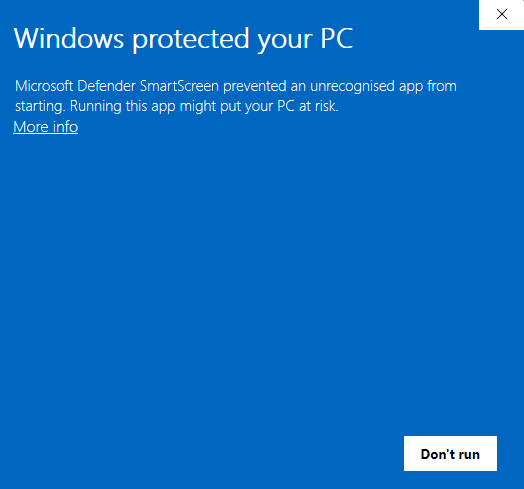
Download the msi installer from GuideID.SyncSetup en run it. Depending on your security configuration, a message similar to this may appear:
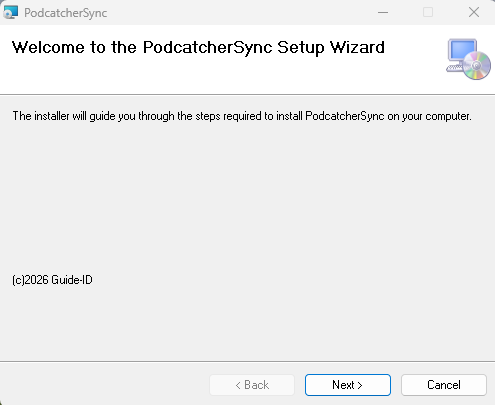
If the “Run anyway” button is already visible, click it. Else you need to click “More info” first and then click “Run anyway”. You will be greeted by the following screen:
Click “Volgende” to continue.
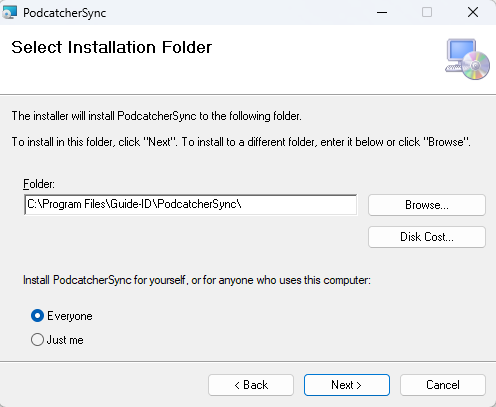
Select where to install the application. It is recommended to accept the default location. (Let op: the contents of all Podcatcher audio tours will be stored here as well, so make sure there is enough space available.)
Make sure to select “Everyone” and click “Next”:
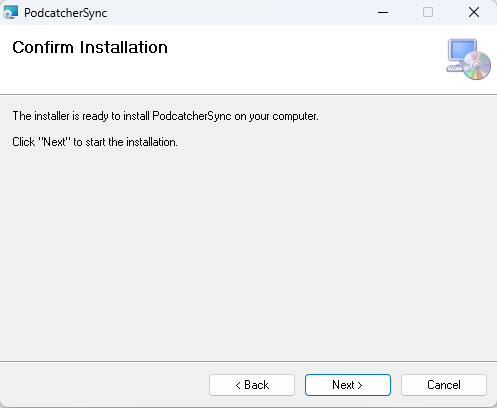
Klik op “Next”:
Klik op “Next”:
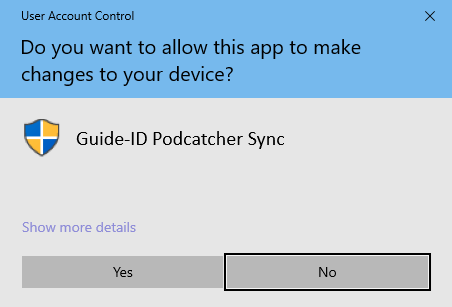
A warning similar to the one above may appear asking permission to make changes to your device. Click “Yes” of “Allow” or something equivalent to continue installation.
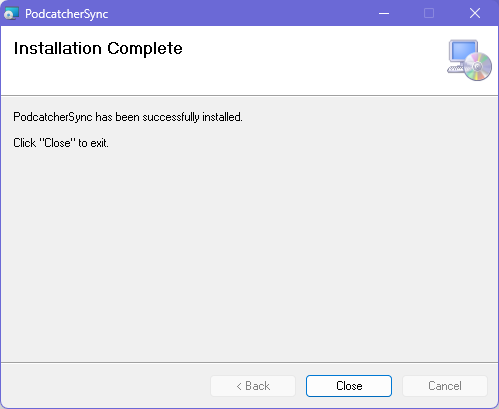
After the application has been installed, click Close.
Identifying the Serial Number and Authentication Key
If the Sync Console still needs to be registered in the Podcatcher Platform, you need to provide a serial number and authentication key.
This information can be retrieved by running the following command from an elevated command prompt (run cmd as administrator):
GuideID.PodcatcherV3Sync.exe -cmd info
The following information appears.
Guide-ID Podcatcher Sync Service version: 2.1.0.0 Sync Console Serial number: scXXXXXXXXXX Authentication key: XXXXX-XXXXX-XXXXX-XXXXX-XXXXX
Take note of the Sync Console Serial number and the Authentication key and enter them in the Platform when registering your Sync Console.
3. Register your Sync Console
Ga naar de Podcatcher-platform en login using your Podcatcher Platform account.
Klik op ‘Hardware →Syncaan de linkerkant van de pagina.
Klik op de [ + Add new Sync Device ] button to register a Sync Console and to link it to your site.
Er moet een popupvenster verschijnen met de volgende invoervelden:
Selecteer eerst de SyncConsole optie en klik op Volgende.
Syncconsole Serial Number en Authenticatiesleutel, this is where you fill in the serial number and authentication key that you copied/wrote down from the previous step.
Syncconsole Daily sync time, this is where you select a time when all Podcatchers should be present in the Sync Console, usually after opening hours.
Syncconsole BeschrijvingHier vult u een naam in voor de Sync Console, bijvoorbeeld 'Distributiepunt hoofdbureau'.
Add the Sync Console by clicking Finish button. The list of Sync Consoles should update and the new one appears.
Als u meerdere locaties hebt waar Podcatchers van inhoud moeten worden voorzien, kunt u de hierboven genoemde stappen op elke locatie opnieuw uitvoeren met elke computer die voldoet aan de specificaties van de Syncconsole. Elke installatie heeft zijn eigen unieke activeringscode die u kunt gebruiken om de locatie te activeren en te kunnen zien in de Portal.
Actionable Insights zet uw Podcatcher Pro-systeemgegevens om in tijdige aanbevelingen waarmee u verstoringen kunt voorkomen en de bezoekerservaring kunt optimaliseren. Dit intelligente meldingssysteem houdt u op de hoogte van de hardwarestatus en tourprestaties, zodat u mogelijke problemen kunt aanpakken voordat uw gasten er last van hebben.
Snelle referentie
Toegang tot berichtencentrum: Dashboard → Pictogram Berichtencentrum
E-mailconfiguratie: Profiel → E-mailvoorkeuren
Meldingsniveaus: Licht, matig, ernstig (geprioriteerd op urgentie)
Primaire kenmerken: Hardwarebewaking, inzicht in tourprestaties, waarschuwingen per e-mail
Hoe Actionable Insights werkt
Het Actionable Insights-systeem bewaakt uw Podcatcher Pro-omgeving continu en analyseert zowel de hardwarestatus als de interacties met bezoekers om verbetermogelijkheden te identificeren. Wanneer het systeem een probleem of optimalisatiemogelijkheid ontdekt, genereert het een melding met een duidelijke aanbeveling voor actie.
Meldingssysteem
Actionable Insights categoriseert meldingen op prioriteit zodat u zich kunt concentreren op wat het belangrijkst is:
Kleine mededelingen (Informatief)
Informatieve updates die geen onmiddellijke actie vereisen
Kritieke kwesties die onmiddellijke aandacht vereisen
Voorbeelden: offline basecamps, Podcatchers in foutstatus
Essentieel voor het voorkomen van verstoring van bezoekerservaringen
Het berichtencentrum gebruiken
Het Berichtencentrum dient als centraal punt voor alle meldingen en biedt duidelijke informatie over elk probleem en aanbevolen oplossingen.
Toegang tot het berichtencentrum
Log in op het Guide-ID platform
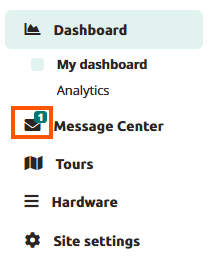
Zoek naar de kop Berichtcentrum in de linkerbovenbalk
Klik om het dashboard met meldingen te openen
Berichtencentrum-waarschuwingen begrijpen
Elke melding in het Berichtencentrum bevat:
Waarschuwingspictogram die het prioriteitsniveau aangeeft
Duidelijke beschrijving van het gedetecteerde probleem
Actieaanbeveling om het probleem op te lossen
Tijdstempel die aangeeft wanneer het probleem is gedetecteerd
For example, a typical notification might alert you that “IDentifier with serial number BP.000.433 is low on battery” and recommend that you “Please replace or recharge the battery to keep using this IDentifier.”
Let op: Voor een volledige referentie van alle mogelijke meldingen en aanbevolen acties, zie [Typen meldingen en aanbevelingen].
Uw meldingen beheren
Met het Berichtencentrum kunt u:
Alle actieve meldingen bekijken op één handige locatie
Meldingen afwijzen zodra je ze hebt aangepakt
Resolutiestatus bijhouden omdat het systeem vaste problemen automatisch verwijdert
Toegankelijkheid Het Message Center is ontworpen om kritieke informatie in één oogopslag te presenteren, waardoor het waardevol is voor drukke museumomgevingen waar het personeel soms maar even de tijd heeft om de systeemstatus te controleren.
Systeem voor e-mailmeldingen
Om ervoor te zorgen dat u nooit belangrijke waarschuwingen mist, gaat Actionable Insights verder dan het platform met strategische e-mailmeldingen.
Typen e-mailwaarschuwingen
Wekelijkse overzicht e-mails
Uitgebreid overzicht van alle lopende meldingen
Geprioriteerd op urgentieniveau
Biedt een handige manier om op de hoogte te blijven, zelfs als je niet bent ingelogd op het platform
Je kunt je meldingservaring aanpassen aan de behoeften van je museum:
Navigeer naar Profiel -> E-mail voorkeuren in het Guide-ID platform
Selecteer Voorkeuren voor meldingen
Kies welke e-mailtypes je wilt verzenden.
Uw instellingen opslaan
Belangrijkste bewakingsmogelijkheden
Actionable Insights controleert twee primaire aspecten van je museumbeleving:
1. Hardware gezondheidsmonitoring
Het systeem volgt proactief de status van je Guide-ID hardware, inclusief:
IDentifier Batterijniveaus
Waarschuwingen wanneer batterijen een lage drempel bereiken
Helpt onderbrekingen van audiotours in specifieke tentoonstellingsruimten te voorkomen
Maakt gepland onderhoud mogelijk in plaats van noodreacties
Podcatcher-apparaatstatus
Identificeert ontbrekende apparaten om de inventaris bij te houden
Detecteert Podcatchers in foutstatussen
Controleert de connectiviteit van synchronisatieapparaten
2. Tour Prestatie Analyse
Naast hardware helpt Actionable Insights bij het optimaliseren van de contentervaring met:
Analyse van gebruikspatronen
Identificeert onderbenutte of zeer populaire tourhaltes
Helpt u inzicht te krijgen in de betrokkenheidspatronen van bezoekers
Biedt inzichten voor contentverbeteringen
Problemen oplossen Bruikbare inzichten
Als u problemen ondervindt met het Actionable Insights-systeem, probeer dan deze eenvoudige oplossingen:
Uitgave
Oplossing
Geen e-mailmeldingen ontvangen
Controleer uw spam-map en controleer of uw e-mailadres correct is in Gebruikersinstellingen
Verwachte meldingen missen
Controleer of uw meldingsvoorkeuren correct zijn geconfigureerd en of u het bericht niet hebt verworpen.
Melding voor ontslag verschijnt opnieuw
Het onderliggende probleem is mogelijk niet volledig opgelost
Waarschuwing If you dismiss multiple IDentifier battery warnings without replacing batteries, you risk unexpected audio tour disruptions for your visitors. Always follow recommended actions when possible.
Succesindicatoren
U weet dat u Actionable Insights effectief gebruikt wanneer:
Vermijdbare hardwareproblemen in uw museum nemen af
Personeel kan potentiële problemen aanpakken voordat ze gevolgen hebben voor bezoekers
Uw batterijvervangingsproces wordt proactief in plaats van reactief
Vermiste Podcatcher-incidenten dalen
Voor aanvullende hulp met Actionable Insights, contact op met Guide-ID ondersteuning via het Helpcentrum van het platform of e-mail Helpdesk@guide-id.com.
Download je tourgegevens als CSV-bestanden voor externe verwerking en diepere inzichten
Met de exportfunctie kunt u uitgebreide touranalysegegevens downloaden voor aangepaste analyse in de tools van uw voorkeur. Volg deze eenvoudige stappen om toegang te krijgen tot je waardevolle statistieken over bezoekersbetrokkenheid.
Snelle referentie
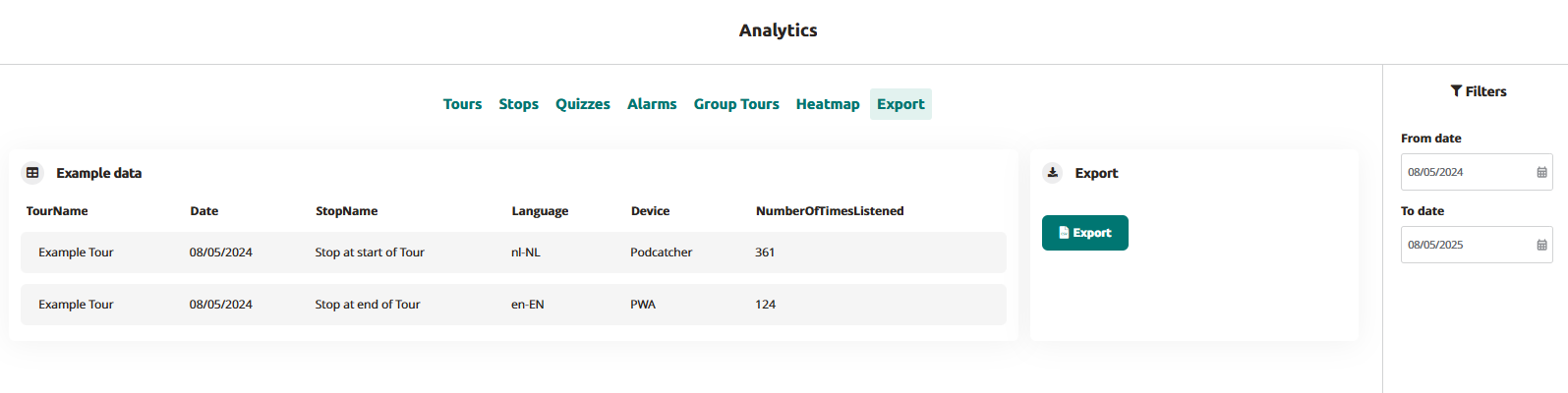
Navigeer naar Analytics → Exporteer in het hoofdmenu
Stel het gewenste datumbereik in met de datumselectoren Van/Tot
Klik op de knop "Exporteren" om uw gegevensbestand te genereren
Download het CSV-bestand wanneer de verwerking is voltooid
Bestanden krijgen automatisch een naam met je sitenaam en datumbereik
Gebruik het in uw dataplatform
De exportfunctie openen
Log in op het Guide-ID platform
Selecteer "Analytics" in het linker navigatiemenu
Klik op het tabblad "Exporteren" in de bovenste menubalk
Exportparameters instellen
Gebruik de datumfilters in de rechterzijbalk:
Klik op "Vanaf datum" om uw begindatum te selecteren
Klik op "Tot datum" om uw einddatum te selecteren
Uw export genereren
Klik op de blauwe knop "Exporteren
Wacht even terwijl de verwerkingsindicator aangeeft dat uw bestand wordt voorbereid
Na voltooiing wordt het bestand automatisch gedownload naar je apparaat
De bestanden hebben de naam "SiteName-Analytics-YYYYMMDD-YYYMMDD.csv".
Uw gegevens begrijpen
Het geëxporteerde CSV-bestand bevat de volgende gegevenskolommen:
TourNaam: De naam van de tour zoals geconfigureerd in het platform
Datum: De datum waarop de interactie met de bezoeker plaatsvond (indeling JJJJ-MM-DD)
StopNaam: De specifieke audiostop of het ID-identificatiepunt
Taal: De door de bezoeker geselecteerde taalcode (bijv. en-EN, nl-NL)
Apparaat: Het type afspeelapparaat (Podcatcher of PWA voor webapp)
NumberOfTimesListened: Totaal aantal afspeelbeurten voor elke stop
Problemen met exporteren oplossen
Uitgave
Oplossing
CSV-bestand heeft onjuiste opmaak
Open in een speciaal spreadsheetprogramma in plaats van een tekstverwerker
Ontbrekende gegevens voor specifieke tours
Controleer of de tours actief waren tijdens je geselecteerde datumbereik
Door het exporteren van uw Guide-ID analytics data, krijg je de flexibiliteit om diepere analyses uit te voeren dan het platform ingebouwde visualisaties. Deze directe toegang tot uw bezoeker engagement statistieken macht machtigt data-gestuurde beslissingen over content ontwikkeling, tour optimalisatie, en de toewijzing van middelen.
Wanneer jij en je bezoekers gebruik maken van de tours die je hebt gemaakt op het Guide-ID Platform, verzamelt het systeem automatisch analytische gegevens.
Deze statistieken zijn van onschatbare waarde voor het evalueren van de prestaties van je tours, stops en clips, maar ook voor het analyseren van de betrokkenheid van gebruikers met quizzen en enquêtes.
De analysepagina vinden
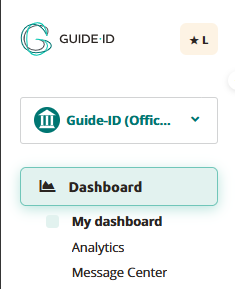
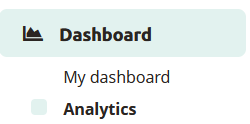
Na het inloggen op het Guide-ID Platform, kom je terecht op het Dashboard. Om naar de Analytics-pagina te gaan, kun je deze vinden in de zijbalk onder het Dashboard.
Tours
Op het tabblad tours vind je een verzameling informatieve grafieken met belangrijke gegevens over je tours. Deze omvatten het aantal gespeelde tours, het totale aantal gedeelde verhalen, de duur van elke tour en het gemiddelde aantal bezochte stops per tour.
Stops
Het tabblad Stops biedt waardevolle inzichten in de meest en minst gespeelde stops en de triggers die tot het afspelen hebben geleid. Populaire stops geven meestal de voorkeur van bezoekers aan, terwijl minder vaak bezochte stops zich in minder toegankelijke gebieden kunnen bevinden of worden aangetroffen wanneer bezoekers moe zijn van de rondleiding door het museum.
Clips
Dit gedeelte geeft informatie over de gekozen opties en hoe ze zich verhouden tot alternatieve keuzes, en biedt waardevolle inzichten in de voorkeuren van bezoekers.
Alarmen
Op het tabblad Alarmen kun je de frequentie controleren waarmee alarmen werden geactiveerd en het meest geactiveerde alarm identificeren (als er meerdere alarmen zijn ingesteld).
Rondleidingen voor groepen
Dit is op abonnementsbasis voor Podcatcher Pro-klanten. Neem voor vragen contact op met onze Helpdesk of een van onze Business Managers
Heatmap
Dit gedeelte geeft informatie over bezoekersaantallen en -percentages voor de geselecteerde tourhaltes. Je kunt een maand en jaar selecteren en dan een specifieke tour kiezen.
De stops voor de geselecteerde tour worden weergegeven in een tabel, gerangschikt per dag.
De tabel toont luisterpercentages als percentages. Om te schakelen tussen percentages en bezoekersaantallen, klikt u op de knop Omschakelen bezoekersaantal/percentage.
De kleur van de tabelcellen varieert op basis van de luisterpercentages
Exporteer
Via het tabblad Exporteren kun je zelf analytics-gegevens over stops downloaden, om te gebruiken voor je eigen displays of om te combineren met gegevens van andere analytics-platforms die je voor je museum gebruikt. Bekijk onze Analytics-gegevens exporteren voor meer informatie.
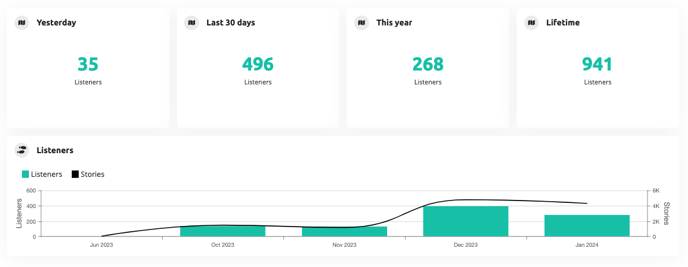
Je dashboard geeft een momentopname van de prestatiecijfers van je audiotours. Het helpt je te evalueren hoe goed ze het doen en toekomstige verbeteringen te plannen.
Tourgegevens
Het gedeelte met tourgegevens laat zien hoeveel bezoekers je site de afgelopen dag, dertig dagen, dit jaar en het totale aantal tours heeft gegeven.
Gespeelde tours
De grafiek met gespeelde tours biedt een gedetailleerde uitsplitsing van het aantal geserveerde tours in het afgelopen jaar. Deze informatie is verder gesegmenteerd op basis van het gebruikte platform, zodat je de tourconsumptie via verschillende kanalen zoals de Podcatcher en PWA kunt analyseren.
To do-lijst
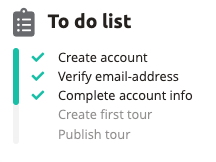
Tot slot leidt de takenlijst je door de nodige stappen om ervoor te zorgen dat je audiotours klaar zijn voor je bezoekers. Deze handige checklist helpt je georganiseerd te blijven en zorgt voor een naadloze ervaring voor je publiek.
Ons platform waarschuwt je automatisch wanneer je apparatuur aandacht nodig heeft. Op deze pagina wordt uitgelegd wat elke melding betekent en hoe je deze kunt oplossen.
Urgentieniveaus begrijpen
🔴 Hoge prioriteit - Handel onmiddellijk om verstoringen te voorkomen
🟡 Gemiddelde prioriteit - Snel aanpakken om problemen te voorkomen
🟢 Lage prioriteit - Informatief, geen onmiddellijke actie nodig
Offline Basecamp
Hoge prioriteit
Wat dit betekent
Uw Sync-apparaat heeft al meer dan 24 uur niet gecommuniceerd met ons systeem.
Wat te doen
Controleer of het Sync-apparaat is aangesloten en ingeschakeld.
Controleer of je internetverbinding werkt
Zoek naar foutlampjes op het apparaat
Zodra de verbinding is hersteld, verdwijnt de melding automatisch.
Neem anders contact op met ondersteuning
Waarom dit gebeurt
Het Sync-apparaat kan zijn uitgeschakeld, de internetverbinding kan zijn verbroken of er kan een technische fout zijn opgetreden.
Podcatcher storing
Gemiddelde prioriteit
Wat dit betekent
Een Podcatcher met een rood lampje is teruggeplaatst in het Sync-apparaat. Een rood lampje betekent dat het apparaat kapot is.
Je andere Podcatchers zouden normaal moeten blijven werken
Waarom dit gebeurt
De Podcatcher heeft een hardwarestoring gehad en moet worden vervangen.
IDentifer Batterij Laag
🟡 Gemiddelde prioriteit
Wat dit betekent
De batterij van een IDentifier is voor minder dan een derde opgeladen. De batterij kan nog enkele weken tot maanden meegaan.
Wat te doen
Vervang de batterijen van de IDentifier of vervang de IDentifier door een andere IDentifier.
Waarom dit gebeurt
Batterijniveaus worden bijgewerkt wanneer een Podcatcher de IDentifier scant en synchroniseert met een Sync Device.
Podcatcher al een week niet gezien
Lage prioriteit
Wat dit betekent
We hebben deze Podcatcher niet gedetecteerd in meer dan een week, maar minder dan een maand.
Wat te doen
Als je de Podcatcher hebt, plaats deze dan terug in een Basecamp
Als je het product al hebt teruggestuurd, kan het zijn dat we het nog aan het verwerken zijn.
De melding stopt na 30 dagen
Waarom dit gebeurt
De Podcatcher kan zijn weggelaten, gebruikt voor testen of teruggestuurd maar nog niet verwerkt in ons systeem. Raadpleeg voor meer informatie onze Ontbrekende Podcatchers FAQ.
Het Berichtencentrum toont allerlei meldingen over "bruikbare inzichten". Dit betekent meestal dat het museum actie moet ondernemen om iets te repareren.
De kleurenbalk links geeft de ernst van de melding aan:
Groen
Lage ernst: informatief, geen actie vereist of tenminste niet onmiddellijk
Oranje
Middelmatig ernstig: actie vereist, maar niet onmiddellijk
Rood
Zeer ernstig: onmiddellijke actie vereist
De betekenis van de ernst kan worden gewijzigd zodra we beschikken over daadwerkelijke meldingen met verschillende ernst.
De pictogram geeft het type melding aan
De bericht Tekst informeert je over wat er aan de hand is en in sommige gevallen wat er moet gebeuren om het probleem op te lossen.
De datum is wanneer de melding werd aangemaakt. De datum is vet wanneer het bericht ongelezen is.
De X kun je deze melding negeren. Je ontvangt geen e-mailherinneringen voor dit bericht (als je geabonneerd bent op wekelijkse meldingen). Nadat u op X, verdwijnt het bericht uit het overzicht.
De berichtenlijst wordt in twee lijsten verdeeld door een regelscheidingsteken (zie hieronder) als er ongelezen berichten zijn sinds het laatste bezoek aan het berichtencentrum. De eerste lijst bevat de nieuwe (ongelezen) berichten sinds de laatste keer dat deze pagina werd geladen. De tweede lijst bevat de gelezen berichten. Berichten worden automatisch gemarkeerd als gelezen wanneer de pagina Berichtencentrum wordt geladen. Dus de volgende keer dat je de pagina Berichtencentrum bezoekt, zijn al deze berichten gemarkeerd als gelezen.
Het Platform controleert elke 15 minuten of er nieuwe meldingen zijn. Als er een nieuwe melding beschikbaar is, wordt het nummer dat wordt weergegeven op het pictogram van het berichtencentrum overeenkomstig bijgewerkt.
Ondersteunde meldingen
IDentifier Batterij Laag Wanneer een lege batterij wordt gedetecteerd op een IDentifier, worden deze meldingen per IDentifier weergegeven.
IDentifier Batterij moet worden vervangen.
Wanneer de IDentifier wordt verwijderd van de pagina Hardware IDentifiers, wordt de melding verwijderd.
Podcatcher Fout Als de Podcatcher zich in de foutstatus bevindt, wordt deze melding per Podcatcher weergegeven. Deze Podcatchers moeten worden geretourneerd. U kunt contact opnemen met de reparaties of het retourneren van apparatuur pagina.
Als de Podcatcher naar een nieuw Sync-apparaat is verplaatst, wordt de oude melding verwijderd. De nieuwe melding met het juiste serienummer wordt aangemaakt. Als de Podcatcher weer gezond is, wordt deze melding verwijderd.
Als je klikt op 'Basecamp' en er is informatie over de laatste gedockte Basecamp voor Podcatcher, dan worden ze doorgestuurd naar de Basecamp-detailpagina. Als deze informatie niet beschikbaar is, worden ze doorverwezen naar de Overzichtspagina Basecamp in plaats daarvan.
Apparaat offline synchroniseren
Als een Sync Device langer dan een dag offline is, verschijnt deze melding per Sync Device. Controleer eerst de stroomvoorziening en de netwerkverbinding. Als het Sync-apparaat weer online is, wordt deze melding verwijderd.
Als u klikt op Overzichtspagina synchroniseren', wordt u doorgestuurd naar de overzichtspagina van het Sync-apparaat. Deze melding houdt rekening met het type SyncDevice, tekstberichtwijziging voor elk type SyncDevice (SyncConsole, Syncbox).
Verloren Podcatcher Als de Podcatchers die een voor het laatst gezien meer dan een week geledendeze kennisgeving van totaal aantal Podcatchers worden per site weergegeven.
Als er een Warning IDentifier is, moet deze worden gecontroleerd.
Verloren Podcatchers periodiek gecontroleerd. Als een eerder verloren Podcatcher weer wordt gezien, wordt hij verwijderd uit de verloren telling.
Als de audiotour niet werkt, zijn er een paar dingen die je moet controleren.
Podcatchers
Als een Podcatcher niet naar behoren werkt, raden we aan het volgende te lezen dit artikel te lezen. De meeste Podcatchers kunnen weer in het gareel worden gebracht door ze te synchroniseren.
IDentifiers
Als een Podcatcher niet lijkt te reageren op een of meer IDentifiers, kun je een paar dingen proberen. Ten eerste moet u controleren of u een pieptoon hoort wanneer u de Podcatcher op een IDentifier richt.
De Podcatcher piept wanneer hij naar de IDentifier wijst en speelt de inhoud "Invalid IDentifier Stop" of helemaal geen inhoud af..
Zorg ervoor dat je een tour activeert door naar een Start IDentifier te wijzen voordat je een Object IDentifier test. En zorg ervoor dat de Stop waarmee je test is gekoppeld aan de juiste Tour. Lees hier meer over Start IDentifiers.
Controleer of de inhoud gepubliceerd en gesynchroniseerd is.
Controleer of de code op de achterkant van de IDentifier overeenkomt met de code in de TourEditor.
Controleer of de Stop audio-inhoud heeft.
Publiceer alle niet-gepubliceerde wijzigingen in de Tour.
Synchroniseer de inhoud voor de zekerheid opnieuw met de Podcatchers.
Als dat niet werkt, is het mogelijk (maar zeldzaam) dat de code die de IDentifier uitzendt anders is dan wat er op de sticker staat. Je kunt dit controleren door de Podcatcher te gebruiken om de code voor te lezen. Hier kun je lezen hoe je dat doet.
De Podcatcher piept niet wanneer deze op de IDentifier wordt gericht.
Dit is meestal een teken dat de batterij in de IDentifier leeg is. Probeer het met een paar verschillende Podcatchers om te bevestigen dat dit zou kunnen gebeuren (en niet alleen de schuld van de Podcatcher is), en dan de batterij vervangen. Als dat niet werkt, kan de IDentifier worden opgestuurd voor reparatie.
We hopen dat we behulpzaam genoeg zijn met deze kennisbank, maar het is heel goed mogelijk dat je een vraag hebt die nergens vermeld staat. Mocht dat het geval zijn, neem dan contact met ons op. We helpen je graag om weer aan de slag te gaan met het systeem.
Met behulp van AV-Sync kunt u audio op de Podcatcher afspelen, gesynchroniseerd met een video die op een scherm wordt afgespeeld. Op deze manier kunnen meerdere bezoekers tegelijkertijd de video op het scherm bekijken en de audio (in hun eigen taal) op de Podcatcher beluisteren. Er is geen beperking aan het aantal bezoekers dat de video bekijkt.
1.2. Inhoud van de verpakking
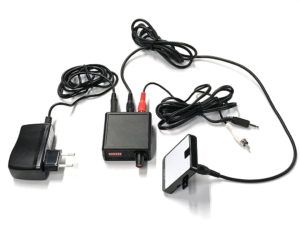
AV-Sync IDentifier Dit is het activeringspunt waarop bezoekers de Podcatcher kunnen richten.
AV-Sync box De AV-Sync box voorziet de AV-Sync IDentifier van de juiste signalen om naar de Podcatcher te zenden, zodat het juiste audiofragment op het juiste moment op de Podcatcher wordt afgespeeld.
5V-voedingsadapter (smalle connector) De voedingsadapter voorziet de AV-Sync installatie van stroom.
Audiokabel De audiokabel verbindt de mediaspeler (zie 1.3) met de AV-Sync box. De kabel heeft een 3,5 mm jack plug aan de ene kant en twee RCA-connectoren aan de andere kant.
RCA-kabel De RCA-kabel verbindt de AV-Sync box met de IDentifier.
1.3. Verdere vereisten
1.3.1. Standaard
Scherm of projector (niet inbegrepen) Een televisie of een ander type scherm, geschikt voor het weergeven van uw video.
Mediaspeler (niet inbegrepen) Een mediaspeler die geschikt is voor het afspelen van uw video. De mediaspeler heeft een 'audio out'-aansluiting nodig om verbinding te maken met de AV-Sync installatie. Indien gewenst moet hij de video in een loop kunnen afspelen. De mediaspeler speelt de video af op het scherm en/of de projector en stuurt het audiosignaal van de AV-Sync track naar de AV-Sync box. Guide-ID raadt aan een Brightsign mediaspeler te gebruiken.
Video-inhoud (niet inbegrepen) De originele video, gecombineerd met de AV-Sync track.
Audio-inhoud (niet inbegrepen) De originele audio van de af te spelen video, geconverteerd naar MP3-formaat. Aanbevolen encoderinstellingen: 64 kbps, mono, 48 kHz, -1dB piekniveau. Verschillende MP3 bitrates en stereo kunnen worden ondersteund.
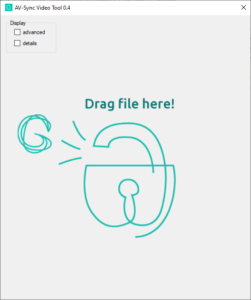
AV-Sync videogereedschap (downloadbaar) Om de audio- en video-inhoud voor te bereiden voor gebruik met AV-Sync kunt u het videotool AV-Sync gebruiken.
1.4. Overzicht van de AV-Sync box
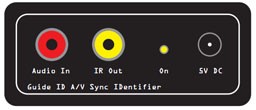
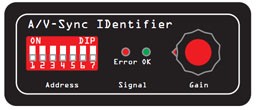
Achteraanzicht Vooraanzicht
Adres Deze DIP-schakelaars kunnen worden gebruikt om de IDentifiercode in te stellen die de AV-Sync box uitzendt.
Signal-LED (rood) De rode LED knippert wanneer een ongeldige AV-Sync-track wordt ontvangen van de mediaspeler. Als de LED continu brandt, wordt er helemaal geen signaal ontvangen.
Signal-LED (groen) De groene OK-LED knippert wanneer een geldige AV-Sync-track wordt ontvangen van de mediaspeler.
Gain draaiknop Met behulp van de draaibare versterkingsknop kan het inkomende signaal van de mediaspeler worden versterkt. Het signaal wordt versterkt door de knop naar rechts te draaien. Opmerking: Probeer de versterking zo laag mogelijk in te stellen (knop naar links gedraaid).
Audio in aansluiting De mediaspeler wordt aangesloten op de AV-Sync box op deze connector. Opmerking: Sluit altijd 1 van de twee RCA-stekker van de audiokabel aan (meestal de rode). Als er geen signaal binnenkomt kun je de witte connector aansluiten. Voor de AV-Sync box is alleen mono audio nodig.
IR-uitgang Deze connector wordt gebruikt om de meegeleverde AV-Sync IDentifier aan te sluiten, met behulp van de RCA-kabel.
ON-LED (geel) De gele LED brandt continu als de AV-Sync box van stroom wordt voorzien.
5V DC-connector (smalle stekker) De meegeleverde 5V voedingsadapter wordt aangesloten op de DC-connector om de AV-Sync box van stroom te voorzien.
2. 2. Installatie
2.1. Algemene functie van het apparaat
De mediaplayer speelt de video af op het scherm in de tentoonstelling. Tegelijkertijd stuurt hij de AV-Sync track naar de AV-Sync box. De box combineert het signaal met een unieke IDentifier code en stuurt het signaal via infrarood door met behulp van de AV-Sync IDentifier. Elke Podcatcher die het signaal ontvangt, vertaalt de IDentifier code naar het af te spelen audiofragment en vertaalt het AV-Sync signaal naar de offset in de tijd waar de video zich op dat moment bevindt. Op deze manier speelt hij de audio synchroon af met de video die op het scherm wordt afgespeeld.
Een enkel signaal volstaat voor de Podcatcher om de audio voor de hele video synchroon af te spelen. Het is niet nodig om de Podcatcher op de IDentifier te blijven richten.
Sleep (of open) je originele videobestand naar de AV-Sync Tool
3. Verwerk je video door de tool
Let op: De tool genereert twee bestanden in dezelfde map als je origineel:
Een videobestand met tijdcode (eindigt met "_video")
Een audiobestand voor het Platform (eindigt met "_audio")
Als zowel de mediaplayer als Podcatcher zijn ingesteld om de video automatisch opnieuw te starten, moet u in de meeste gevallen de audio verlengen. Schakel hiervoor het selectievakje Geavanceerd in en wijzig de waarde bij de ingang 'Uitbreiden' dienovereenkomstig.
Klik voor meer informatie over het gebruik van de tool op hier.
2.3. Configuratie in de Tour-editor op Platform
Dit deel van de installatie vereist de online Tour editor.
Log in op het Platform, ga naar Tours en kies de Tour waaraan je AV-Sync wilt toevoegen.
Maak een nieuwe Stop (of kies een bestaande) .
Vink het vakje "Audiovisual Sync Tour Stop" aan en klik op Volgende.
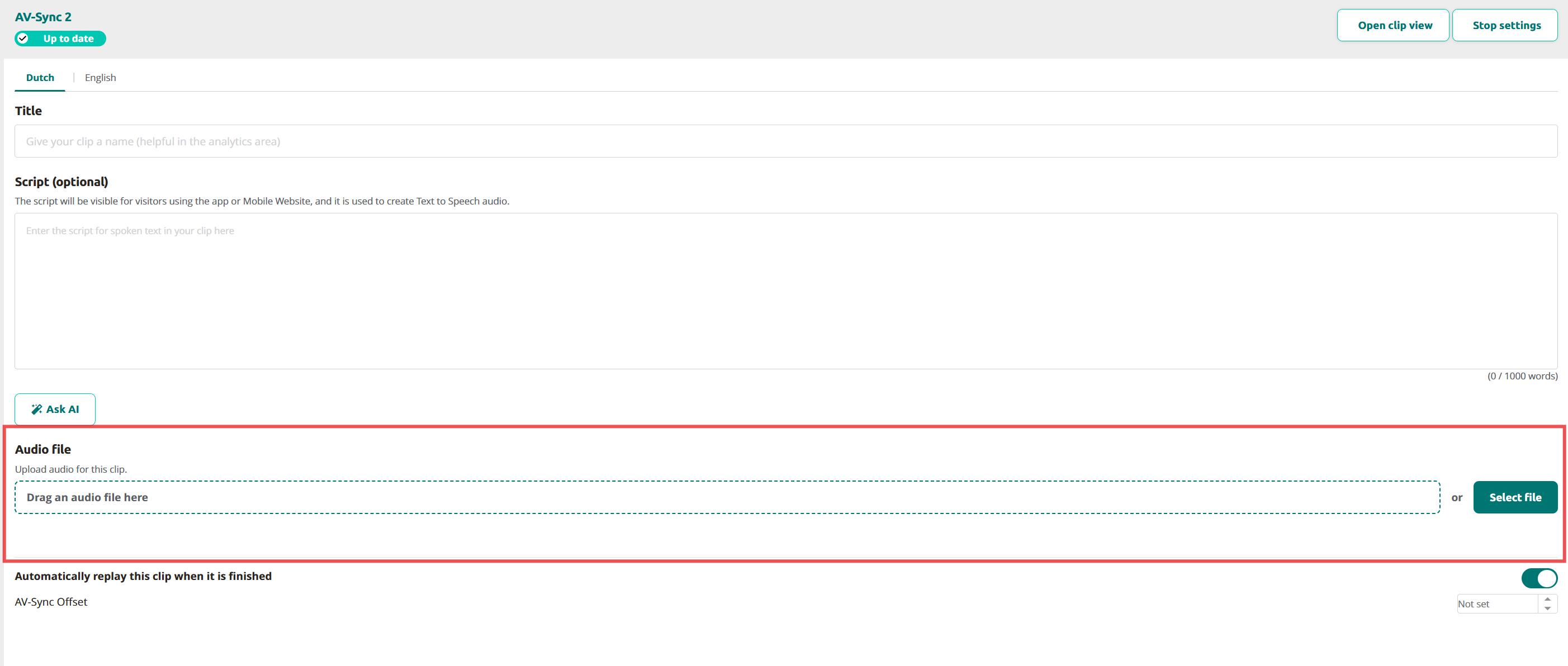
Upload het gegenereerde audiobestand.
Gebruik het audiobestand dat van de video is afgesplitst (zie 2.2). Tip voor meertalige musea: Upload voor extra talen aparte audiobestanden voor elke taal. Zorg ervoor dat alle audiobestanden dezelfde lengte hebben als het origineel.
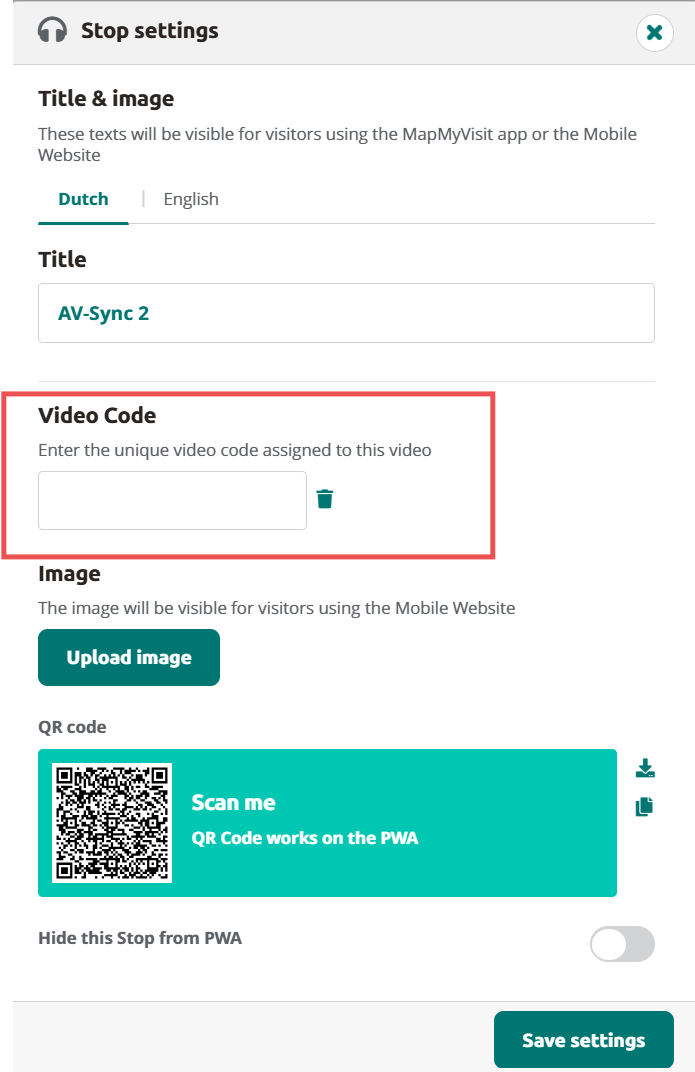
Configureer de Stop Trigger door een AV-Sync ID toe te voegen aan de Stop. Klik op Stop-instellingen om de IDentifier-code toevoegen evenals de videocode.
Voor gewone AV-Sync loopt de IDentifier-code van A0:01 tot A0:7F. Je kunt een code kiezen en de DIP-schakelaars op de AV-Sync IDentifier instellen (of omgekeerd).
Voor AV-Sync in flexibele modus varieert de IDentifier-code van A1:00 tot A1:FF. De exacte code hangt af van welk spoor de video uitstuurt naar de AV-Sync IDentifier. U kunt de code kiezen tijdens de voorbereiding van het mediabestand in de AV-Sync tool.
Verfijn indien nodig de Audio Video Sync Offset (zie afbeelding in 4.) Dit is normaal gesproken niet nodig, je kunt het op niet ingesteld laten staan. Door de offset aan te passen, kun je eventuele vertragingen in de videostream compenseren.
Publiceer de Tour en Sync zodat de Podcatcher de inhoud op zijn SD-kaart zal synchroniseren.
2.4. Installeren van de AV-Sync set
Sluit de mediaspeler aan op het scherm of de projector. Dit gebeurt meestal met een HDMI-kabel. Volg de instructies die bij de mediaspeler zijn geleverd.
Sluit de AV-Sync box aan.
Sluit de 3,5 mm audio-aansluiting van de meegeleverde audiokabel aan op de 'audio-out'-aansluiting van de mediaspeler;
Sluit de rode RCA-connector aan het andere uiteinde (het juiste audiokanaal) aan op de AUDIO IN-connector van de AV-Sync-box. Let op:: Wilt u audio op het scherm afspelen (niet alleen op de Podcatcher)? Sluit dan de witte RCA-connector van de audiokabel aan op het scherm of de versterker. Let op:: Verleng de audiokabel niet tussen de mediaspeler en de AV-Sync box. Dit zal leiden tot signaalverval en kan ertoe leiden dat de AV-Sync box het signaal niet kan decoderen. De RCA kabel van de AV-Sync box naar de AV-Sync IDentifier kan en mag wel langer zijn dan de meegeleverde kabel en kan verlengt worden tot max 15 meter.
Configureer de IDentifier code op de AV-Sync box. De AV-Sync box kan een vaste IDentifier code toegewezen krijgen (normale modus), of kan geconfigureerd worden om de IDentifier code van de afgespeelde video door te geven (flexibele modus). De DIP-schakelaars worden gebruikt om zowel de modus als het vaste adres te configureren (indien van toepassing).
Voor gewone AV-Sync verplaats je de ADDRESS-pennen naar de binaire oriëntatie die overeenkomt met de laatste drie cijfers van de code die in de TourEditor is toegewezen. Bijvoorbeeld, als de code A0:01 is, wordt de meest linkse ADDRESS-pin verplaatst naar de bovenste positie, alle andere zijn laag. Als de code A0:02 is, is de tweede pin van links de enige pin in de bovenste positie. (zie ook het overzicht bij punt 7 hierboven)
Bij gebruik van AV-Sync in de flexibele modus zet u alle ADDRESS-pennen in de bovenste stand. De AV-Sync box verwacht nu de IDentifier code te ontvangen van de in de video gecodeerde AV-Sync track. Dit maakt het mogelijk om verschillende video's af te spelen op een enkele AV-Sync box (waarbij elke video een andere AV-Sync track bevat).
Na de configuratie van de AV-Sync box IDentifier code moet het apparaat opnieuw worden opgestart door de stroom kortstondig te onderbreken en opnieuw aan te sluiten.
Sluit de AV-Sync IDentifier met de bijgeleverde RCA aan op de IR OUT-connector van de AV-Sync box. De RCA kan indien nodig worden uitgebreid.
Sluit de voedingsadapter aan op de 5V DC-connector van de AV-Sync box en steek deze in het stopcontact (100-240V AC / 50-60Hz).
Plaats de AV-Sync IDentifier dicht bij het scherm waarop de video wordt weergegeven, zodat het intuïtief is voor de bezoekers om deze te gebruiken. Zorg ervoor dat de aansluitkabel en de AV-Sync box correct zijn geïnstalleerd buiten het zicht, maar nog steeds bereikbaar zijn.
Test de video.
Start de video op de mediaplayer en controleer of deze goed wordt weergegeven op het scherm.
Controleer het volume van de mediaplayer om deze niet te dempen en niet te stil te zetten.
Draai de knop GAIN op de AV-Sync box helemaal naar beneden (tegen de klok in). Draai hem vervolgens langzaam omhoog (met de klok mee), totdat het groene lampje begint te knipperen.
Test de audio.
Richt een geactiveerde Podcatcher op de IDentifier. Wacht op de 'piep' die de activering aangeeft en luister naar de Podcatcher om te bevestigen dat het geluid van de video wordt afgespeeld.
Als de Podcatcher de clip niet wil afspelen, controleer dan of het groene LED-lampje op de AV-Sync box regelmatig knippert. Zo niet, probeer dan de rode en met RCA-stekkers van de audiokabel die op de AV-Sync box is aangesloten te verwisselen en test opnieuw. Als het probleem aanhoudt, bevestig dan de IDentifier code en de synchronisatietoestand in de TourEditor.
3. Gebruik
De bezoeker kan de AV-Sync eenvoudigweg gebruiken door de Podcatcher op de AV-Sync IDentifier te richten, net als elke andere IDentifier. Hij of zij hoort de audio gesynchroniseerd met de spelende video en in hun eigen taal, ongeacht hoe ver het afspelen van de video is gevorderd.
4. Fijnafstelling
4.1. Correctie van de offset
Onze AV-Sync-oplossing speelt audio op de Podcatcher lipsynchroon met de video af, als de originele audio in dezelfde opstelling synchroon zou spelen (d.w.z. in plaats van de AV-Sync-track speelt de originele audio).
In sommige gevallen is dit niet het geval, met name wanneer de videostream vertraagd wordt in bijvoorbeeld een 4K televisiescherm, maar de audiostream rechtstreeks van de mediaspeler wordt gehaald. Het is aan te raden om dit soort opstellingen te vermijden door de audio output van het televisiescherm te gebruiken. Als dit niet mogelijk is, bijvoorbeeld omdat het niet de juiste verbinding heeft, kunt u de vertraging oplossen in de tour-editor.
Offsetcorrectie bestaat uit twee stappen:
Meet het tijdsverschil tussen audio en video voor de clip opnieuw start. U kunt het handmatig meten, of gebruik AV–Synchronisatietestmodus.
Pas de A/V Sync Offset aan in de tour editor door op de knop omhoog of omlaag te klikken.
5. 5. Probleemoplossing
5.1. Mocht de AV-Sync IDentifier niet goed werken, controleer dan eerst het volgende:
Is de audiokabel goed aangesloten op de AV-Sync box en de mediaspeler?
Is de RCA-kabel goed aangesloten op de AV-Sync box en de IDentifier?
Zijn de voedingsadapters goed aangesloten op een stopcontact aan de ene kant en de AV-Sync box en mediaspeler aan de andere kant?
Wordt er op de afgespeelde video een AV-Sync track afgespeeld op het rechterhand audiokanaal?
Is de AV-Sync IDentifier code goed ingesteld op zowel de AV-Sync box als de TourEditor?
Heeft u de Podcatcher met een Start IDentifier geactiveerd?
Is de Podcatcher gesynchroniseerd met de juiste inhoud?
Als dat uw probleem niet heeft opgelost, start u de AV-Sync box opnieuw op door de 5V voedingsadapter los te koppelen en deze na ongeveer een halve minuut weer aan te sluiten. Soms helpt het ook om de mediaspeler opnieuw op te starten.
5.2. Als de AV-Sync IDentifier nog steeds een woedeaanval heeft, controleer dan het volgende:
De gele LED brandt niet
De 5V-stroomadapter is niet aangesloten op een goed stopcontact, of
De kabel is niet goed aangesloten op de AV-Sync box, of
De adapter is kapot.
Zoek een werkend stopcontact of vervang de 5V-voedingsadapter.
De groene LED knippert, maar de Podcatcher reageert niet...
Is de RCA-kabel goed aangesloten op de IDentifier? U kunt proberen de connectoren een beetje aan te knijpen om beter contact te maken.
Is de Podcatcher geactiveerd met een Start IDentifier? Zo niet, probeer het dan te activeren en probeer het opnieuw. U kunt ook testen met een andere Podcatcher om dit te verifiëren.
Is de Podcatcher gesynchroniseerd met de juiste inhoud? Probeer het handmatig te synchroniseren en probeer het opnieuw.
De rode LED knippert
De AV-Sync box ontvangt een signaal, maar niet de juiste tijdcode. Verlaag het volume van de mediaspeler met 20%. Start de AV-Sync box opnieuw op door de stekker van de voedingsadapter uit het stopcontact te halen en deze weer aan te sluiten. Sluit de audiokabel opnieuw aan tussen de mediaspeler en de AV-Sync box. Draai aan de versterkingsknop tot het groene lampje begint te branden. Test de audio-uitvoer van de mediaspeler met een koptelefoon of luidsprekers om te controleren of u het AV-Sync track kunt horen (piepgeluiden met regelmatige tussenpozen). Als u de piepjes niet hoort, is de AV-Sync track niet toegevoegd aan de video of wordt de audio-uitvoer niet geselecteerd op de speler. Als alternatief is het audiotrack toegevoegd aan het linkerkanaal, in dat geval kunt u de witte en rode RCA-stekkers verwisselen.
De audio wordt afgespeeld, maar altijd vanaf het begin van de video
Zorg ervoor dat de Stop in AV-Sync modus staat in de TourEditor, publiceer, synchroniseer en probeer het opnieuw.
5.3. Probeer de probleemoplosser
Als er een probleem is, kunt u ook nog onze AV-Sync troubleshooter proberen (alleen beschikbaar in Engels):


 Tours
Tours












 Nederlands
  English
  Français