To synchronize content and usage data of the Podcatchers, a PC needs to be set up as a Sync Console near/at the handout desk which is connected to the Dockingstations and Internet. We will provide this PC to you, but if you need an extra Sync Console installed (for instance in the office or at a partner) you can install our synchronization software on a regular PC. Below you find the specifications a Sync Console must meet to work properly.
Specifications
The computer that will be set up as Sync Console must meet (or exceed) the following specifications:
Any new PC you find in a store is more than likely good enough.
Operating System: Windows 10 (32- or 64-bit), Windows 11 (32 or 64 bit).
We recommend buying a (mini)computer or laptop that still has USB 2 connections to connect the USB HUBs or Docking Stations to, we have seen problems with USB 3 connectors (usually USB 2 connectors in a computer are black and USB 3 ones are blue).
Do not connect more than 20 Docking Stations (or 200 Podcatchers) to a single sync PC.
When using USB hubs, connect the Docks only to the hubs, and the hubs only to the computer. Don’t plug hubs into other hubs, as we’ve experienced a lot of trouble with this in the past. If you decide to do this regardless, please mention this whenever you contact us for support on sync issues.
The PC needs to have an ethernet (wired) connection, only wifi is insufficient.
Internal memory (RAM): At least 512 MB.
Storage space (hard drive): At least 1 GB. It is strongly recommended to take a much larger margin in the amount of free space; preferably upwards of 100GB to allow Windows to continue installing updates for a long while.
USB connection: At least 1 free USB 1.1 port; typically you will have 10 Docks plugged into a USB hub, so the actual amount depends on how many Docking stations you have for a given Sync Console. Remember to limit the total number of docks connected to a single computer to 30.
The PC needs to be updated (automatically) with the latest Windows updates (using Windows Update).
The PC needs to be switched on 24 hours a day/7 days a week.
The PC needs to be connected to the Internet 24 hours a day/7 days a week.
The PC and connected Dockingstations need to be connected to the power 24 hours a day/7 days a week.
You need to have ‘Administrator’ privileges for the synchronization software to install.
Important for the IT Department; the Sync Console needs to be able to connect to our server via the website apps.podcatcher.eu on Port 80.
Note: The Podcatcher Sync software does not directly support connections to the Internet through a proxy server! There is a workaround for this, see the advanced setup page for more information.
Note: The Podcatcher Sync program does not run under Linux or MacOS.
Note: Never (!) use USB extension cords, only our provided USB cables (about 1.80m/6ft in length). If you need more length, place the sync computer closer or move the docks, you cannot extend the USB cables without running into serious sync issues that are very hard to diagnose and unsolvable for helpdesk.
To synchronize content and usage data of the Podcatchers, a PC needs to be setup as a Sync Console near/at the handout desk which is connected to the Dockingstations and Internet. We will provide this PC to you, but if you need an extra Sync Console installed (for instance in the office or at a partner) or if you have to re-install your own PC, you can set up an a regular PC following the steps below. Note: any computer used as a Sync Console must meet these specifications.
Installation
Before a computer can sync Podcatchers, it will need some software so it ‘knows’ how to work with the Guide ID servers and devices. There’s TeamViewer (1) that lets you (and us) connect to the computer remotely (should it be necessary) and the Sync desktop application (2). Afterwards, you’ll need to associate the desktop app’s serial number with your Site (3) so the computer can synchronize your content.
Attention: if you have not yet received the Docking Stations, you can start the installation steps but you will not be able to complete step 3 because the activation code is not shown and/or the Sync program will say that the Sync service is not running. This is due to a limitation of the Windows driver model. Once you have connected the Docking station(s) and reboot the computer, the activation code will be displayed.
1. Guide-ID TeamViewer
In order for us to be able to help you remotely, you have the option of installing the TeamViewer Host program. Guide-ID can use this program to help you, if there are any problems during the installation of the synchronisation program or at any other point down the line. Installing this program is optional, but we recommend it.
Note; We always recommend to connect the Sycconsole onto your ‘guest network’ so your internal network is protected at all times. Your system administrator will be able to do this for you as it’s their responsibility.
Find the file in your downloads folder, right-click on it and choose Run as Administrator. Contact your computer/network administrator to obtain these rights if you don’t have them.
On the first screen click ‘Next’ .
You will be asked how you would like to use the program, choose business/commercial and click ‘Next’.
The license agreement will be shown, accept the agreement and click ‘Next’.
You will be asked to choose a password, use the word Podcatcher and fill in a computer name, for example the name of your organization. If you have multiple Sync Consoles, we recommend naming them something descriptive like “Front desk” or “Podcatcher hand-out temporary tour” along with the name. You don’t have to tick the box for ‘add this computer to my list of computers’. Click ‘Next’.
Click ‘Finish’ to complete the installation.
After installation a screen with Your ID will be shown. Send an email to helpdesk@guideid.com with this number and a description of your computer (where it’s located for example).
2. Installation of the Podcatcher Sync application (Sync Console 2.x)
The Sync Console 2.x application is a Windows service that allows Podcatcher V3 hardware to sync with the PP4 Platform. It replaces the legacy Podcatcher Sync service.
The new service can be installed on Windows 10 or 11. If the legacy Podcatcher Sync is already installed, it will be automatically replaced.
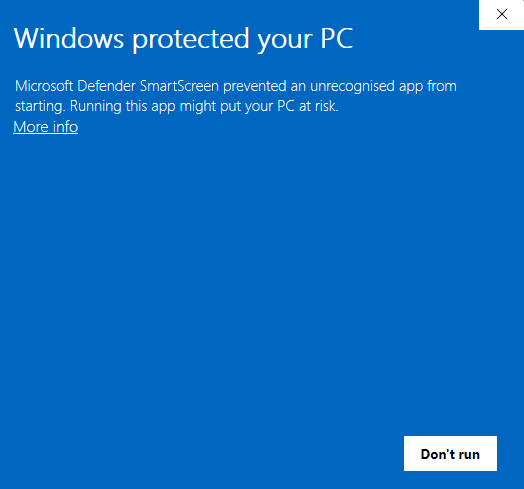
Download the msi installer from GuideID.SyncSetup and run it. Depending on your security configuration, a message similar to this may appear:
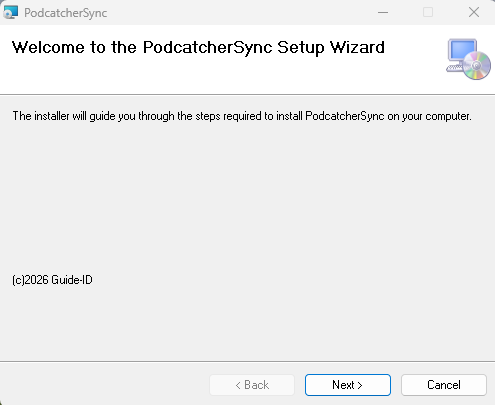
If the “Run anyway” button is already visible, click it. Else you need to click “More info” first and then click “Run anyway”. You will be greeted by the following screen:
Click “Next” to continue.
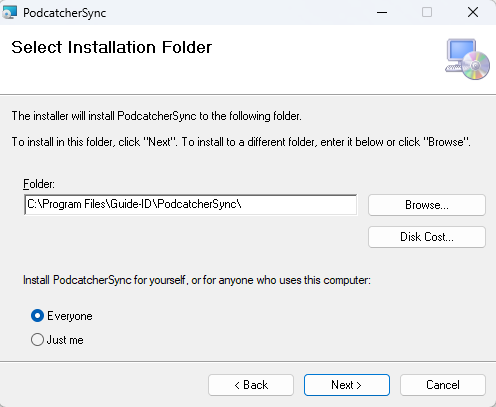
Select where to install the application. It is recommended to accept the default location. (Note: the contents of all Podcatcher audio tours will be stored here as well, so make sure there is enough space available.)
Make sure to select “Everyone” and click “Next”:
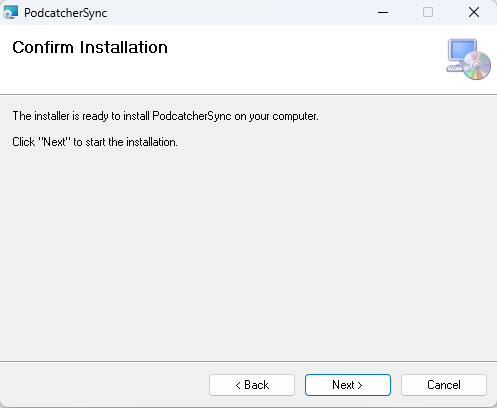
Click “Next”:
Click “Next”:
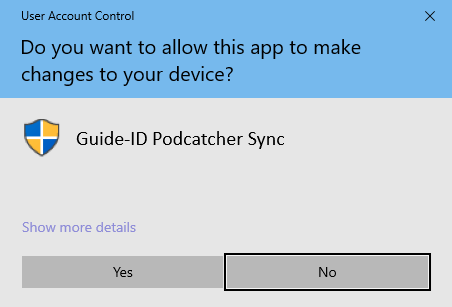
A warning similar to the one above may appear asking permission to make changes to your device. Click “Yes” or “Allow” or something equivalent to continue installation.
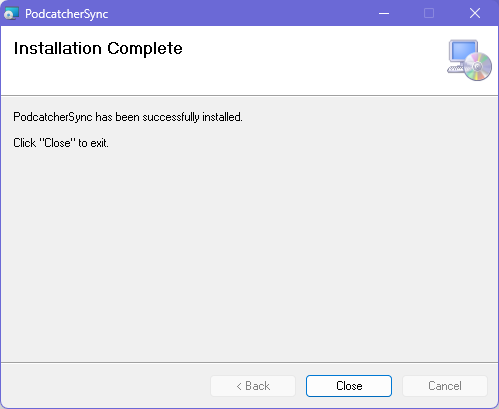
After the application has been installed, click Close.
Identifying the Serial Number and Authentication Key
If the Sync Console still needs to be registered in the Podcatcher Platform, you need to provide a serial number and authentication key.
This information can be retrieved by running the following command from an elevated command prompt (run cmd as administrator):
GuideID.PodcatcherV3Sync.exe -cmd info
The following information appears.
Guide-ID Podcatcher Sync Service version: 2.1.0.0 Sync Console Serial number: scXXXXXXXXXX Authentication key: XXXXX-XXXXX-XXXXX-XXXXX-XXXXX
Take note of the Sync Console Serial number and the Authentication key and enter them in the Platform when registering your Sync Console.
3. Register your Sync Console
Go to the Podcatcher Platform and log in using your Podcatcher Platform account.
Click ‘Hardware →Sync‘ on the left-hand side of the page.
Click the [ + Add new Sync Device ] button to register a Sync Console and to link it to your site.
A popup window should appear with the following input fields:
First, select the SyncConsole option and click Next.
Sync Console Serial Number and Authentication Key, this is where you fill in the serial number and authentication key that you copied/wrote down from the previous step.
Sync Console Daily sync time, this is where you select a time when all Podcatchers should be present in the Sync Console, usually after opening hours.
Sync Console Description, this is where you fill in a name for the Sync Console, for example, ‘Distribution point main desk’.
Add the Sync Console by clicking [ Finish ] button. The list of Sync Consoles should update and the new one appears.
If you have multiple locations where Podcatchers need to be provided with content, you can redo the steps mentioned here above at any location with any computer that complies to the Sync Console specifications. Every installation will have its own unique activation code that you can use to activate the location and to be able to see it in the online Sync App.
Actionable Insights transforms your Podcatcher Pro system data into timely recommendations that help you prevent disruptions and optimize visitor experiences. This intelligent notification system keeps you informed about hardware status and tour performance, allowing you to address potential issues before they affect your guests.
Quick Reference
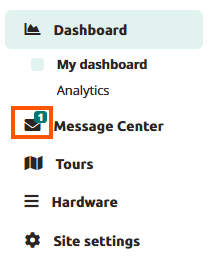
Access Message Center: Dashboard → Message Center icon
Email configuration: Profile → Email Preferences
Notification Levels: Minor, Moderate, Severe (prioritized by urgency)
Primary Features: Hardware monitoring, tour performance insights, email alerts
How Actionable Insights Works
The Actionable Insights system continuously monitors your Podcatcher Pro environment, analyzing both hardware status and visitor interactions to identify opportunities for improvement. When the system detects an issue or optimization opportunity, it generates a notification with a clear recommendation for action.
Notification System
Actionable Insights categorizes notifications by priority to help you focus on what matters most:
Minor Notifications (Informative)
Informational updates that don’t require immediate action
Examples: system updates available, infrequently used tour stops
Useful for long-term planning and optimization
Moderate Notifications (Requires Attention)
Issues that should be addressed to maintain optimal performance
Examples: offline basecamps, Podcatchers in error state
Essential for preventing disruption to visitor experiences
Using the Message Center
The Message Center serves as your central hub for all notifications, providing clear information about each issue and recommended solutions.
Accessing the Message Center
Log in to the Guide-ID platform
Look for the Message Center header in the top left bar
Click to open your notification dashboard
Understanding Message Center Alerts
Each notification in the Message Center includes:
Alert icon indicating the priority level
Clear description of the detected issue
Actionable recommendation to resolve the problem
Timestamp showing when the issue was detected
For example, a typical notification might alert you that “IDentifier with serial number BP.000.433 is low on battery” and recommend that you “Please replace or recharge the battery to keep using this IDentifier.”
Note: For a complete reference of all possible notifications and recommended actions, see [Notification Types and Recommendations].
Managing Your Notifications
The Message Center allows you to:
Review all active notifications in one convenient location
Dismiss notifications once you’ve addressed them
Track resolution status as the system automatically removes fixed issues
Accessibility Consideration The Message Center is designed to present critical information at a glance, making it valuable for busy museum environments, where staff may only have moments between visitor interactions to check system status.
Email Notification System
To ensure you never miss important alerts, Actionable Insights extends beyond the platform with strategic email notifications.
Email Alert Types
Weekly Summary Emails
Comprehensive overview of all pending notifications
Prioritized by urgency level
Provides a convenient way to stay informed even when not logged into the platform
Urgent Alert Emails
Sent when critical issues require immediate attention
Focus specifically on severe notifications
Customizing Email Preferences
You can tailor your notification experience to match your museum’s needs:
Navigate to Profile -> Email preferences in the Guide-ID platform
Select Notification Preferences
Choose which E-mail types you’d like to be sent.
Save your settings
Key Monitoring Capabilities
Actionable Insights monitors two primary aspects of your museum experience:
1. Hardware Health Monitoring
The system proactively tracks the status of your Guide-ID hardware, including:
IDentifier Battery Levels
Alerts when batteries reach low thresholds
Helps prevent audio tour disruptions in specific exhibit areas
Enables planned maintenance rather than emergency responses
Podcatcher Device Status
Identifies missing devices to maintain inventory
Detects Podcatchers in error states
Monitors Sync Device connectivity
2. Tour Performance Analysis
Beyond hardware, Actionable Insights helps optimize the content experience with:
Usage Pattern Analysis
Identifies underutilized or highly popular tour stops
Helps you understand visitor engagement patterns
Provides insights for content improvements
Troubleshooting Actionable Insights
If you encounter issues with the Actionable Insights system, try these simple solutions:
Issue
Solution
Not receiving email notifications
Check your spam folder and verify your email address is correct in User Settings
Missing expected notifications
Confirm your notification preferences are properly configured, and that you have not dismissed the message
Dismissed notification reappears
The underlying issue may not be fully resolved
Warning If you dismiss multiple IDentifier battery warnings without replacing batteries, you risk unexpected audio tour disruptions for your visitors. Always follow recommended actions when possible.
Success Indicators
You’ll know you’re effectively using Actionable Insights when:
Preventable hardware issues decrease across your museum
Staff can address potential problems before they impact visitors
Your battery replacement process becomes proactive rather than reactive
Missing Podcatcher incidents decline
For additional assistance with Actionable Insights, contact Guide-ID support through the platform’s Help Center or email Helpdesk@guide-id.com.
Download your tour metrics as CSV files for external processing and deeper insights
The Export feature lets you download comprehensive tour analytics data for custom analysis in your preferred tools. Follow these simple steps to access your valuable visitor engagement metrics.
Quick Reference
Navigate to Analytics → Export in the main menu
Set your desired date range using the From/To date selectors
Click the “Export” button to generate your data file
Download the CSV file when processing is complete
Files are named automatically with your site name and date range
Use it in your data platform
Accessing the Export Function
Log in to the Guide-ID platform
Select “Analytics” from the left navigation menu
Click the “Export” tab in the top menu bar
Setting Export Parameters
Use the date filters in the right sidebar:
Click “From date” to select your starting date
Click “To date” to select your ending date
Generating Your Export
Click the blue “Export” button
Wait briefly while the processing indicator shows your file is being prepared
When complete, the file will automatically download to your device
Files are named “SiteName-Analytics-YYYYMMDD-YYYYMMDD.csv”
Understanding Your Data
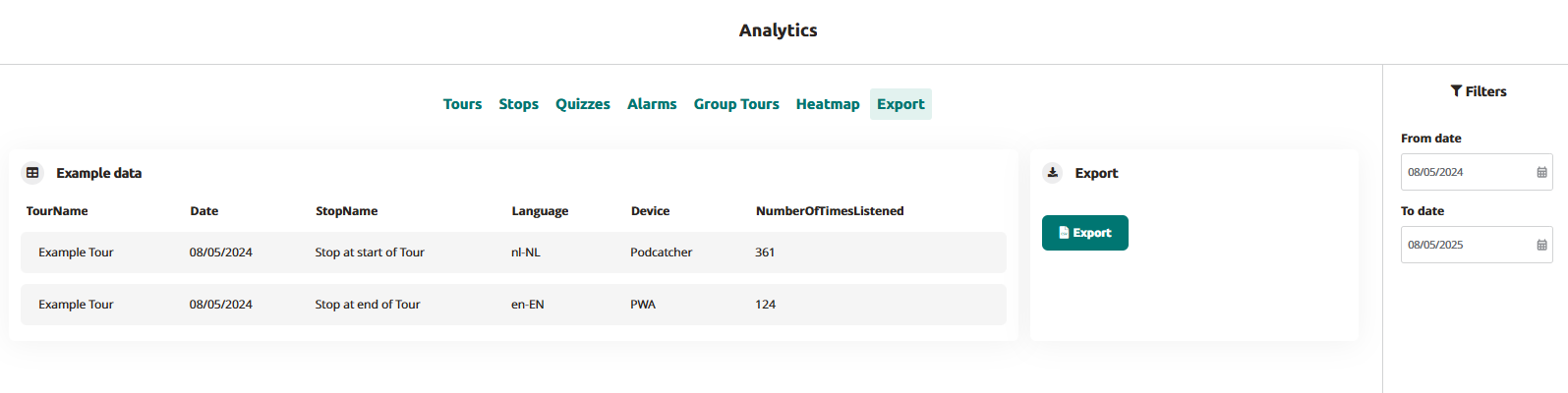
Your exported CSV file will contain the following data columns:
TourName: The name of the tour as configured in the platform
Date: The date when the visitor interaction occurred (YYYY-MM-DD format)
StopName: The specific audio stop or IDentifier point
Language: The language code selected by the visitor (e.g., en-EN, nl-NL)
Device: The playback device type (Podcatcher or PWA for web app)
NumberOfTimesListened: Total play count for each stop
Troubleshooting Export Issues
Issue
Solution
CSV file shows incorrect formatting
Open in a dedicated spreadsheet program rather than a text editor
Missing data for specific tours
Check that the tours were active during your selected date range
By exporting your Guide-ID analytics data, you gain the flexibility to perform deeper analysis beyond the platform’s built-in visualizations. This direct access to your visitor engagement metrics empowers data-driven decisions about content development, tour optimization, and resource allocation.
When you and your visitors use the tours you have created on the Guide-ID Platform, the system automatically collects analytics data.
These metrics are invaluable for evaluating the performance of your tours, stops, and clips, as well as analyzing user engagement with quizzes and surveys.
Finding the analytics page
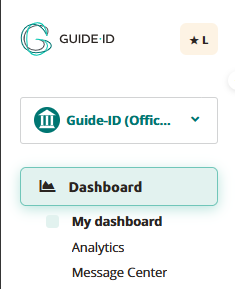
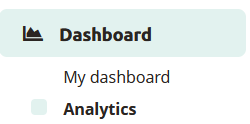
Upon logging in to the Guide-ID Platform, you will land on the Dashboard. To navigate to the Analytics page, simply locate it in the sidebar below the Dashboard section.
Tours
Within the tours tab, you will find a collection of informative graphs that provide key details about your tours. These include the number of tours played, the total number of stories shared, the duration of each tour, and the average number of stops visited per tour.
Stops
The stops tab offers valuable insights into the most and least played stops, as well as the triggers that prompted their playback. Popular stops typically indicate visitor preferences, while less frequented stops may be situated in less accessible areas or encountered when visitors are fatigued from the tour through the museum.
Clips
This section provides information on the chosen options and how they compare to alternative choices, offering valuable insights into visitor preferences.
Alarms
In the alarms tab, you can monitor the frequency at which alarms were triggered and identify the most commonly activated alarm (if multiple alarms are set up).
Group tours
This is subscription based for Podcatcher Pro clients. For questions please contact our Helpdesk or one of our Business Managers
Heatmap
This section provides information about visitor counts and percentages for the selected tour stops. You can select a month and year and then choose a specific tour.
The stops for the selected tour are displayed in a table, organized by day.
The table shows listening rates as percentages. To switch between percentage values and visitor counts, click the Toggle Visitor Count/Percentage button.
The color of the table cells varies based on the listening percentages
Export
From the Export tab, you can download analytics data about stops yourself, to be used to create your own displays or to combine with data from other analytics platforms you use for your museum. See our Exporting Analytics Data for more information.
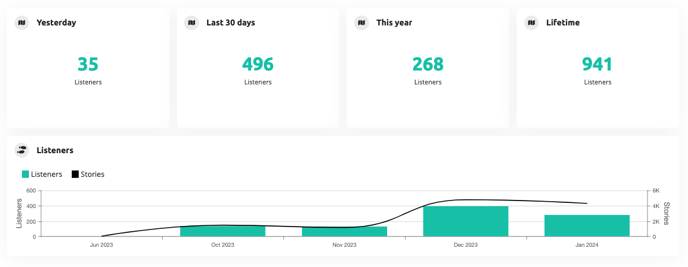
Your dashboard provides a snapshot of the performance metrics related to your audio tours. It helps you evaluate how well they are doing and plan for future improvements.
Tour data
The tour data section shows you how many visitors your site has served with audio tours in the past day, thirty days, this year, and the total number of tours.
Tours played
The tours played graph offers a detailed breakdown of the number of tours served throughout the past year. This information is further segmented based on the platform used, allowing you to analyze tour consumption across different channels such as the Podcatcher and PWA.
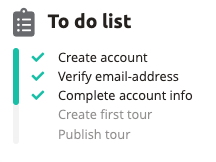
To do list
Lastly, the to-do list feature guides you through the necessary steps to ensure your audio tours are ready for your visitors. This convenient checklist helps you stay organized and ensures a seamless experience for your audience.
Your other Podcatchers should continue working normally
Why this happens
The Podcatcher has experienced a hardware failure and needs to be replaced.
IDentifer Battery Low
🟡 Medium Priority
What this means
An IDentifier’s battery has dropped below one-third capacity. You still have several weeks to months of battery life remaining.
What to do
Replace the batteries of the IDentifier or replace the IDentifier with an other IDentifier.
Why this happens
Battery levels update when a Podcatcher scans the IDentifier and syncs with a Sync Device.
Podcatcher Not Seen for a Week
🟢 Low Priority
What this means
We haven’t detected this Podcatcher in over a week, but less than a month.
What to do
If you have the Podcatcher, place it back in a Basecamp
If you’ve already returned it, we may still be processing it – the notification will clear automatically
The notification will stop after 30 days
Why this happens
The Podcatcher may have been left out, used for testing, or returned but not yet processed in our system. For more information, see our Missing Podcatchers FAQ.
The Message Center will show all kinds of notifications regarding “actionable insights”. This usually means the museum needs to take actions to fix something.
The color bar on the left indicates the severity of the notification:
🟢 Green
Low severity : informational, no action required or at least not immediate
🟠 Orange
Medium severity : action required, however not immediate
🔴 Red
High severity : immediate action required
The meaning of the severity may be subject to change as soon as we have actual notifications with different severities.
The icon indicates the type of notification
The message text informs you about what is going on and in some cases what needs to be done to resolve the issue.
The date is when the notification was created. The date is bold when the message is unread.
The X allows you to dismiss this notificatoin. You won’t receive any email reminders on this message (if you are subscribed to weekly notifications). After pressing X, the message will disappear from the overview.
The messagelist is seperated into two lists divided by a line seperator (see below) when there are unread messages since the last visit to Message Center. The first list contains the new (unread) messages since the last time this page was loaded. The second list contains the messages which are read. Messages get automatically marked as read when the Message Center page is loaded. So the next time you come to the Message Center page, all these messages are marked as read.
The Platform checks for new notifications every 15 minutes. If a new notification is available, the number displayed on the message center icon is updated accordingly.
Supported notifications
IDentifier Battery Low When a low battery is detected on an IDentifier this notifications will show up per IDentifier.
IDentifier Battery will need to be replaced.
When the IDentifier is deleted from the Hardware IDentifiers page, the notification will be removed.
Podcatcher Error When the Podcatcher is in error status, this notification will show up per Podcatcher. These Podcatchers will need to be returned.You can reach out the repairs or returning equipment page.
If the Podcatcher moved to a new Sync Device, the old notification will be removed. The new notification with the correct serial number will be created. When the Podcatcher is healthy again, this notification will be removed.
If you click on ‘Basecamp‘ and there is information about the latest docked Basecamp for Podcatcher, they will be navigated to the Basecamp detail page. If ther is no such information available, they will be directed to the Basecamp overview page instead.
Sync Device Offline
When a Sync Device has been offline for more than one day, this notification will show up per Sync Device. Power and network connection should be checked first. When the Sync Device is online again, this notification will be removed.
If you click on ‘Sync overview page‘, you will be navigated to the Sync Device overview page. This notification takes SyncDevice type into account, text message change for each SyncDevice type (SyncConsole, Syncbox).
Lost Podcatcher If the Podcatchers that have a last seen of over a week ago, this notification of total number of Podcatchers will show up per site.
If there is an Warning IDentifier, it needs to be checked.
Lost Podcatchers checked Periodically. When a previously lost Podcatcher is seen again, it is removed from the lost count.
When the audio tour isn’t working, there are a few things you should check.
Podcatchers
If a Podcatcher isn’t working as it should, we recommend reading this article instead. Most misbehaving Podcatchers can be brought back in line by synchronizing them.
IDentifiers
If a Podcatcher seems to not respond to one or more IDentifiers, there’s a few things you can try. First you have to make sure if you hear a beep when pointing the Podcatcher at an IDentifier.
The Podcatcher beeps when pointed at the IDentifier, and either plays the “Invalid IDentifier Stop” content or no content at all.
Make sure you activate a tour by pointing at a Start IDentifier before testing an Object IDentifier. And make sure the Stop you’re testing with is linked to the correct Tour. Read more about Start IDentifiers here.
Check if the content is published and synced.
Check if the code written on the back of the IDentifier matches the one linked in the TourEditor.
Check if the Stop has audio content.
Publish any unpublished changes in the Tour.
Sync the content onto the Podcatchers again to be sure.
If that doesn’t work, it’s possible (though rare) that the code the IDentifier sends out is different from what’s printed on the sticker. You can check this by using the Podcatcher to read the code to you. Here you can read how to do that.
The Podcatcher does not beep when pointed at the IDentifier.
This is usually a sign that the battery in the IDentifier is empty. Try with a few different Podcatchers to confirm that this might be happening (and isn’t just the Podcatcher’s fault), then replace the battery. If that doesn’t work, the IDentifier can be sent for repairs.
We hope to be helpful enough with this Knowledge Base, but it’s entirely possible you have a question that isn’t listed anywhere. Should that happen, contact us. We’ll be glad to help you get back up and running with the system.
Using AV-Sync, you can play audio on the Podcatcher synchronized to a video playing on a screen. This way multiple visitors can simultaneously watch the video on the screen and listen to the audio (in their own language) on the Podcatcher. There is no limitation to the number of visitors watching the video.
1.2. Package contents
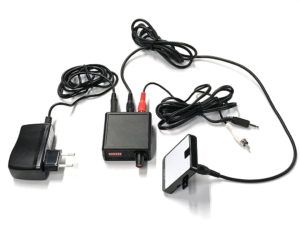
AV-Sync IDentifier This is the point of activation used for visitors to aim the Podcatcher at.
AV-Sync box The AV-Sync box provides the AV-Sync IDentifier with the proper signals to transmit to the Podcatcher, such that the correct audio fragment is played on the Podcatcher at the right time.
5V-power adapter (narrow connector) The power adapter provides the AV-Sync setup with power.
Audio cable The audio cable connects the media player (refer to 1.3) to the AV-Sync box. The cable has a 3.5mm jack plug on one end and two RCA connectors on the other.
RCA cable The RCA cable connects the AV-Sync box with the IDentifier.
1.3. Further requirements
1.3.1. Standard
Screen or projector (not included) A television or other type of screen, suitable of displaying your video.
Media player (not included) A media player suitable for playing your video. The media player requires an ‘audio out’ connector to connect to the AV-Sync setup. If desired, it must be able to play the video in a loop. The media player plays the video on the screen and/or projector, and sends the audio signal from the AV-Sync track to the AV-Sync box. Guide-ID recommends using a Brightsign media player.
Video content (not included) The original video, combined with the AV-Sync track.
Audio content (not included) The original audio track of the video to play, converted to MP3 format. Recommended encoder settings: 64 kbps, mono, 48 kHz, -1dB peak level. Different MP3 bitrates as well as stereo can be supported.
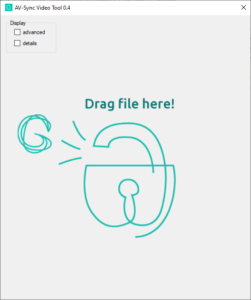
AV-Sync video tool (downloadable) To prepare the audio and video content to use with AV-Sync you can use the AV-Sync video tool.
1.4. Overview of the AV-Sync box
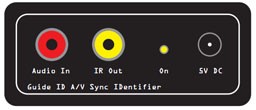
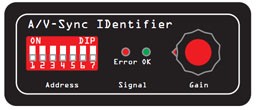
Rear view Front view
Address These DIP-switches can be used to set the IDentifier code that the AV-Sync Box transmits.
Error LED (red) The red LED blinks when an invalid AV-Sync track is received from the media player. If the LED lights up continuously, no signal is being received at all.
OK LED (green) The green OK LED blinks when a valid AV-Sync track is received from the media player.
Gain knob Using the turnable Gain knob, the incoming signal from the media player can be amplified. The signal is amplified by turning the knob to the right. Note: Try setting the gain as low as possible (knob turned to the left).
Audio In connector The media player connects to the AV-Sync box on this connector. Note: Connect the red RCA plug of the audio cable. The white connector can be left unconnected. The AV-Sync box requires only mono audio.
IR Out connector This connector is used to connect the supplied AV-Sync Identifier, using the RCA cable.
ON LED (yellow) The yellow LED lights up continuously if the AV-Sync box is powered.
5V DC connector (narrow plug) The supplied 5V power adapter connects to the DC connector to power the AV-Sync box.
2. Installation
2.1. General device function
The media player plays the video on the screen in the exhibition. It simultaneously sends the AV-Sync track to the AV-Sync box. The box combines the signal with a unique IDentifier code and transmits the signal in infrared using the AV-Sync IDentifier. Any Podcatcher receiving the signal translates the IDentifier code to the audio fragment to play, and translates the AV-Sync signal to the offset in time where the video is currently at. This way it plays the audio synchronously with the video playing on the screen.
A single signal suffices for the Podcatcher to play the audio for the entire video in sync. It is not required to keep aiming the Podcatcher at the IDentifier.
Drag & drop (or open) your original video file in the AV-Sync Tool
3. Process your video through the tool
Note: The tool generates two files in the same folder as your original:
A video file with timecode (ends with “_video”)
An audio file for the Platform (ends with “_audio”)
When both the mediaplayer and Podcatcher are setup to automatically restart the video, in most cases you will need to extend the audio. To do this select the advanced checkbox, and change the value at the ‘extend’ input accordingly.
For more information on the usage of the tool, click here.
2.3. Configuration in the Tour editor on Platform
This part of the installation requires the online Tour editor.
Log in to the Platform, go to Tours and choose the Tour you’d like to add AV-Sync to.
Make a new Stop (or choose an existing one) .
Tick the “Audiovisual Sync Tour Stop” box and click next.
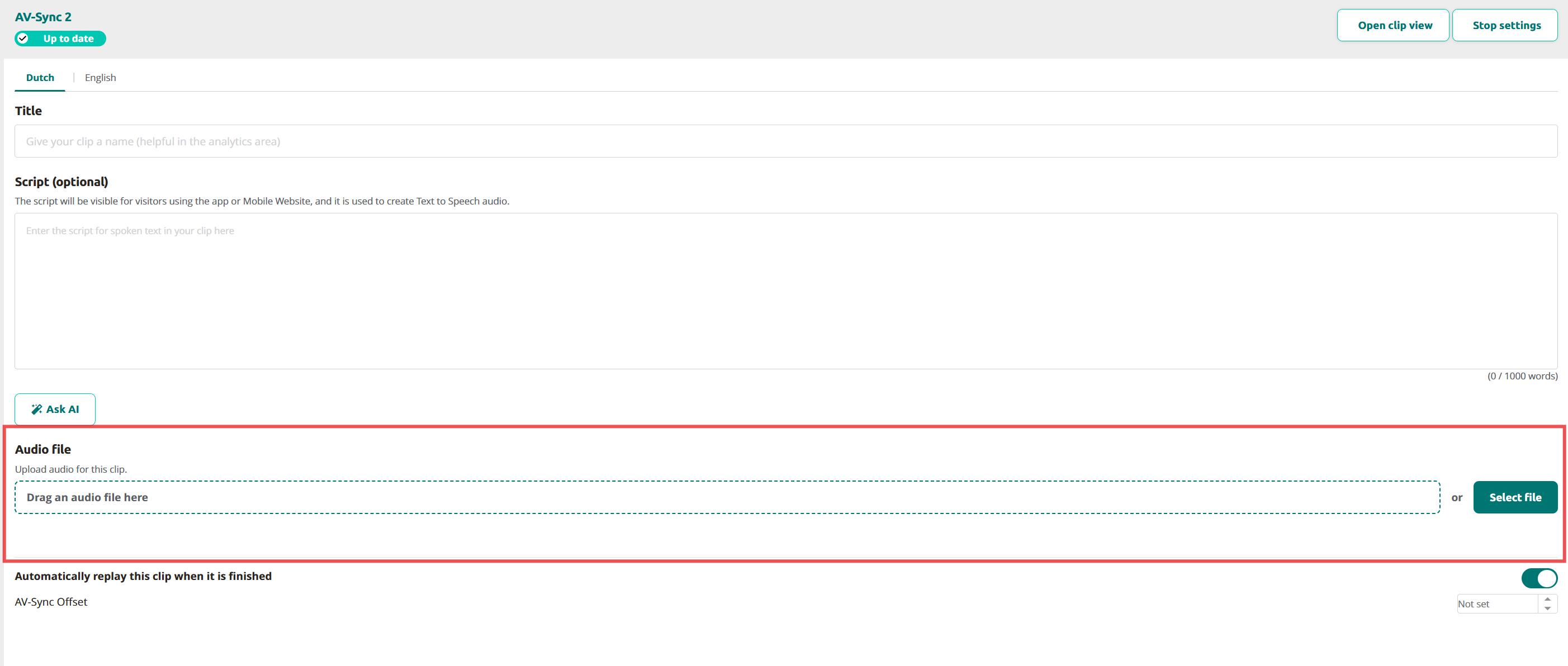
Upload the generated audio file.
Use the audio file that has been split off from the video (see 2.2). Tip for Multilingual Museums: For additional languages, upload separate audio files for each language. Ensure all audio files have the same length as the original.
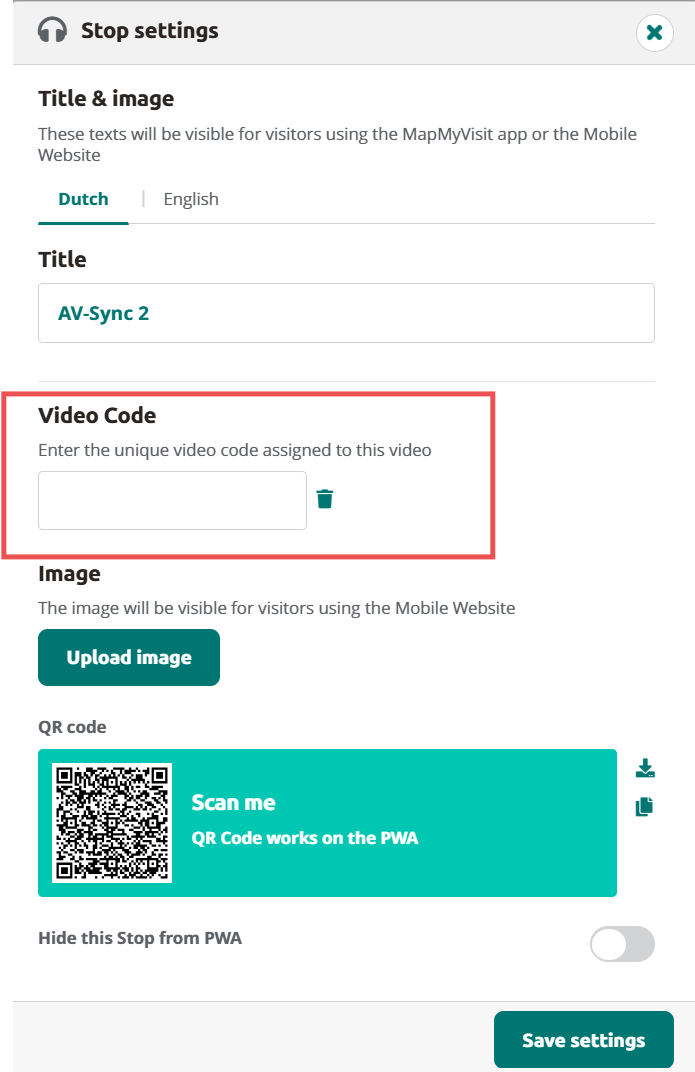
Configure the Stop Trigger by adding an AV-Sync IDentifier to the Stop. Click on Stop settings to add the IDentifier code as wel as the Video code.
For regular AV-Sync, the IDentifier code ranges from A0:01 to A0:7F. You can choose a code and set the DIP switches on the AV-Sync IDentifier (or vice versa).
For AV-Sync in flexible mode, the IDentifier code ranges from A1:00 to A1:FF. The exact code depends on which track the video sends out to the AV-Sync IDentifier. You can choose the code during media file preparation in the AV-Sync tool.
If required, fine-tune the Audio Video Sync Offset (see image in 4.) This is normally not required, you can leave it at not set. By adjusting the offset, you can compensate for any delays that are introduced in the video stream.
Publish the Tour and Sync so the Podcatcher will sync the content on to its SD card.
2.4. Installing the AV-Sync set
Connect the media player to the screen or projector. This is usually done with a HDMI cable. Follow the instructions provided with the media player.
Connect the AV-Sync box.
Connect the 3.5mm audio jack of the provided audio cable to the ‘audio-out’ connection of the media player;
Connect the red RCA connector on the other end (the right audio channel) to the AUDIO IN connector of the AV-Sync box. Notice: Do you want audio to play at the screen (not just on the Podcatcher)? Then connect the white RCA connector of the audio cable to the screen or amplifier. Notice: Don’t extend the audio cable between media player and AV-Sync box. This will cause signal degradation and may cause the AV-Sync box to be unable to decode the signal.
Configure the IDentifier code on the AV-Sync box. The AV-Sync box can be assigned a fixed IDentifier code (regular mode), or can be configured to pass-through the IDentifier code from the video that is being played (flexible mode). The DIP switches are used to configure both the mode and the fixed address (if applicable).
For regular AV-Sync move the ADDRESS pins to the binary orientation that matches the last three digits of the code assigned in the TourEditor. For example, if the code is A0:01, the leftmost ADDRESS pin is moved to the upper position, all others are low. If the code is A0:02, the second pin from the left is the only pin in the upper position.
When using AV-Sync in flexible mode move all ADDRESS pins to the upper position. The AV-Sync box now expects to receive the IDentifier code from the AV-Sync track encoded in the video. This allows for playback of different videos on a single AV-Sync box (where each video contains a different AV-Sync track).
After configuration of the AV-Sync box IDentifier code, the device must be restarted by briefly disconnecting the power and reconnecting it.
Connect the AV-Sync IDentifier with the provided RCA to the IR OUT connector on the AV-Sync box. The RCA can be extended if required.
Connect the power adapter to the 5V DC connector on the AV-Sync box and plug it in to a main power outlet (100-240V AC / 50-60Hz)
Place the AV-Sync box and IDentifier close to the screen displaying the video, to make it intuitive for the visitors to use it. Make sure the connecting cable and AV-Sync box are properly installed out of view, but still reachable.
Test the video.
Start the video on the media player and check if it is properly displayed on the screen.
Check the volume of the media player to be unmuted and not too quiet.
Turn the GAIN knob on the AV-Sync box all the way down (counter-clockwise). Subsequently slowly turn it up (clockwise), until the green light starts blinking.
Test the audio.
Point an activated Podcatcher to the IDentifier. Wait for the ‘beep’ indicating activation, and listen to the Podcatcher to confirm that the audio of the video is being played.
If the Podcatcher won’t play the clip, check if the green LED on the AV-Sync box blinks periodically. If not, try to exchange the red and with RCA plugs of the audio cable connecting to the AV-Sync box, and test again. If the problem persists, confirm the IDentifier code and sync state in the TourEditor.
3. Usage
The visitor can use the AV-Sync simply by pointing the Podcatcher at the AV-Sync IDentifier, just like any other IDentifier. He or she will hear the audio synchronized to the playing video and in their own language, regardless of how far the video playback has progressed.
4. Fine tuning
4.1. Offset correction
Our AV-Sync solution will play audio on the Podcatcher lip-sync to the video, if the original audio would play in sync in the same setup (i.e. instead of the AV-Sync track, plays the original audio).
In some cases this is not the case, most notably when the video stream gets delayed in for instance a 4K television screen, but the audio stream is taken directly from the mediaplayer. It is advisable to avoid these kind of setups by using the audio output from the television screen. If this is not possible, if it for instance doesn’t have the right connection, you can resolve the delay in the tour editor.
Offset correction consists of two steps:
Measure the time difference between audio and video before the clip restarts. You can measure it manually, or use AV–Sync Testmode.
Adjust A/V Sync Offset in the tour editor by clicking the up- or down button.
5. Troubleshooting
5.1. Should the AV-Sync IDentifier not work properly, please check the following first:
Is the audio cable properly connected to the AV-Sync box and the media player?
Is the RCA cable properly connected to the AV-Sync box and the IDentifier?
Are the power adapters properly connected to a power outlet on one end and the AV-Sync box and media player on the other?
Does the video being played have an AV-Sync track playing on the right hand audio channel?
Is the AV-Sync IDentifier code properly set on both the AV-Sync box as well as the TourEditor?
Have you activated the Podcatcher with a Start IDentifier?
Has the Podcatcher been synchronized with the correct content?
If that didn’t solve your problem, restart the AV-Sync box by unplugging the 5V power adapter and plugging it back in after half a minute or so. Sometimes restarting the media player also helps.
5.2. Should the AV-Sync IDentifier still be throwing a temper tantrum, check the following:
The yellow LED isn’t lighting up
The 5V power adapter isn’t connected to a proper power outlet, or
Its cable isn’t properly connected to the AV-Sync box, or
The adapter broke.
Find a working power outlet or replace the 5V power adapter.
The green LED is blinking, but the Podcatcher isn’t responding
Is the RCA cable properly connected to the IDentifier? You can try squeezing the connectors a little bit to make better contact.
Has the Podcatcher been activated with a Start IDentifier? If not, try activating it and trying again. You can also test with a different Podcatcher to verify.
Has the Podcatcher been synced with the correct content? Try syncing manually and try again.
The red LED is blinking
The AV-Sync box is receiving a signal, but not a proper time code. Lower the volume of the media player by 20%. Restart the AV-Sync box by unplugging the power adapter and plugging it back in. Reconnect the audio cable between the media player and the AV-Sync box. Turn the Gain knob until the green light starts lighting up. Test the audio output of the media player with headphones or speakers to check if you can hear the AV-Sync track (beeping noises at regular intervals). If you don’t hear the beeps, the AV-Sync track isn’t added to the video or the audio output isn’t selected on the player. Alternatively, the audio track was added to the left channel, in which case you can swap the white and red RCA plugs.
The audio plays, but always from the start of the video
Make sure the Stop is in AV-Sync mode in the TourEditor, publish and try again.
5.3. Try the Troubleshooter
To try to determine the cause if any problem, you can try the AV-Sync troubleshooter:


 Tours
Tours












 English
  Nederlands
  Français