Pour synchroniser le contenu et les données d'utilisation des Podcatchers, un PC doit être installé en tant que console de synchronisation près du bureau de distribution, connecté aux stations d'accueil et à l'Internet. Nous vous fournirons ce PC, mais si vous avez besoin d'une console de synchronisation supplémentaire (par exemple au bureau ou chez un partenaire), vous pouvez installer notre logiciel de synchronisation sur un PC ordinaire. Vous trouverez ci-dessous les spécifications auxquelles une console Sync doit répondre pour fonctionner correctement.
Spécifications
L'ordinateur qui sera configuré en tant que console de synchronisation doit répondre (ou dépasser) les spécifications suivantes :
Tout nouveau PC que vous trouverez dans un magasin est plus que probablement suffisant.
Operating System: Windows 10 (32- or 64-bit), Windows 11 (32 or 64 bit).
Nous recommandons d'acheter un (mini)ordinateur ou un ordinateur portable qui dispose encore de connexions USB 2 pour connecter les HUBs ou les stations d'accueil USB. Nous avons constaté des problèmes avec les connecteurs USB 3 (en général, les connecteurs USB 2 d'un ordinateur sont noirs et les connecteurs USB 3 sont bleus).
Do not connect more than 20 Docking Stations (or 200 Podcatchers) to a single sync PC.
Lors de l'utilisation de concentrateurs USB, connectez les stations d'accueil seulement vers les hubs, et les hubs seulement à l'ordinateur. Ne branchez pas les concentrateurs sur d'autres concentrateurs, car nous avons connu de nombreux problèmes à ce sujet dans le passé. Si vous décidez de le faire malgré tout, s'il vous plaît Mentionnez-le chaque fois que vous nous contactez pour obtenir de l'aide sur des problèmes de synchronisation.
Le PC doit disposer d'une connexion ethernet (filaire), le wifi n'est pas suffisant.
Mémoire interne (RAM) : Au moins 512 Mo.
Espace de stockage (disque dur) : Au moins 1 Go. Il est fortement recommandé de prendre une marge beaucoup plus importante en ce qui concerne l'espace libre ; de préférence plus de 100 Go pour permettre à Windows de continuer à installer des mises à jour pendant un long moment.
Connexion USB : Au moins un port USB 1.1 libre ; en général, vous aurez 10 stations d'accueil branchées sur un concentrateur USB, de sorte que le nombre réel dépend du nombre de stations d'accueil dont vous disposez pour une console de synchronisation donnée. N'oubliez pas de limiter à 30 le nombre total de stations d'accueil connectées à un seul ordinateur.
L'ordinateur doit être mis à jour (automatiquement) avec les dernières mises à jour de Windows (en utilisant la fonction Mise à jour de Windows).
Le PC doit être allumé 24 heures sur 24 et 7 jours sur 7.
Le PC doit être connecté à l'internet 24 heures sur 24 et 7 jours sur 7.
Le PC et les stations d'accueil connectées doivent être branchés sur le secteur 24 heures sur 24 et 7 jours sur 7.
Vous devez disposer des droits d'administrateur pour que le logiciel de synchronisation puisse être installé.
Important pour le département IT ; la console Sync doit pouvoir se connecter à notre serveur via le site web apps.podcatcher.eu sur le port 80.
Note : Le logiciel Podcatcher Sync ne prend pas directement en charge les connexions à Internet par l'intermédiaire d'un serveur proxy ! Il existe une solution de contournement, voir la section page de configuration avancée pour plus d'informations.
Note : Le programme Podcatcher Sync ne fonctionne pas sous Linux ou MacOS.
Note : N'utilisez jamais ( !) de rallonges USB, seulement les câbles USB fournis (environ 1.80m/6ft de long). Si vous avez besoin de plus de longueur, placez l'ordinateur de synchronisation plus près ou déplacez les stations d'accueil, vous ne pouvez pas étendre les câbles USB sans rencontrer de sérieux problèmes de synchronisation qui sont très difficiles à diagnostiquer et insolubles pour le service d'assistance.
To synchronize content and usage data of the Podcatchers, a PC needs to be setup as a Sync Console near/at the handout desk which is connected to the Dockingstations and Internet. We will provide this PC to you, but if you need an extra Sync Console installed (for instance in the office or at a partner) or if you have to re-install your own PC, you can set up an a regular PC following the steps below. Note: any computer used as a Sync Console must meet les présentes spécifications.
Installation
Before a computer can sync Podcatchers, it will need some software so it ‘knows’ how to work with the Guide ID servers and devices. There’s TeamViewer (1) that lets you (and us) connect to the computer remotely (should it be necessary) and the Sync desktop application (2). Afterwards, you’ll need to associate the desktop app’s serial number with your Site (3) so the computer can synchronize your content.
Attention: if you have not yet received the Docking Stations, you can start the installation steps but you will not be able to complete step 3 because the activation code is not shown and/or the Sync program will say that the Sync service is not running. This is due to a limitation of the Windows driver model. Once you have connected the Docking station(s) and reboot the computer, the activation code will be displayed.
1. Guide-ID TeamViewer
Pour que nous puissions vous aider à distance, vous avez la possibilité d'installer le programme TeamViewer Host. Guide-ID peut utiliser ce programme pour vous aider en cas de problème lors de l'installation du programme de synchronisation ou à tout autre moment. L'installation de ce programme est facultative, mais nous la recommandons.
Note : Nous recommandons toujours de connecter la Sycconsole à votre "réseau invité" afin que votre réseau interne soit protégé à tout moment. Votre administrateur système pourra le faire pour vous, car c'est sa responsabilité.
Trouvez le fichier dans votre dossier de téléchargements, cliquez dessus avec le bouton droit de la souris et choisissez Exécuter en tant qu'administrateur. Contactez l'administrateur de votre ordinateur/réseau pour obtenir ces droits si vous ne les avez pas.
Sur le premier écran, cliquez sur 'Suivant' .
Il vous sera demandé comment vous souhaitez utiliser le programme, choisissez affaires/commerciales et cliquez sur "Suivant".
L'accord de licence s'affiche, accepter l'accord et cliquez sur "Suivant".
Il vous sera demandé de choisir un mot de passe, utilisez le mot Podcatcher et indiquez le nom de l'ordinateur, par exemple l'ordinateur nom de votre organisation. If you have multiple Sync Consoles, we recommend naming them something descriptive like “Front desk” or “Podcatcher hand-out temporary tour” along with the name. You don’t have to tick the box for ‘add this computer to my list of computers’. Click ‘Next’.
Cliquez sur Finir pour terminer l'installation.
Après l'installation, un écran avec Votre identifiant sera affichée. Envoyer un courriel à helpdesk@guideid.com avec ce numéro et une description de votre ordinateur (où il se trouve par exemple).
2. Installation of the Podcatcher Sync application (Sync Console 2.x)
The Sync Console 2.x application is a Windows service that allows Podcatcher V3 hardware to sync with the PP4 Platform. It replaces the legacy Podcatcher Sync service.
The new service can be installed on Windows 10 or 11. If the legacy Podcatcher Sync is already installed, it will be automatically replaced.
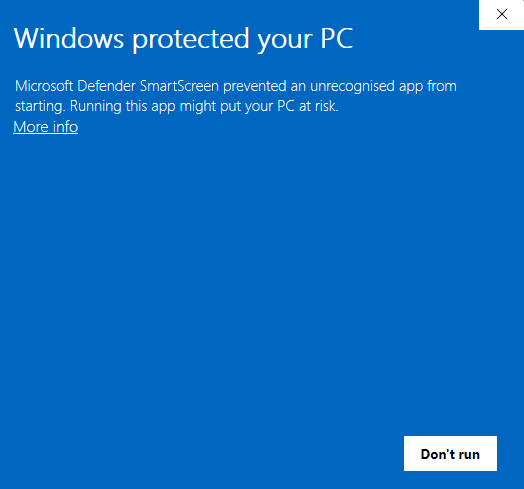
Télécharger the msi installer from GuideID.SyncSetup et run it. Depending on your security configuration, a message similar to this may appear:
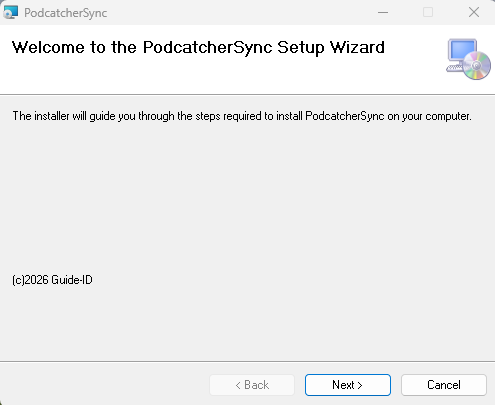
If the “Run anyway” button is already visible, click it. Else you need to click “More info” first and then click “Run anyway”. You will be greeted by the following screen:
Click “Suivant” to continue.
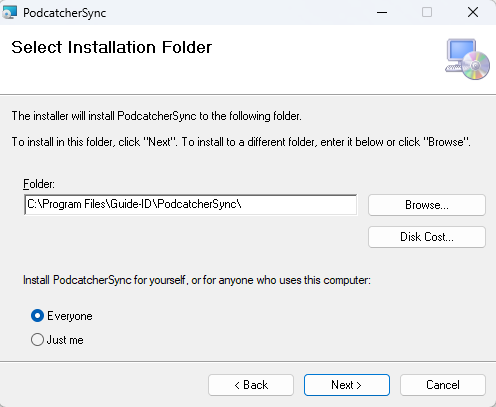
Select where to install the application. It is recommended to accept the default location. (Remarque : the contents of all Podcatcher audio tours will be stored here as well, so make sure there is enough space available.)
Make sure to select “Everyone” and click “Next”:
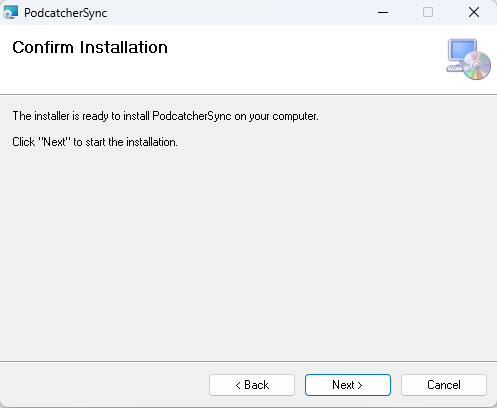
Cliquez sur “Next”:
Cliquez sur “Next”:
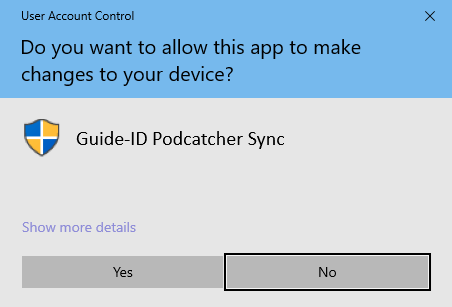
A warning similar to the one above may appear asking permission to make changes to your device. Click “Yes” ou “Allow” or something equivalent to continue installation.
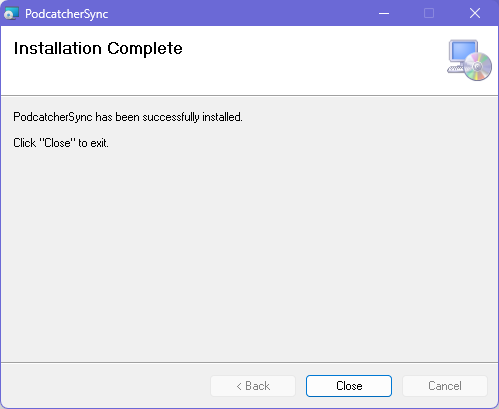
After the application has been installed, click Close.
Identifying the Serial Number and Authentication Key
If the Sync Console still needs to be registered in the Podcatcher Platform, you need to provide a serial number and authentication key.
This information can be retrieved by running the following command from an elevated command prompt (run cmd as administrator):
GuideID.PodcatcherV3Sync.exe -cmd info
The following information appears.
Guide-ID Podcatcher Sync Service version: 2.1.0.0 Sync Console Serial number: scXXXXXXXXXX Authentication key: XXXXX-XXXXX-XXXXX-XXXXX-XXXXX
Take note of the Sync Console Serial number and the Authentication key and enter them in the Platform when registering your Sync Console.
3. Register your Sync Console
Aller à la page Plate-forme Podcatcher et se connecter using your Podcatcher Platform account.
Cliquez sur ‘Hardware →Synchronisationsur le côté gauche de la page.
Cliquez sur le bouton [ + Add new Sync Device ] button to register a Sync Console and to link it to your site.
Une fenêtre contextuelle doit apparaître avec les champs de saisie suivants :
Tout d'abord, sélectionnez le SynchronisationConsole et cliquez sur Suivant.
Console de synchronisation Serial Number et Clé d'authentification, this is where you fill in the serial number and authentication key that you copied/wrote down from the previous step.
Console de synchronisation Daily sync time, this is where you select a time when all Podcatchers should be present in the Sync Console, usually after opening hours.
Console de synchronisation DescriptionC'est ici que vous indiquez un nom pour la console de synchronisation, par exemple, "Distribution point main desk".
Add the Sync Console by clicking [Finir ] button. The list of Sync Consoles should update and the new one appears.
Si vous avez plusieurs lieux où les Podcatchers doivent être approvisionnés en contenu, vous pouvez refaire les étapes mentionnées ci-dessus à n'importe quel endroit avec n'importe quel ordinateur conforme aux spécifications de la console Sync. Chaque installation aura son propre code d'activation unique que vous pouvez utiliser pour activer le lieu et pour pouvoir le voir dans l'application Sync en ligne.
Actionable Insights transforme les données de votre système Podcatcher Pro en recommandations opportunes qui vous aident à prévenir les perturbations et à optimiser l'expérience des visiteurs. Ce système de notification intelligent vous tient informé de l'état du matériel et des performances de la tournée, ce qui vous permet de résoudre les problèmes potentiels avant qu'ils n'affectent vos invités.
Référence rapide
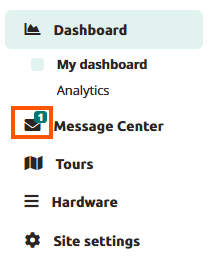
Accéder au centre de messagerie : Tableau de bord → icône Centre de messages
Configuration du courrier électronique : Profil → Préférences de messagerie
Niveaux de notification : Mineure, modérée, grave (classée par ordre d'urgence)
Principaux avantages : Maintenance proactive, réduction des temps d'arrêt, optimisation du flux de visiteurs
Caractéristiques principales : Surveillance du matériel, informations sur les performances des tournées, alertes par courrier électronique
Comment fonctionne Actionable Insights
Le système Actionable Insights surveille en permanence votre environnement Podcatcher Pro, en analysant à la fois l'état du matériel et les interactions avec les visiteurs afin d'identifier les possibilités d'amélioration. Lorsque le système détecte un problème ou une opportunité d'optimisation, il génère une notification avec une recommandation d'action claire.
Système de notification
Actionable Insights classe les notifications par priorité pour vous aider à vous concentrer sur ce qui compte le plus :
Notifications mineures (informatives)
Mises à jour informatives ne nécessitant pas d'action immédiate
Exemples : mises à jour du système disponibles, arrêts de visite peu fréquentés
Utile pour la planification et l'optimisation à long terme
Notifications modérées (demande de l'attention)
Questions à traiter pour maintenir une performance optimale
Notifications graves (nécessitant une action immédiate)
Questions critiques nécessitant une attention immédiate
Exemples : camps de base hors ligne, Podcatchers en état d'erreur
Essentiel pour éviter de perturber l'expérience des visiteurs
Utilisation du centre de messagerie
Le centre de messages est le point central de toutes les notifications. Il fournit des informations claires sur chaque problème et les solutions recommandées.
Accès au centre de messages
Se connecter à la plateforme Guide-ID
Recherchez l'en-tête Message Center dans la barre supérieure gauche.
Cliquez sur pour ouvrir votre tableau de bord de notification
Comprendre les alertes du centre de messagerie
Chaque notification dans le centre de messages comprend
Icône d'alerte indiquant le niveau de priorité
Description claire du problème détecté
Recommandation réalisable pour résoudre le problème
Horodatage indiquant la date à laquelle le problème a été détecté
For example, a typical notification might alert you that “IDentifier with serial number BP.000.433 is low on battery” and recommend that you “Please replace or recharge the battery to keep using this IDentifier.”
Remarque : Pour une référence complète de toutes les notifications possibles et des actions recommandées, voir [Types de notifications et recommandations].
Gestion des notifications
Le Centre de messages vous permet de
Examiner toutes les notifications actives en un seul endroit pratique
Annuler les notifications une fois que vous les avez abordés
Suivi de l'état de la résolution car le système supprime automatiquement les problèmes corrigés
Considérations sur l'accessibilité Le centre de messages est conçu pour présenter des informations critiques d'un seul coup d'œil, ce qui le rend très utile dans les musées très fréquentés, où le personnel n'a que quelques instants entre les interactions avec les visiteurs pour vérifier l'état du système.
Système de notification par courrier électronique
Pour que vous ne manquiez jamais les alertes importantes, Actionable Insights va au-delà de la plateforme avec des notifications stratégiques par e-mail.
Types d'alertes par courrier électronique
Emails hebdomadaires de synthèse
Vue d'ensemble de toutes les notifications en cours
Priorité au niveau d'urgence
Fournit un moyen pratique de rester informé même lorsque l'on n'est pas connecté à la plateforme
Emails d'alerte urgents
Envoyé lorsque des problèmes critiques nécessitent une attention immédiate
Se concentrer spécifiquement sur les notifications graves
Personnalisation des préférences en matière de courrier électronique
Vous pouvez adapter votre expérience de notification aux besoins de votre musée :
Naviguez vers Profil -> Préférences de messagerie dans la plateforme Guide-ID
Sélectionnez Préférences de notification
Choisissez les types d'e-mails que vous souhaitez envoyer.
Sauvegarder vos paramètres
Principales capacités de surveillance
Actionable Insights surveille deux aspects principaux de votre expérience muséale :
1. Surveillance de l'état du matériel
Le système suit de manière proactive l'état de votre matériel Guide-ID, y compris :
IDentifier Niveaux de batterie
Alertes lorsque les piles atteignent des seuils bas
Permet d'éviter les interruptions de la visite audio dans des zones d'exposition spécifiques
Permet une maintenance planifiée plutôt que des interventions d'urgence
Statut de l'appareil Podcatcher
Identifie les appareils manquants pour maintenir l'inventaire
Détecte les Podcatchers en état d'erreur
Moniteurs Connectivité du dispositif de synchronisation
2. Analyse des performances des tournées
Au-delà du matériel, Actionable Insights permet d'optimiser l'expérience du contenu :
Analyse des schémas d'utilisation
Identifie les arrêts de visite sous-utilisés ou très populaires
Vous aide à comprendre les schémas d'engagement des visiteurs
Fournit des informations pour l'amélioration du contenu
Résolution des problèmes Informations exploitables
Si vous rencontrez des problèmes avec le système Actionable Insights, essayez ces solutions simples :
Enjeu
Solution
Ne pas recevoir de notifications par courrier électronique
Vérifiez votre dossier spam et vérifiez que votre adresse e-mail est correcte dans les paramètres de l'utilisateur.
Absence de notifications attendues
Confirmez que vos préférences de notification sont correctement configurées et que vous n'avez pas rejeté le message.
La notification d'abandon réapparaît
Le problème sous-jacent peut ne pas être entièrement résolu
Avertissement If you dismiss multiple IDentifier battery warnings without replacing batteries, you risk unexpected audio tour disruptions for your visitors. Always follow recommended actions when possible.
Indicateurs de réussite
Vous saurez que vous utilisez efficacement Actionable Insights lorsque.. :
Les problèmes matériels évitables diminuent dans votre musée
Le personnel peut traiter les problèmes potentiels avant qu'ils n'affectent les visiteurs
Votre processus de remplacement de la batterie devient proactif plutôt que réactif
Diminution du nombre d'incidents liés à la disparition de Podcatcher
Pour toute assistance supplémentaire concernant Actionable Insights, contactez le service d'assistance de Guide-ID via le centre d'aide de la plateforme ou envoyez un courrier électronique à l'adresse suivante Helpdesk@guide-id.com.
Download your tour metrics as CSV files for external processing and deeper insights
The Export feature lets you download comprehensive tour analytics data for custom analysis in your preferred tools. Follow these simple steps to access your valuable visitor engagement metrics.
Référence rapide
Navigate to Analytics → Export in the main menu
Set your desired date range using the From/To date selectors
Click the “Export” button to generate your data file
Download the CSV file when processing is complete
Files are named automatically with your site name and date range
Use it in your data platform
Accessing the Export Function
Se connecter à la plateforme Guide-ID
Select “Analytics” from the left navigation menu
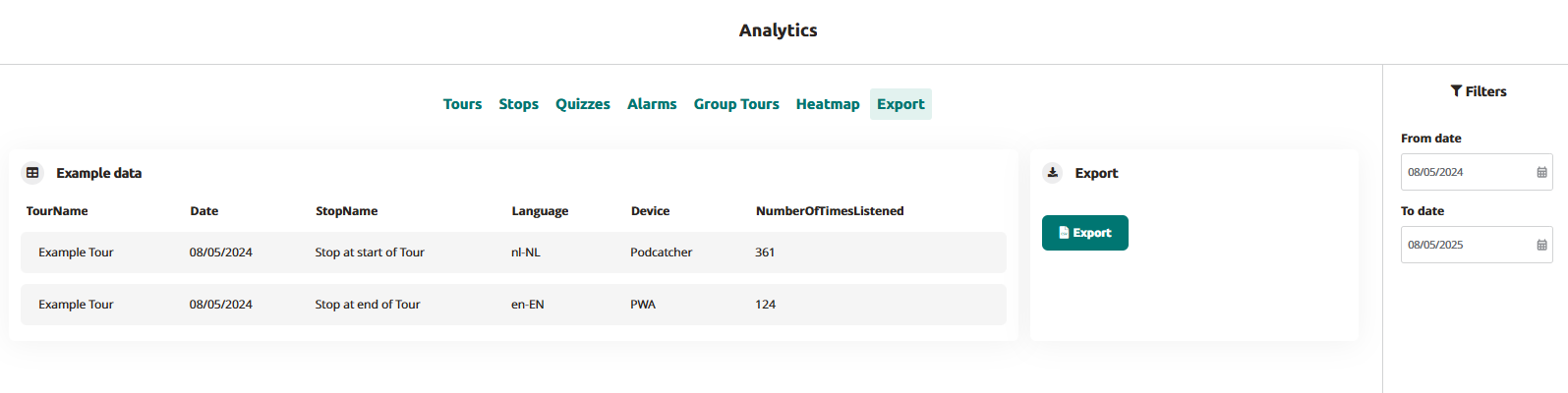
Click the “Export” tab in the top menu bar
Setting Export Parameters
Use the date filters in the right sidebar:
Click “From date” to select your starting date
Click “To date” to select your ending date
Generating Your Export
Click the blue “Export” button
Wait briefly while the processing indicator shows your file is being prepared
When complete, the file will automatically download to your device
Files are named “SiteName-Analytics-YYYYMMDD-YYYYMMDD.csv”
Understanding Your Data
Your exported CSV file will contain the following data columns:
TourName: The name of the tour as configured in the platform
Date: The date when the visitor interaction occurred (YYYY-MM-DD format)
StopName: The specific audio stop or IDentifier point
Language: The language code selected by the visitor (e.g., en-EN, nl-NL)
Device: The playback device type (Podcatcher or PWA for web app)
NumberOfTimesListened: Total play count for each stop
Troubleshooting Export Issues
Enjeu
Solution
CSV file shows incorrect formatting
Open in a dedicated spreadsheet program rather than a text editor
Missing data for specific tours
Check that the tours were active during your selected date range
By exporting your Guide-ID analytics data, you gain the flexibility to perform deeper analysis beyond the platform’s built-in visualizations. This direct access to your visitor engagement metrics empowers data-driven decisions about content development, tour optimization, and resource allocation.
When you and your visitors use the tours you have created on the Guide-ID Platform, the system automatically collects analytics data.
These metrics are invaluable for evaluating the performance of your tours, stops, and clips, as well as analyzing user engagement with quizzes and surveys.
Finding the analytics page
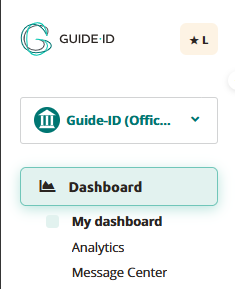
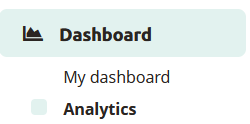
Upon logging in to the Guide-ID Platform, you will land on the Dashboard. To navigate to the Analytics page, simply locate it in the sidebar below the Dashboard section.
Les visites guidées
Within the tours tab, you will find a collection of informative graphs that provide key details about your tours. These include the number of tours played, the total number of stories shared, the duration of each tour, and the average number of stops visited per tour.
Arrêts
The stops tab offers valuable insights into the most and least played stops, as well as the triggers that prompted their playback. Popular stops typically indicate visitor preferences, while less frequented stops may be situated in less accessible areas or encountered when visitors are fatigued from the tour through the museum.
Clips
This section provides information on the chosen options and how they compare to alternative choices, offering valuable insights into visitor preferences.
Alarms
In the alarms tab, you can monitor the frequency at which alarms were triggered and identify the most commonly activated alarm (if multiple alarms are set up).
Group tours
This is subscription based for Podcatcher Pro clients. For questions please contact our Helpdesk or one of our Business Managers
Heatmap
This section provides information about visitor counts and percentages for the selected tour stops. You can select a month and year and then choose a specific tour.
The stops for the selected tour are displayed in a table, organized by day.
The table shows listening rates as percentages. To switch between percentage values and visitor counts, click the Toggle Visitor Count/Percentage button.
The color of the table cells varies based on the listening percentages
Export
From the Export tab, you can download analytics data about stops yourself, to be used to create your own displays or to combine with data from other analytics platforms you use for your museum. See our Exporting Analytics Data pour plus d'informations.
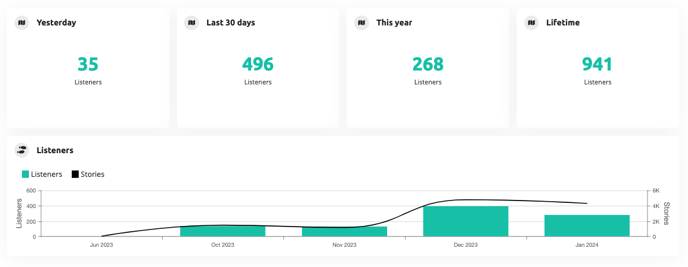
Votre tableau de bord fournit un aperçu des mesures de performance liées à vos visites audio. Il vous aide à évaluer leurs performances et à planifier les améliorations futures.
Données sur les tournées
La section des données sur les visites vous indique le nombre de visiteurs de votre site qui ont bénéficié de visites audio au cours de la journée écoulée, des trente derniers jours, de l'année en cours, ainsi que le nombre total de visites.
Tours joués
Le graphique des tournées jouées offre une ventilation détaillée du nombre de tournées servies au cours de l'année écoulée. Ces informations sont également segmentées en fonction de la plateforme utilisée, ce qui vous permet d'analyser la consommation de tournées sur différents canaux tels que Podcatcher et PWA.
Liste des choses à faire
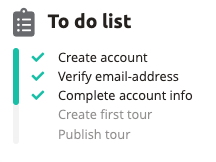
Enfin, la liste des tâches à effectuer vous guide à travers les étapes nécessaires pour que vos visites audio soient prêtes pour vos visiteurs. Cette liste de contrôle pratique vous aide à rester organisé et garantit une expérience sans faille à votre public.
Your other Podcatchers should continue working normally
Why this happens
The Podcatcher has experienced a hardware failure and needs to be replaced.
IDentifer Battery Low
🟡 Medium Priority
What this means
An IDentifier’s battery has dropped below one-third capacity. You still have several weeks to months of battery life remaining.
What to do
Replace the batteries of the IDentifier or replace the IDentifier with an other IDentifier.
Why this happens
Battery levels update when a Podcatcher scans the IDentifier and syncs with a Sync Device.
Podcatcher Not Seen for a Week
🟢 Low Priority
What this means
We haven’t detected this Podcatcher in over a week, but less than a month.
What to do
If you have the Podcatcher, place it back in a Basecamp
If you’ve already returned it, we may still be processing it – the notification will clear automatically
The notification will stop after 30 days
Why this happens
The Podcatcher may have been left out, used for testing, or returned but not yet processed in our system. For more information, see our Missing Podcatchers FAQ.
The Message Center will show all kinds of notifications regarding “actionable insights”. This usually means the museum needs to take actions to fix something.
Les color bar on the left indicates the severity of the notification:
🟢 Green
Low severity : informational, no action required or at least not immediate
🟠 Orange
Medium severity : action required, however not immediate
🔴 Red
High severity : immediate action required
The meaning of the severity may be subject to change as soon as we have actual notifications with different severities.
Les icon indicates the type of notification
Les message text informs you about what is going on and in some cases what needs to be done to resolve the issue.
Les date is when the notification was created. The date is bold when the message is unread.
Les X allows you to dismiss this notificatoin. You won’t receive any email reminders on this message (if you are subscribed to weekly notifications). After pressing X, the message will disappear from the overview.
The messagelist is seperated into two lists divided by a line seperator (see below) when there are unread messages since the last visit to Message Center. The first list contains the new (unread) messages since the last time this page was loaded. The second list contains the messages which are read. Messages get automatically marked as read when the Message Center page is loaded. So the next time you come to the Message Center page, all these messages are marked as read.
The Platform checks for new notifications every 15 minutes. If a new notification is available, the number displayed on the message center icon is updated accordingly.
Supported notifications
IDentifier Battery Low When a low battery is detected on an IDentifier this notifications will show up per IDentifier.
IDentifier Battery will need to be replaced.
When the IDentifier is deleted from the Hardware IDentifiers page, the notification will be removed.
Podcatcher Error When the Podcatcher is in error status, this notification will show up per Podcatcher. These Podcatchers will need to be returned.You can reach out the repairs or returning equipment page.
If the Podcatcher moved to a new Sync Device, the old notification will be removed. The new notification with the correct serial number will be created. When the Podcatcher is healthy again, this notification will be removed.
If you click on ‘Basecamp‘ and there is information about the latest docked Basecamp for Podcatcher, they will be navigated to the Basecamp detail page. If ther is no such information available, they will be directed to the Basecamp overview page instead.
Sync Device Offline
When a Sync Device has been offline for more than one day, this notification will show up per Sync Device. Power and network connection should be checked first. When the Sync Device is online again, this notification will be removed.
If you click on ‘Sync overview page‘, you will be navigated to the Sync Device overview page. This notification takes SyncDevice type into account, text message change for each SyncDevice type (SyncConsole, Syncbox).
Lost Podcatcher If the Podcatchers that have a last seen of over a week ago, this notification of total number of Podcatchers will show up per site.
If there is an Warning IDentifier, it needs to be checked.
Lost Podcatchers checked Periodically. When a previously lost Podcatcher is seen again, it is removed from the lost count.
Si la visite audio ne fonctionne pas, il y a quelques points à vérifier.
Les attrape-nigauds
Si un Podcatcher ne fonctionne pas comme il le devrait, nous vous recommandons de lire le document suivant cet article au lieu de cela. La plupart des Podcatchers qui se comportent mal peuvent être remis en ligne en les synchronisant.
IDentifiants
Si un Podcatcher semble ne pas répondre à un ou plusieurs IDentifiants, il y a plusieurs choses que vous pouvez essayer. Tout d'abord, vous devez vous assurer que vous entendez un bip lorsque vous pointez le Podcatcher sur un IDentificateur.
Le Podcatcher émet un bip lorsqu'il est pointé sur l'IDentifier, et joue soit le contenu "Invalid IDentifier Stop", soit aucun contenu..
Assurez-vous d'activer une tournée en pointant un identifiant de départ avant de tester un identifiant d'objet. Assurez-vous également que l'arrêt que vous testez est lié à la bonne tournée. Pour en savoir plus sur Start IDentifiers, cliquez ici.
Vérifier si le contenu est publié et synchronisé.
Vérifier si le code inscrit au dos de l'IDentifiant correspond à celui lié dans le TourEditor.
Vérifier si l'arrêt a un contenu audio.
Publier toute modification non publiée dans la tournée.
Synchronisez à nouveau le contenu sur les Podcatchers pour vous en assurer.
Si cela ne fonctionne pas, il est possible (bien que rare) que le code envoyé par l'IDentifier soit différent de celui imprimé sur l'autocollant. Vous pouvez le vérifier en utilisant le Podcatcher pour vous lire le code. Ici vous pouvez lire comment procéder.
Le Podcatcher n'émet pas de bip lorsqu'il est pointé sur l'IDentifier.
C'est généralement le signe que la pile de l'IDentifier est vide. Essayez avec plusieurs Podcatchers différents pour confirmer que c'est bien ce qui se passe (et que ce n'est pas seulement la faute du Podcatcher), puis remplacer la batterie. Si cela ne fonctionne pas, l'IDentifier peut être envoyé en réparation.
Nous espérons être suffisamment utiles dans cette base de connaissances, mais il est tout à fait possible que vous ayez une question qui ne figure nulle part. Si tel est le cas, nous contacter. Nous nous ferons un plaisir de vous aider à rétablir le fonctionnement du système.
Grâce à AV-Sync, vous pouvez diffuser de l'audio sur le Podcatcher en synchronisation avec une vidéo diffusée sur un écran. Ainsi, plusieurs visiteurs peuvent simultanément regarder la vidéo sur l'écran et écouter l'audio (dans leur propre langue) sur le Podcatcher. Il n'y a pas de limite au nombre de visiteurs qui regardent la vidéo.
1.2. Contenu du paquet
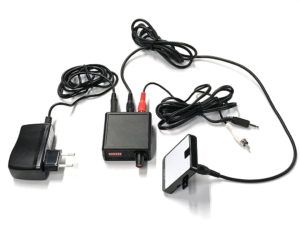
IDentifiant AV-Sync Il s'agit du point d'activation utilisé par les visiteurs pour orienter le Podcatcher.
Boîtier AV-Sync Le boîtier AV-Sync fournit à l'identificateur AV-Sync les signaux appropriés à transmettre au Podcatcher, de sorte que le fragment audio correct soit lu sur le Podcatcher au bon moment.
Adaptateur d'alimentation 5V (connecteur étroit) L'adaptateur d'alimentation alimente le système AV-Sync.
Câble audio Le câble audio relie le lecteur multimédia (voir 1.3) à l'AV-Sync box. Le câble est équipé d'une prise jack de 3,5 mm à une extrémité et de deux connecteurs RCA à l'autre.
Câble RCA Le câble RCA relie le boîtier AV-Sync à l'IDentifier.
1.3. Autres exigences
1.3.1. Norme
Écran ou projecteur (non inclus) Un téléviseur ou un autre type d'écran, adapté à l'affichage de votre vidéo.
Lecteur multimédia (non inclus) Un lecteur multimédia adapté à la lecture de votre vidéo. Le lecteur multimédia doit disposer d'un connecteur de sortie audio pour se connecter à l'installation AV-Sync. Si vous le souhaitez, il doit pouvoir lire la vidéo en boucle. Le lecteur multimédia lit la vidéo sur l'écran et/ou le projecteur, et envoie le signal audio de la piste AV-Sync au boîtier AV-Sync. Guide-ID recommande l'utilisation d'un lecteur multimédia Brightsign.
Contenu vidéo (non inclus) La vidéo originale, combinée à la piste AV-Sync.
Contenu audio (non inclus) La piste audio originale de la vidéo à lire, convertie au format MP3. Paramètres d'encodage recommandés : 64 kbps, mono, 48 kHz, niveau de crête de -1dB. Différents débits binaires MP3 ainsi que la stéréo peuvent être pris en charge.
Outil vidéo AV-Sync (téléchargeable) Pour préparer le contenu audio et vidéo à utiliser avec AV-Sync, vous pouvez utiliser l'outil vidéo AV-Sync.
1.4. Présentation du boîtier AV-Sync
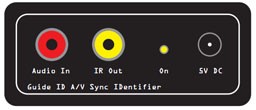
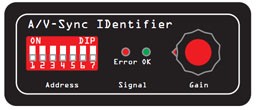
Vue arrière Vue de face
Adresse Ces interrupteurs DIP permettent de définir le code d'identification que l'AV-Sync Box transmet.
LED d'erreur (rouge) Le voyant rouge clignote lorsqu'une piste AV-Sync non valide est reçue du lecteur multimédia. Si le voyant s'allume en continu, cela signifie qu'aucun signal n'est reçu.
LED OK (verte) Le voyant vert OK clignote lorsqu'une piste AV-Sync valide est reçue du lecteur multimédia.
Bouton de gain Le bouton rotatif Gain permet d'amplifier le signal entrant du lecteur multimédia. Le signal est amplifié en tournant le bouton vers la droite. Remarque : essayez de régler le gain le plus bas possible (bouton tourné vers la gauche).
Connecteur d'entrée audio Le lecteur multimédia se connecte au boîtier AV-Sync par ce connecteur. Note : Connectez la fiche RCA rouge du câble audio. Le connecteur blanc peut être laissé libre. Le boîtier AV-Sync ne nécessite qu'un son mono.
Connecteur de sortie IR Ce connecteur est utilisé pour connecter l'identificateur AV-Sync fourni, à l'aide d'un câble RCA.
LED ON (jaune) Le voyant jaune s'allume en continu si l'AV-Sync box est alimenté.
Connecteur 5V DC (prise étroite) L'adaptateur d'alimentation 5V fourni se branche sur le connecteur DC pour alimenter le boîtier AV-Sync.
2. L'installation
2.1. Fonction générale de l'appareil
Le lecteur multimédia lit la vidéo sur l'écran de l'exposition. Il envoie simultanément la piste AV-Sync au boîtier AV-Sync. Le boîtier combine le signal avec un code d'identification unique et transmet le signal par infrarouge à l'aide de l'identificateur AV-Sync. Tout Podcatcher recevant le signal traduit le code IDentifier en fragment audio à lire, et traduit le signal AV-Sync en décalage temporel où se trouve la vidéo. De cette manière, il joue le son de manière synchronisée avec la vidéo qui passe à l'écran.
Un seul signal suffit pour que le Podcatcher joue l'audio de toute la vidéo en synchronisation. Il n'est pas nécessaire de diriger constamment le Podcatcher vers l'IDentifier.
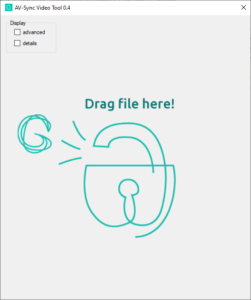
Glissez-déposez (ou ouvrez) votre fichier vidéo original dans l'outil AV-Sync
3. Traiter votre vidéo à l'aide de l'outil
Remarque : L'outil génère deux fichiers dans le même dossier que l'original :
Un fichier vidéo avec timecode (se termine par "_video")
Un fichier audio pour la plate-forme (se termine par "_audio")
Lorsque le mediaplayer et Podcatcher sont configurés pour redémarrer automatiquement la vidéo, vous devrez dans la plupart des cas prolonger l'audio. Pour ce faire, cochez la case avancée et modifiez la valeur de l'entrée "extend" en conséquence.
Pour plus d'informations sur l'utilisation de l'outil, cliquez sur ici.
2.3. Configuration dans l'éditeur de circuits sur la plate-forme
Cette partie de l'installation nécessite l'utilisation de l'éditeur de circuits en ligne.
Connectez-vous à la plate-forme, allez dans Tours et choisissez le tour auquel vous souhaitez ajouter AV-Sync.
Créer un nouvel arrêt (ou choisir un arrêt existant) .
Cochez la case "Audiovisual Sync Tour Stop" et cliquez sur suivant.
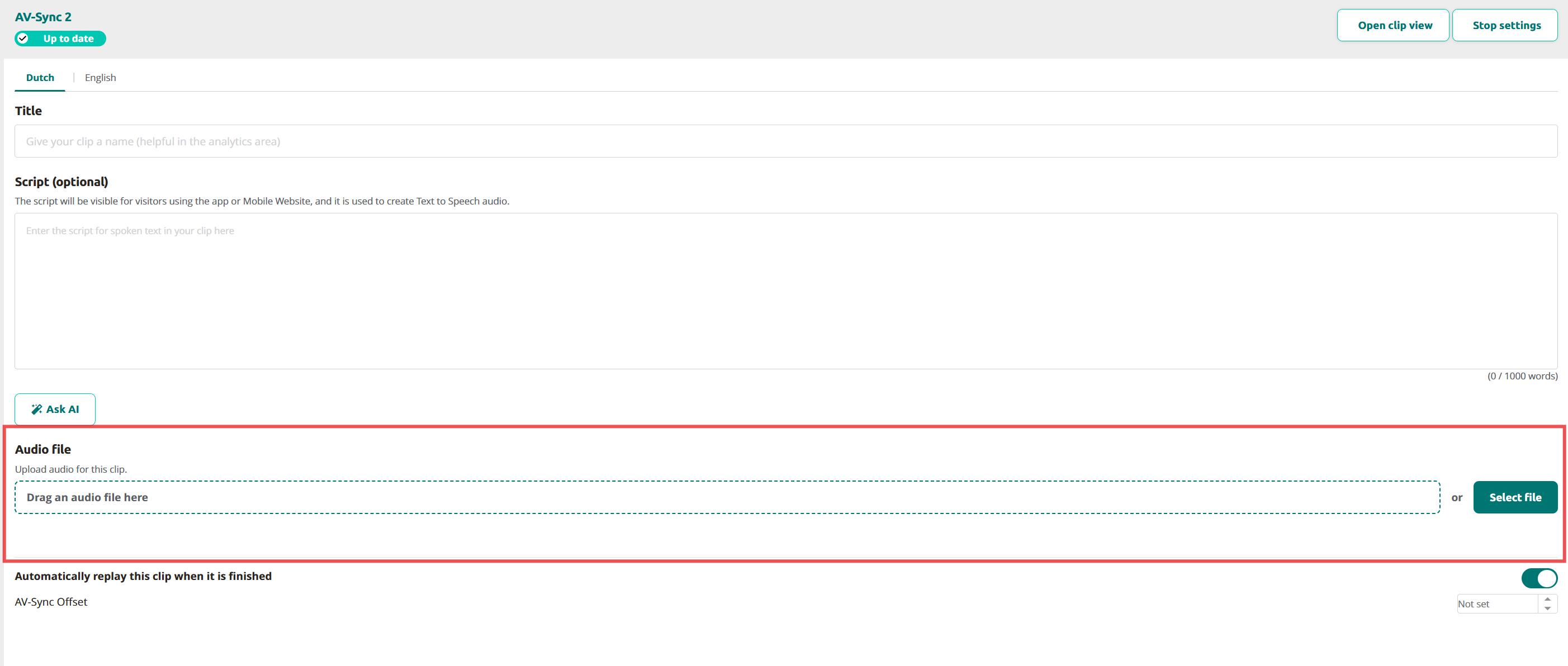
Télécharger le fichier audio généré.
Utilisez le fichier audio qui a été séparé de la vidéo (voir 2.2). Conseil pour les musées multilingues : Pour les langues supplémentaires, téléchargez des fichiers audio distincts pour chaque langue. Veillez à ce que tous les fichiers audio aient la même longueur que l'original.
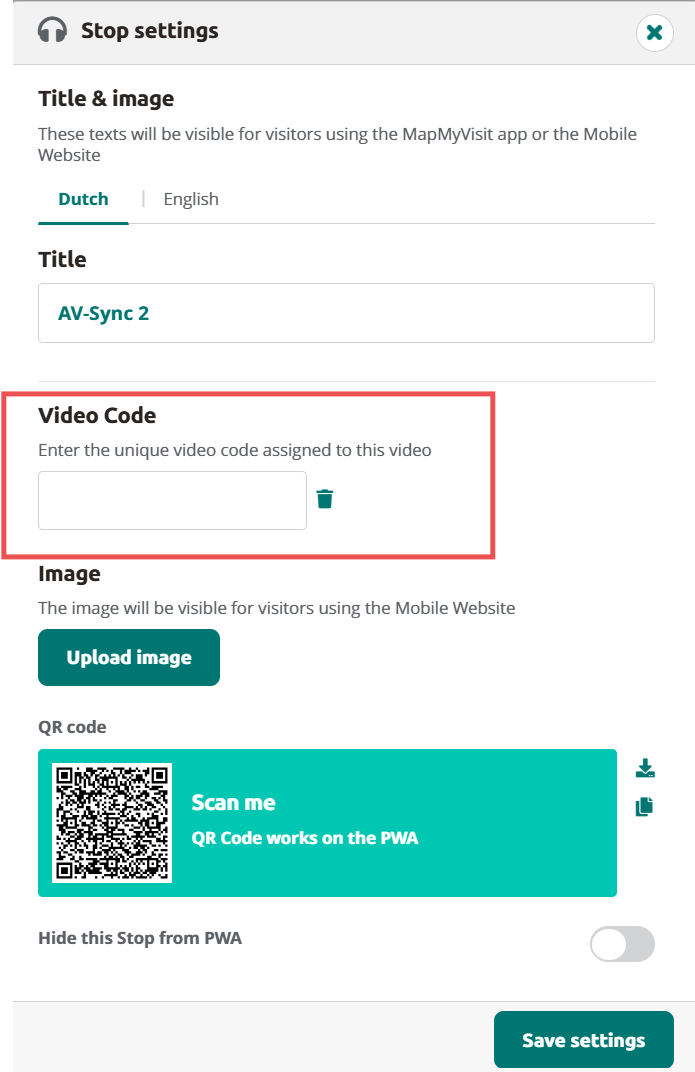
Configurez le déclencheur d'arrêt en ajoutant un identifiant AV-Sync à l'arrêt. Cliquez sur Paramètres d'arrêt pour ajouter le code IDentifier ainsi que le code vidéo.
Pour l'AV-Sync normal, le code d'identification va de A0:01 à A0:7F. Vous pouvez choisir un code et régler les commutateurs DIP de l'identificateur AV-Sync (ou vice versa).
Pour AV-Sync en mode flexible, le code IDentifier est compris entre A1:00 et A1:FF. Le code exact dépend de la piste que la vidéo envoie à l'IDentificateur AV-Sync. Vous pouvez choisir le code lors de la préparation du fichier multimédia dans l'outil AV-Sync.
Si nécessaire, réglez avec précision le décalage de synchronisation audio-vidéo (voir l'image au point 4). Ce paramètre n'est normalement pas nécessaire, vous pouvez le laisser sur "not set". En ajustant le décalage, vous pouvez compenser tout retard introduit dans le flux vidéo.
Connectez le lecteur multimédia à l'écran ou au projecteur. Cette opération s'effectue généralement à l'aide d'un câble HDMI. Suivez les instructions fournies avec le lecteur multimédia.
Connecter le boîtier AV-Sync.
Connectez la prise audio de 3,5 mm du câble audio fourni à la connexion "sortie audio" du lecteur multimédia ;
Connectez le connecteur RCA rouge à l'autre extrémité (le canal audio droit) au connecteur AUDIO IN du boîtier AV-Sync. Avis: Voulez-vous que le son soit diffusé à l'écran (et pas seulement sur le Podcatcher) ? Branchez alors le connecteur RCA blanc du câble audio à l'écran ou à l'amplificateur. Avis: Ne prolongez pas le câble audio entre le lecteur multimédia et le boîtier AV-Sync. Cela entraînerait une dégradation du signal et pourrait empêcher le boîtier AV-Sync de décoder le signal.
Configurer le code d'identification sur l'AV-Sync box. L'AV-Sync box peut se voir attribuer un code d'identification fixe (mode normal) ou peut être configuré pour transmettre le code d'identification de la vidéo en cours de lecture (mode flexible). Les commutateurs DIP permettent de configurer le mode et l'adresse fixe (le cas échéant).
Pour une synchronisation AV régulière, placez les broches ADDRESS sur l'orientation binaire correspondant aux trois derniers chiffres du code attribué dans le TourEditor. Par exemple, si le code est A0:01, la broche ADDRESS la plus à gauche est placée en position haute, toutes les autres sont basses. Si le code est A0:02, la deuxième broche en partant de la gauche est la seule broche en position haute.
Lorsque vous utilisez AV-Sync en mode flexible, placez toutes les broches ADDRESS en position supérieure. Le boîtier AV-Sync s'attend maintenant à recevoir le code IDentifier de la piste AV-Sync encodée dans la vidéo. Cela permet de lire différentes vidéos sur un seul boîtier AV-Sync (où chaque vidéo contient une piste AV-Sync différente).
Après la configuration du code d'identification de l'AV-Sync box, l'appareil doit être redémarré en coupant brièvement l'alimentation et en la rebranchant.
Connectez l'identificateur AV-Sync au connecteur IR OUT du boîtier AV-Sync à l'aide du câble RCA fourni. Le câble RCA peut être rallongé si nécessaire.
Branchez l'adaptateur d'alimentation sur le connecteur 5V DC de l'AV-Sync box et branchez-le sur une prise secteur (100-240V AC / 50-60Hz).
Placez le boîtier AV-Sync et l'IDentifier à proximité de l'écran affichant la vidéo, afin que les visiteurs puissent l'utiliser de manière intuitive. Veillez à ce que le câble de connexion et le boîtier de synchronisation AV soient correctement installés, hors de vue, mais toujours accessibles.
Testez la vidéo.
Lancez la vidéo sur le lecteur multimédia et vérifiez qu'elle s'affiche correctement à l'écran.
Vérifiez que le volume du lecteur multimédia n'est pas trop faible et qu'il n'est pas en sourdine.
Tournez le bouton GAIN de l'AV-Sync box à fond vers le bas (dans le sens inverse des aiguilles d'une montre). Ensuite, tournez-le lentement vers le haut (dans le sens des aiguilles d'une montre), jusqu'à ce que le voyant vert commence à clignoter.
Testez l'audio.
Dirigez un Podcatcher activé vers l'IDentifier. Attendez le "bip" indiquant l'activation et écoutez le Podcatcher pour confirmer que le son de la vidéo est diffusé.
Si le Podcatcher ne lit pas le clip, vérifiez si le voyant vert du boîtier AV-Sync clignote périodiquement. Si ce n'est pas le cas, essayez d'échanger les fiches RCA rouge et rouge du câble audio qui se connecte au boîtier AV-Sync, et testez à nouveau. Si le problème persiste, confirmez le code IDentifier et l'état de la synchronisation dans le TourEditor.
3. Utilisation
Le visiteur peut utiliser l'AV-Sync en pointant simplement le Podcatcher vers l'identifiant AV-Sync, comme n'importe quel autre identifiant. Il ou elle entendra le son synchronisé avec la vidéo en cours de lecture et dans sa propre langue, quel que soit le degré d'avancement de la lecture de la vidéo.
4. Mise au point
4.1. Correction du décalage
Notre solution AV-Sync jouera l'audio sur le Podcatcher en synchronisation labiale avec la vidéo, si l'audio original serait joué en synchronisation dans la même configuration (c'est-à-dire qu'au lieu de la piste AV-Sync, on joue l'audio original).
Dans certains cas, ce n'est pas le cas, notamment lorsque le flux vidéo est retardé, par exemple sur un écran de télévision 4K, mais que le flux audio provient directement du lecteur multimédia. Il est conseillé d'éviter ce type de configuration en utilisant la sortie audio de l'écran de télévision. Si ce n'est pas possible, par exemple si la connexion n'est pas correcte, vous pouvez résoudre le problème de retard dans l'éditeur de circuits.
La correction du décalage se fait en deux étapes :
Mesurer la différence de temps entre l'audio et la vidéo avant le clip redémarre. Vous pouvez le mesurer manuellement ou utiliser AV–Sync Testmode.
Réglez le décalage de synchronisation A/V dans l'éditeur de circuits en cliquant sur le bouton haut ou bas.
5. Dépannage
5.1. Si l'identificateur AV-Sync ne fonctionne pas correctement, vérifiez d'abord les points suivants :
Le câble audio est-il correctement connecté au boîtier AV-Sync et au lecteur multimédia ?
Le câble RCA est-il correctement connecté à la boîte AV-Sync et à l'IDentifier ?
Les adaptateurs d'alimentation sont-ils correctement connectés à une prise de courant d'un côté et au boîtier AV-Sync et au lecteur multimédia de l'autre ?
La vidéo en cours de lecture comporte-t-elle une piste AV-Sync en cours de lecture sur le main droite canal audio ?
Le code d'identification AV-Sync est-il correctement défini à la fois sur le boîtier AV-Sync et sur le TourEditor ?
Avez-vous activé le Podcatcher avec un identifiant de démarrage ?
Le Podcatcher a-t-il été synchronisé avec le bon contenu ?
Si cela ne résout pas votre problème, redémarrez l'AV-Sync box en débranchant l'adaptateur d'alimentation 5V et en le rebranchant au bout d'une demi-minute environ. Parfois, le redémarrage du lecteur multimédia est également utile.
5.2. Si l'identificateur AV-Sync continue à faire des siennes, vérifiez les points suivants :
La LED jaune ne s'allume pas
L'adaptateur d'alimentation de 5V n'est pas connecté à une prise de courant appropriée, ou
Son câble n'est pas correctement connecté au boîtier AV-Sync, ou
L'adaptateur s'est cassé.
Trouvez une prise de courant qui fonctionne ou remplacez l'adaptateur d'alimentation de 5V.
La LED verte clignote, mais le Podcatcher ne répond pas.
Le câble RCA est-il correctement connecté à l'IDentifier ? Vous pouvez essayer de serrer un peu les connecteurs pour améliorer le contact.
Le Podcatcher a-t-il été activé avec un identifiant de démarrage ? Si ce n'est pas le cas, essayez de l'activer et de réessayer. Vous pouvez également tester avec un autre Podcatcher pour vérifier.
Le Podcatcher a-t-il été synchronisé avec le bon contenu ? Essayez de synchroniser manuellement et réessayez.
Le voyant rouge clignote
Le boîtier AV-Sync reçoit un signal, mais pas un code temporel correct. Baissez le volume du lecteur multimédia de 20%. Redémarrez l'AV-Sync box en débranchant l'adaptateur d'alimentation et en le rebranchant. Rebranchez le câble audio entre le lecteur multimédia et l'AV-Sync box. Tournez le bouton Gain jusqu'à ce que le voyant vert s'allume. Testez la sortie audio du lecteur multimédia à l'aide d'un casque ou de haut-parleurs pour vérifier si vous pouvez entendre la piste AV-Sync (bips à intervalles réguliers). Si vous n'entendez pas les bips, la piste AV-Sync n'a pas été ajoutée à la vidéo ou la sortie audio n'est pas sélectionnée sur le lecteur. Il est également possible que la piste audio ait été ajoutée au canal gauche, auquel cas vous pouvez intervertir les fiches RCA blanches et rouges.
L'audio est diffusé, mais toujours à partir du début de la vidéo.
Assurez-vous que l'arrêt est en mode AV-Sync dans le TourEditor, publiez et réessayez.
5.3. Essayez l'outil de dépannage
Pour essayer de déterminer la cause du problème, vous pouvez utiliser le programme de dépannage AV-Sync :


 Les visites guidées












 Français
  English
  Nederlands