Podcatcher we receive for repairs often don’t include a description of what’s wrong with them, and sometimes returned players seem to work just fine. To give you a better understanding of the general meaning of the lights on the Podcatchers and the required action, we have made the Podcatcher LED Status sheet. Combining that and the Podcatcher LED Error sheet you can determine whether or not a Podcatcher (in an error state) needs to be sent for repairs.
Although we always replace our Podcatchers (which are in an error state or need to be repaired) free of charge, we would like to prevent you from unnecessarily spending money on shipping costs.
To make optimal use of our system and prevent your Podcatchers from going into an error state it’s important to:
- Place a Podcatcher back into the Dockingstation when returned after use, so it can charge again
- Firmly push the Podcatcher into a slot when placing it back into the Dockingstation
- Place all Podcatchers back into the Dockingstations at the end of the day, so they can charge and sync overnight
- Always sync replacement Podcatchers (whether for missing or repaired players), because they do not hold the content yet
- You can try syncing a Podcatcher with an error in a different slot to make sure the problem doesn’t lie in the Dockingstation slot
- Make sure the Sync Console is up, running and connected to a wired internet connection 24/7
If the Podcatcher has been physically damaged, has a distorted sound or makes a rattling sound when shaken, it needs to be replaced. Hardware defects can’t be solved by syncing the player.
If you need/ want to install an extra Sync Console (for instance in the office or at a partner) you can install our synchronization software on a regular PC. Here you can find the specifications a Sync Console must meet. https://help.guideid.com/kb/sync-console-specifications/ And here you can find all the information on how to install the software https://help.guideid.com/kb/sync-console-installation.
The daily synchronization which downloads the logs data for the analytics, sends the MMV e-mails and checks the Podcatchers for errors, only take a few minutes each day. If you have made a few small changes which need to be synced, it will not take that long.
When you Sync your content for the first time and all the new content has to written on to the Podcatcher, it can take a long time depending on the amount of content you have.
On average; it will take a Podcatcher as much time to sync as the total amount of audio (in minutes) you’ve uploaded since the last sync.
For instance, if you have an audio tour of 30 minutes in 2 languages, you have about 1 hour of content. It will then take a Podcatcher 1 hour to sync. Important: there are up to 10 Podcatchers in one Dockingstations, and they all sync one after another. So for all 10 Podcatchers to finish the Sync it will take 10x 1 hour = 10 hours in total. If you have multiple Dockingstations, all the Dockingstations start syncing simultaneously.
If you would like to add multiple languages, but you do not have enough time before the opening to Sync all the languages, we advise to upload, publish and sync one or two languages for now. You can add the rest later.
If rebooting your PC does not work and you have a screen and keyboard which you can connect to the PC, check whether the application’s settings file has been corrupted. The file is located on the C: drive > Program Files > Guide ID > Podcatcher Sync > Data > Right-click on the settings file > open it with Notepad. If it’s empty, close the file again and replace that file with the file in; https://help.guideid.com/wp-content/uploads/Settings.zip
After replacing the file, restart the Podcatcher Sync service and/or the PC.
If the Sync console is offline, the PC cannot connect to our server. Please check the following:
- The PC has an active internet connection
- The Dockingstations are connected to the PC and power
If that seems to be in order, you can try restarting the pc. If the PC has an internet connection but still cannot connect to our server, please check if there is a firewall active – your IT should be able to help you here. The Podcatcher Sync program needs to be able to connect to apps.podcatcher.eu on port 80.
The sync pc is completely installed with all the necessary software. You should take the following steps:
- Connect the Dockingstations to the PC using the USB cables. Or, when using multiple Dockingstations, plug them into the USB Hub using the USB Cables and then connect the USB Hub to the Pc.
- Connect the Dockingstations and PC to the power socket.
- Insert the Podcatchers into the Dockingstations.
- Connect the PC to a wired internet connection and turn on the PC (Note: the whole set up needs to stay connected to power and internet 24/7).
- Check if all the lights on the Dockingstations are green and the lights on the USB Hub are lit blue.
- When ready, log on to the Podcatcher Portal > go to Sync > press “Sync Now”.
- The content will be synced on to the Podcatchers.
- As soon as the Podcatchers’ green LED lights up, they are ready and the content can be tested.
If it is not possible to read the IDentifier code from the sticker on the back (for example because it is mounted on the wall), you can read the IDentifier code with a Podcatcher.
To do this take the following steps;
- While the Podcatcher is still in the Dockingstation, press and hold the two left buttons (A/B) with both thumbs and take the Podcatcher out of the Dockingstation.
- When all three LEDs are solid, release the buttons.
- Now aim the Podcatcher at the IDentifier(s) and the Podcatcher will tell you the IDentifier code
This also works to read the dipswitch codes for AV-Sync Boxes.
Check if the IDentifier code is added to your stop, if so, is the tour published and synchronized? If so, the batteries of the IDentifier might be empty. You can change the batteries (coin cells # 2032) yourself see this page
You can mount the IDentifier with screws using the ears at the sides of the IDentifier or using double sided tape. Note; the ears can also be removed by breaking them from front to back.
Object IDentifiers
The minimum distance you have to keep in between 2 IDentifiers is 30 cm. The best height is 130 cm from the ground, this way they are easy to trigger for each person (tall/small/kids/visitors in a wheel chair etc.) The best way to mount them is horizontal against the wall / cabinet or post.
Outdoor; make sure the label is attached correct and firm and that the IDentifier is positioned upright (90 degree angle). Also, make sure water can flow away from the IDentifiers during/after rainfall
Indoor; When mounted flat on a table, they are not easy to trigger because of the angle. If you would like to mount them on a flat service always make sure to tilt them towards the visitor, preferably in a 45 degree angle
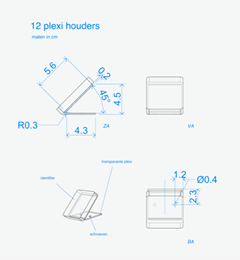
The IDentifier is able to trigger a Podcatcher within 30 cm on average.
If you would like to cover an IDentifier behind glass or in a casing, make sure to always test this first. Keep in mind that thick glass can limit the IR and Bluetooth signal coming from the IDentifier. A metal casing disturbes strongly.
Start IDentifiers
The minimum distance you have to keep in between is 30 cm. With multiple languages it’s best to hang them staggered diagonal from each other so the visitor does not accidentally activate another language when bringing the Podcatcher to his/her ear.
If you only have a limited space to place them, not enough room to place all your language IDentifiers, you can contact our helpdesk so we can make a change in the settings, which makes it possible to place them closer together.
 English
  Nederlands
  Français