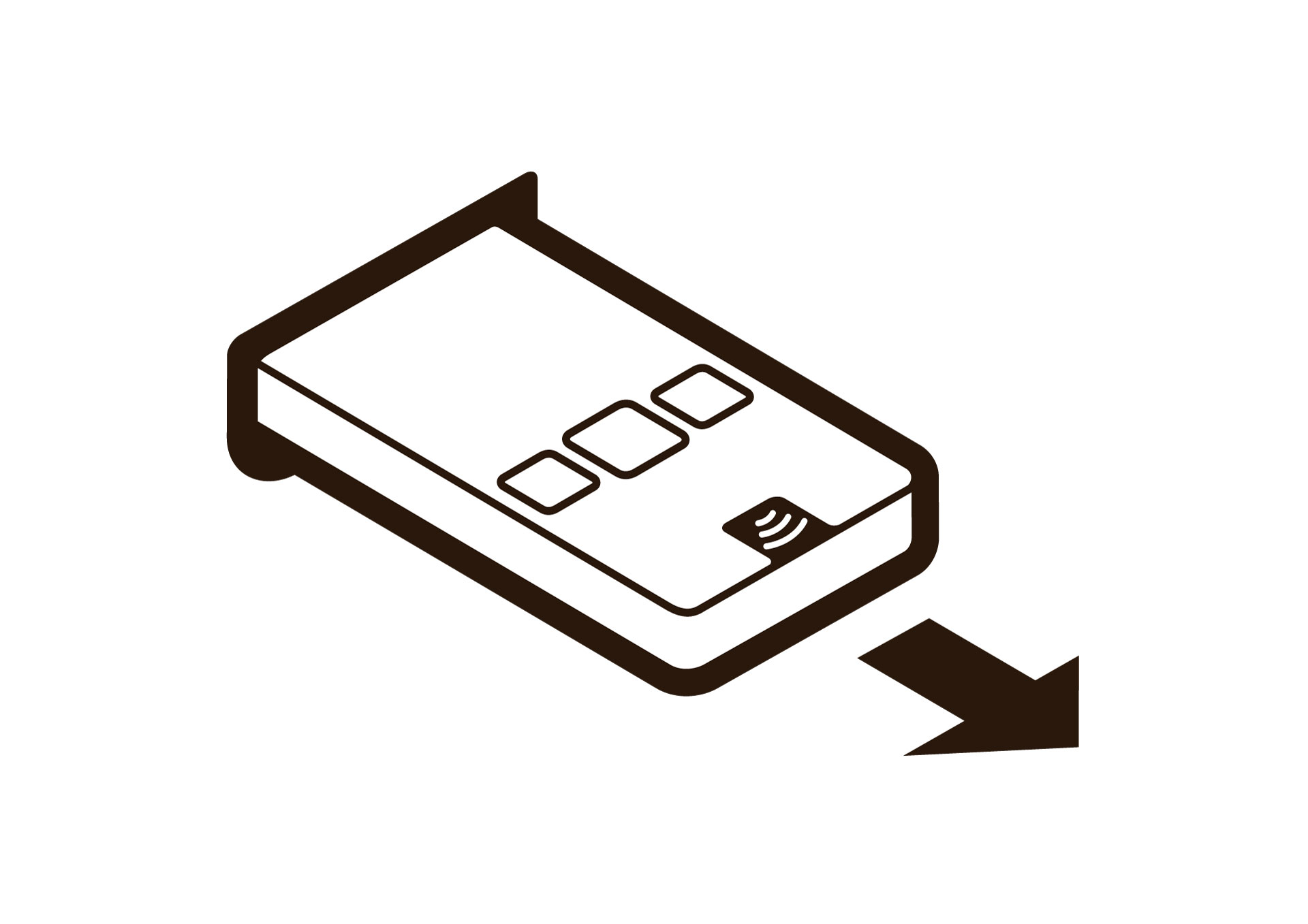
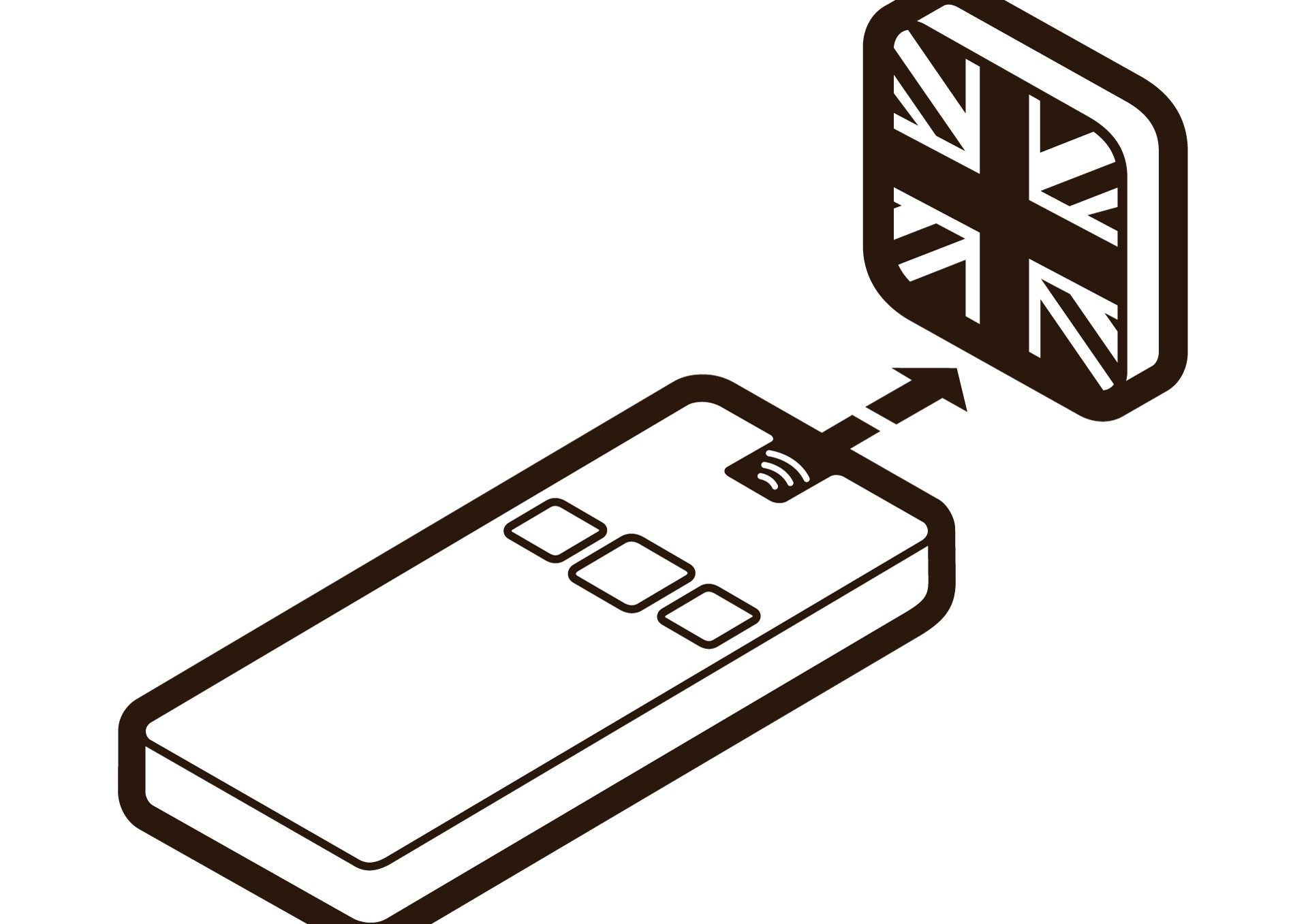
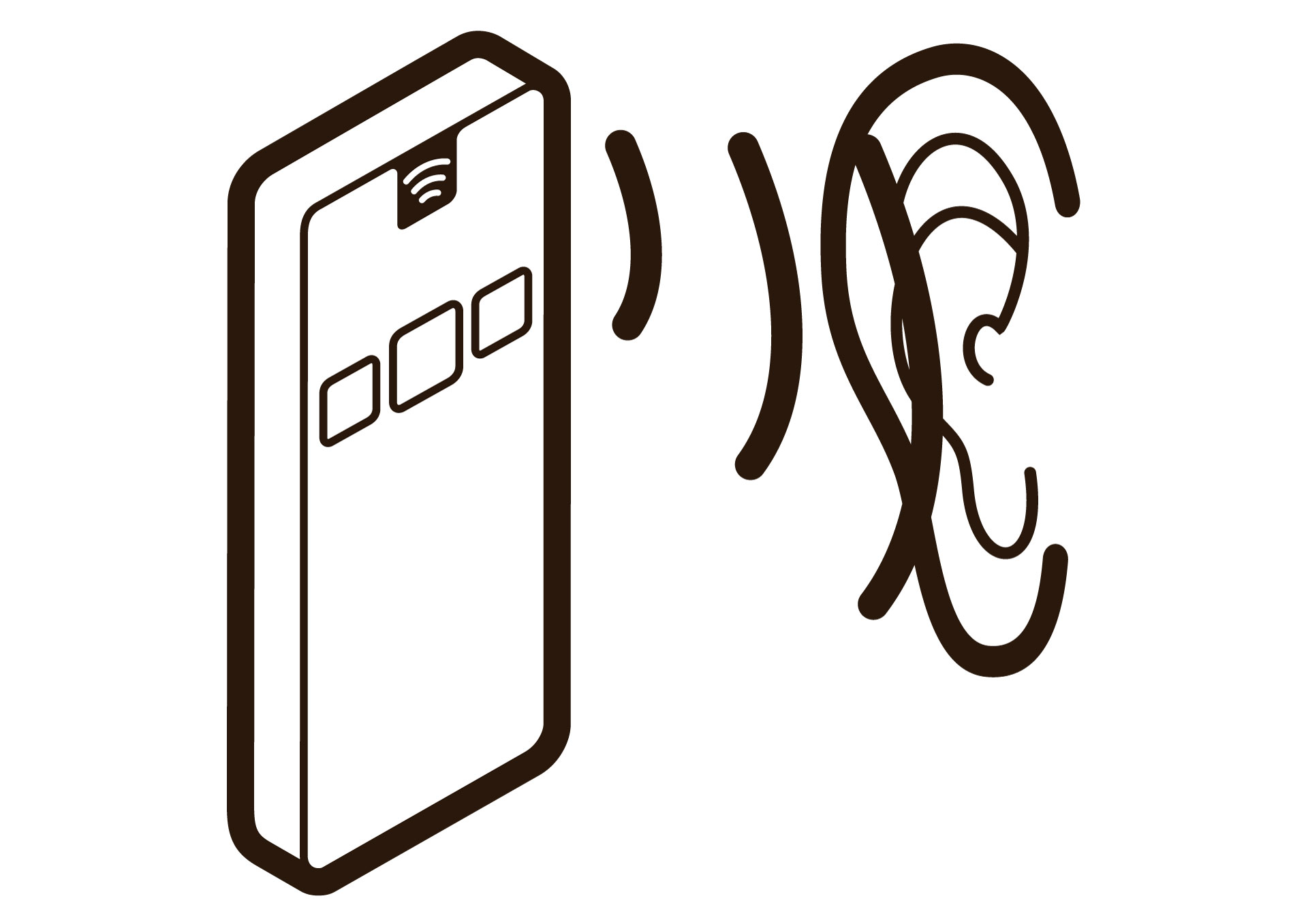
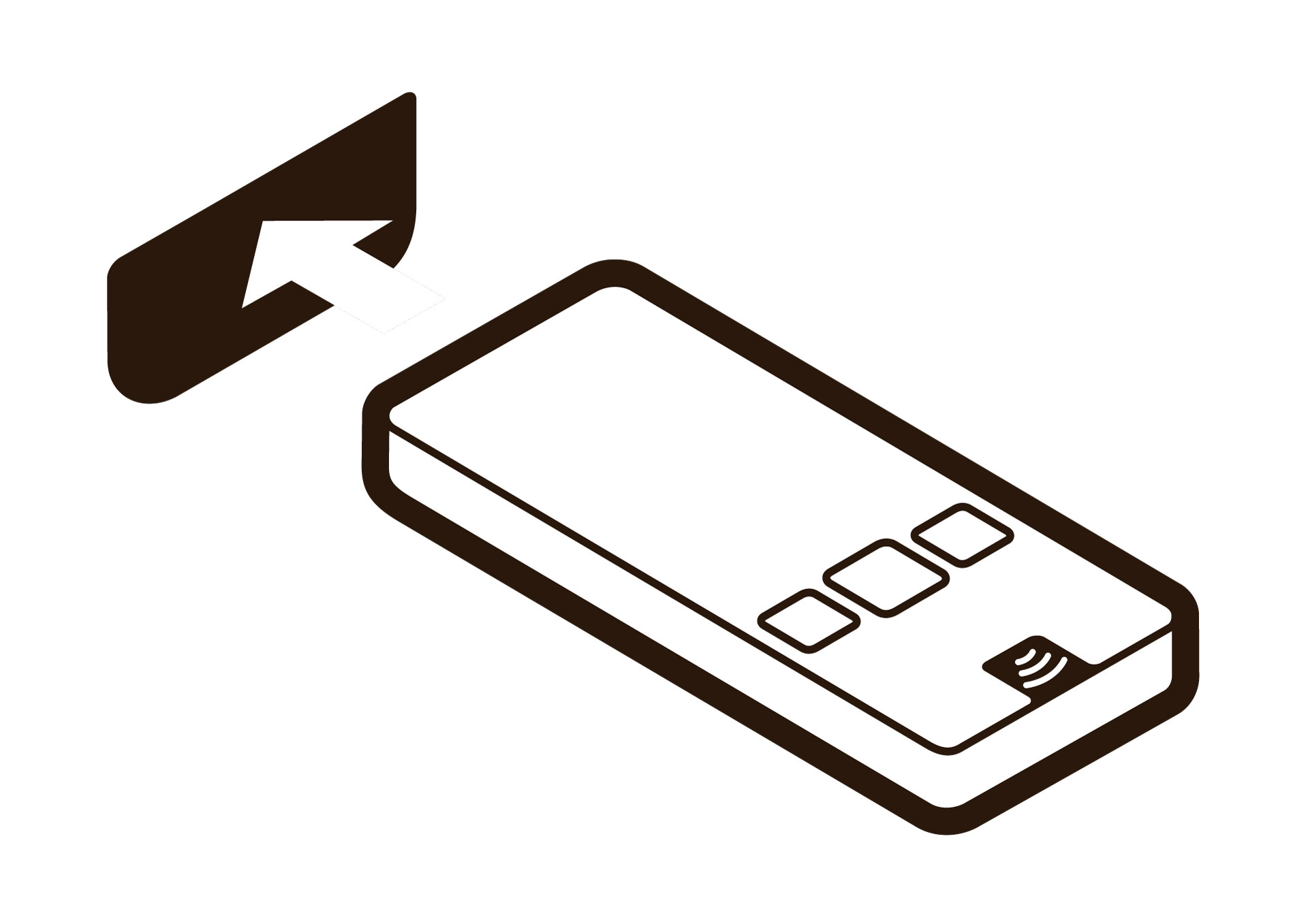
There are several ways to minimize the risk of losing Podcatchers. In this specsheet you’ll find a number of tips and best practices.
Other ways
When a visitor uses a Podcatcher, you can expect them to return it after use. However, some visitors may neglect, or simply forget to do so. To lower the amount of Podcatchers ‘disappearing’ over time, there are several ways to activate a warning signal built into the Podcatcher to alert visitors they should return the device.
Warning IDentifier
The Podcatcher can sound its warning signal when it receives a Warning IDentifier code. This is a special IDentifier that is typically placed near the building exit so visitors should be notified at the right time.
Warning signal after idle time
The Podcatcher can also sound an warning signal when it is engaged in a Tour but has not played audio for a while. By default this functionality is turned off, but you can set it up in the Site Podcatcher settings, under “Podcatcher idle time before alarm starts”.
The advantage of this method is that the warning signal will always sound after a while, unless properly handed in. The disadvantages are that if you set it to sound the warning signal too quickly, visitors may become annoyed; if you set it to sound the warning signal too late, the visitor may already be on the bus back home by the time it goes off. Further, if your site doesn’t collect Podcatchers in docks after visitors finish the tour (such as a drop-off box), they may start to produce a very annoying chorus over time.
Post-Alarm trigger
The Podcatcher can be made to play audio after sounding the warning signal using the Post-Alarm trigger in a stop. This will make the stop play its audio after the warning signal has stopped playing (either due to it playing for its full duration or a button being pressed). This is – as all content is – localized to the language of the tour.
When we receive a Podcatcher in need of repair, we will always try to transfer the label onto the new player first. Sometimes this is not possible, in that case you will receive a new player with our label. Of course, this also applies for IDentifier labels. It is therefore important for you to have enough labels in stock yourself to be able to change a label when necessary.
New or extra labels?
If you would like to order new or extra labels, please contact our Customer Support at helpdesk@guide-id.com
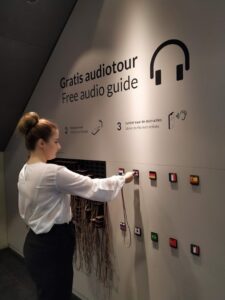
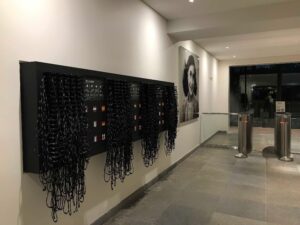
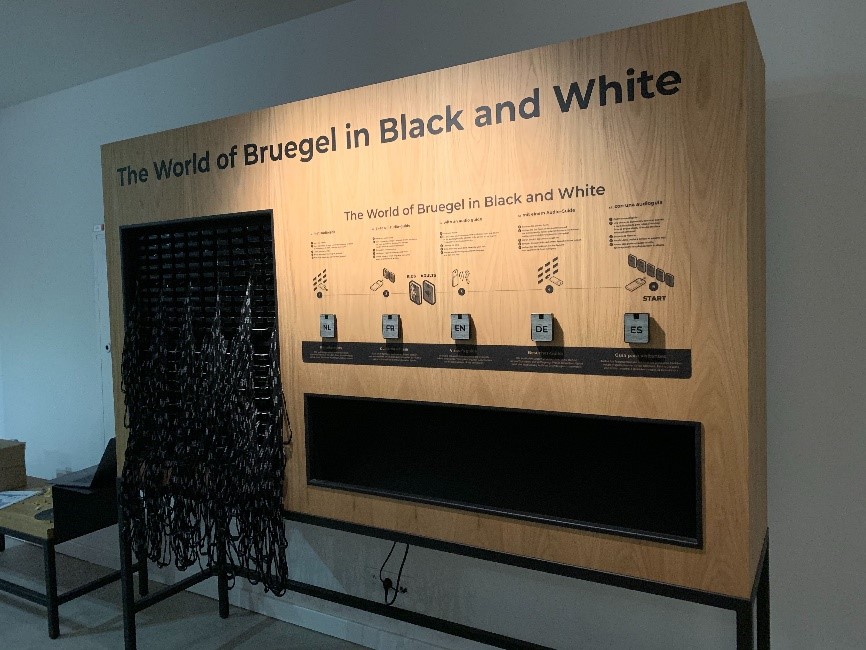
If you would like to design a furniture for our Podcatchers, you can choose between a design using loose Dockingstations or a design where you use a cabinet block which you slide into the furniture.
When you are designing a furniture this is what you need to keep in mind;
The design is of course very dependent on the number of Podcatchers that you want to supply to your visitors. (Make sure to think about the future, when you might want to add players).
Per 10 Podcatchers you will receive 1 Dockingstation
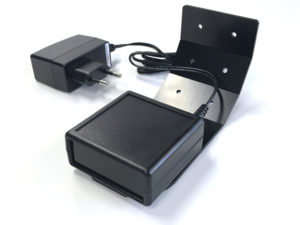
When designing for loose Dockingstations; each Dockingstation has its own USB cable (and power-adapter with older Dockingstations) which needs to be connected to the Syncbox. So make sure to keep enough space available behind the Dockingstations for these cables (and extension courts when needed)
Up to 10 Dockingstation (or 1 cabinet block) can be directly connected to one single Syncbox, which in turn needs to be connected to the internet. The cable length of the USB cable from each loose Dockingstation to the Syncbox is 90 CM, so the Syncbox needs to be placed near the Dockingstations. Because the USB cables also power the dockingstations, a Hub can not be used to extend the length of the cables.
When using a Cabinet block the cables are already connected inside the block and the Syncbox is placed in the back if the block (see the manual)
When designing for loose Dockinstations; keep room for the Syncbox(es). Depending on the set up, you will probably have to use multiple Syncboxes (100 Podcatchers can be connected to 1 Syncbox)
It is also important to take into account where you place the Syncbox because it must be easily accessible if you have to restart it.
In addition, it is also important that you have easy access to the back of the furniture unit, if there are problems with a USB cable / power adapters /extension cords / switch etc.
The entire setup must be connected 24/7 to power and a wired internet connection for the correct operation of the system.
Also make sure the furniture has enough possibilities to ventilate warm air.
Don’t place the top row with Dockingstations to high, otherwise you cannot see the lights (the status) of the Podcatchers
Don’t place the bottom row with Dockingstations to low.
Each Podcatcher is equipped with a neck lanyard. When the Podcatchers are placed in the Dockingstations, the lanyards hang down. So if the bottom row is to low, the lanyards will hang on the floor.
We recommend to place the lowest row of Dockingstations at a height of at least 100 cm from the ground. That way they are still easy to access for infants and visitors in a wheelchair.
We have 4 info-graphics available that explain the handout of the Podcatcher which you can add to the (self-service) furniture if you like; https://help.guideid.com/kb/icons-for-signage/
Also important
We strongly advise not to use drawers in your furniture design for the distribution of the Podcatchers for several reasons; the USB cables (and power adapters) that are connected to each Dockingstation will be under tension constantly when sliding the drawers in and out. In addition, the cords can easily get stuck and you cannot properly detect wear on the wiring. Chances are also very high that cables are pulled from the Syncbox so no connection can be made when synchronizing, which in turn ensures that not all Podcatchers are synchronized
Take your visitor flow into account (with self-service, the amount of visitors able to access the furniture at the same time) and how you would like to lead them. When having one furniture for instance there are 2 flows; visitors who have just entered the museum and need to be able to easily access the furniture, to take out and activate a Podcatcher. While the second flow (visitors who are leaving the museum) must return their Podcatcher. These two flows should not interfere with each other.
Placement of the Start IDentifiers
To activate a language, you need to point your Podcatcher at a Start IDentifier. These are always placed at (or near) the distribution point.
You can either integrate them in the furniture or make a separate board where people can activate their Podcatchers (so separate from the furniture). A reason to do so, could be the visitor flow, or because of limited space around the furniture.
If you do integrate them into your furniture, please make sure not to place them flat (with a table design) or underneath the last row with Dockingstations (with a wall design).
Other important information about placing your (Start) IDentifiers can be found here.
Casing of the Identifiers
If you prefer to place the Identifiers in a casing, please keep in mind that our Identifiers are equipped with Bluetooth functionality. The Bluetooth signal cannot be transmitted through metal. This means that Identifiers cannot be placed in a metal casing.
Guide-ID B.V support the following payment methods:
Europe (accepting EUR and GBP) Guide-ID B.V. has a bank account with Rabobank IBAN (account number): NL27 RABO 0119642182 SWIFT (BIC): RABONL2U Please quote reference: Invoice number xxxxxx (see invoice for details)
United States (dollars) Guide-ID B.V. has a bank account with WISE Account number: 8311264538 Routing Number (ACH or ABA): 026073150 Wire routing Number: 026073150 Bank code (SWIFT/BIC): CMFGUS33 Address: 30 W. 26th Street, Sixth Floor New York NY 10010 Please quote reference: Invoice number xxxxxx (see invoice for details)
Check payments PLEASE NOTE: Check payment are NOT accepted and will not be processed.
If you have any additional questions, please send an email to: billing@guide-id.com
Our customer support department can be reached by telephone or email from Monday through Friday from 08.30 o’clock in the morning until 17.00 o’clock in the afternoon (CET, Amsterdam)
If we cannot be reached by telephone, during opening hours, your call will be forwarded to our telephone service. Your message will then be passed on to our employees to follow up.
Your email will be read during our opening hours and responded to, accordingly within three days. If we cannot be reached by email, you will receive an out of office message with instructions.
In case of emergencies during the weekend, you can reach us via WhatsApp on +31638072466 from 08.30 o’clock in the morning until 17.00 o’clock in the afternoon (CET, Amsterdam). We will response to your emergency within 3 hours.
(An emergency would be out-of-use Podcatchers so visitors cannot use the audio tour. Or when the Podcatcher Portal is not available).
In case you are not happy with a moment of contact with us, please let us know. You can contact our helpdesk or if this doesn’t feel right, contact the Business Managers.
Hardware that becomes defective during normal use, will be replaced free of charge for the duration of the contract period. If you have such hardware, you can send it to our head office for replacement. Here you can read how to do that.
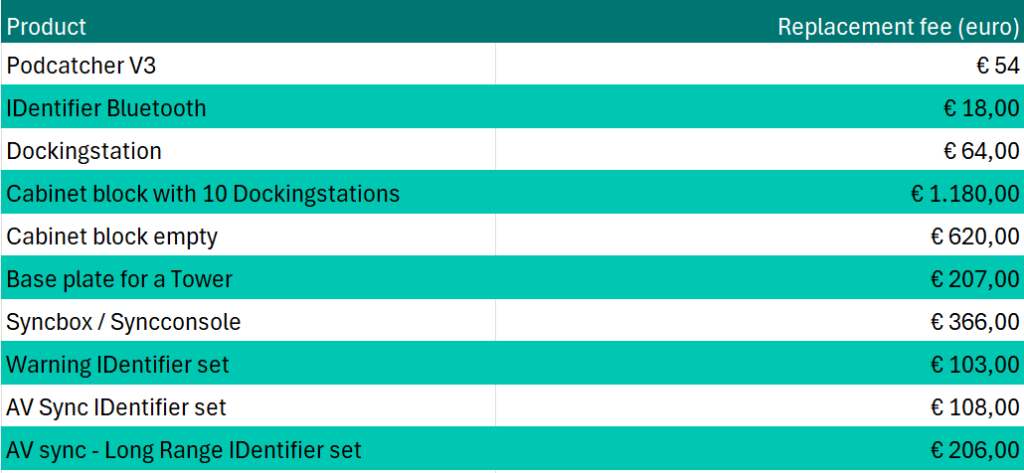
In case your hardware gets lost, stolen or severly damaged we have to charge the replacement fees which you can find in the table below (prices are per piece and in euro’s, ex. VAT)
It’s helpful to keep this specsheet at the front desk or somewhere near the Podcatchers, so your staff can see how to handout and take in the Podcatchers.
You can wash them in the washing machine in a laundry bag at maximum of 60 degrees Celsius. We advise to tie the lanyards together (25 pieces per bundle) so they will not get tangled.
The shipping costs for the initial shipment and the return shipment are te be payed by the customer as well as shipment costs for the replacement of missing equipment.
Shipping costs for the shipment of faulty Podcatchers to Guide ID are also to be payed by the customer, but the costs for sending them back are for our account
If you would like to add (or record) instructions for your visitors, on how to use the Podcatcher, you can use the text below;
ENG
“You start the commentary by pointing the player at an activation point, holding it no more than thirty centimeters (or one foot) away like a remote control. You don’t have to press any buttons; the commentary will start automatically after the beep.
The device has three buttons. Use the button on the left to turn the volume down and the button on the right to turn the volume up. Use the middle button to pause the commentary and then restart it.
If you are asked to select a fragment, the buttons function as options up, down, left, right.”
NL
“U start een verhaal door de speler binnen 30 cm op een activeerpunt te richten, net als een afstandsbediening. U hoeft daarbij geen toets in te drukken, het commentaar start vanzelf na de beep/pieptoon.
Er zitten drie toetsen op het apparaat. Met de linker toets zet u het volume zachter, met de rechter toets zet u het volume harder. De middelste toets gebruikt u om informatie te pauzeren en vervolgens weer te hervatten.
Tijdens een keuzefragment functioneren de toetsen als pijltjes keuzetoetsen”.
We also have icons available which you can use on your signage or language activation point.
These icons are the first steps on how to activate the Podcatcher. You can download the 4 icons here;

 English
  Nederlands
  Français