Our customer support department can be reached by telephone or email from Monday through Friday from 08.30 o’clock in the morning until 17.00 o’clock in the afternoon (CET, Amsterdam)
If we cannot be reached by telephone, during opening hours, your call will be forwarded to our telephone service. Your message will then be passed on to our employees to follow up.
Your email will be read during our opening hours and responded to, accordingly within three days. If we cannot be reached by email, you will receive an out of office message with instructions.
In case of emergencies during the weekend, you can reach us via WhatsApp on +31638072466 from 08.30 o’clock in the morning until 17.00 o’clock in the afternoon (CET, Amsterdam). We will response to your emergency within 3 hours.
(An emergency would be out-of-use Podcatchers so visitors cannot use the audio tour. Or when the Podcatcher Portal is not available).
In case you are not happy with a moment of contact with us, please let us know. You can contact our helpdesk or if this doesn’t feel right, contact the Business Managers.
Hardware that becomes defective during normal use, will be replaced free of charge for the duration of the contract period. If you have such hardware, you can send it to our head office for replacement. Here you can read how to do that.
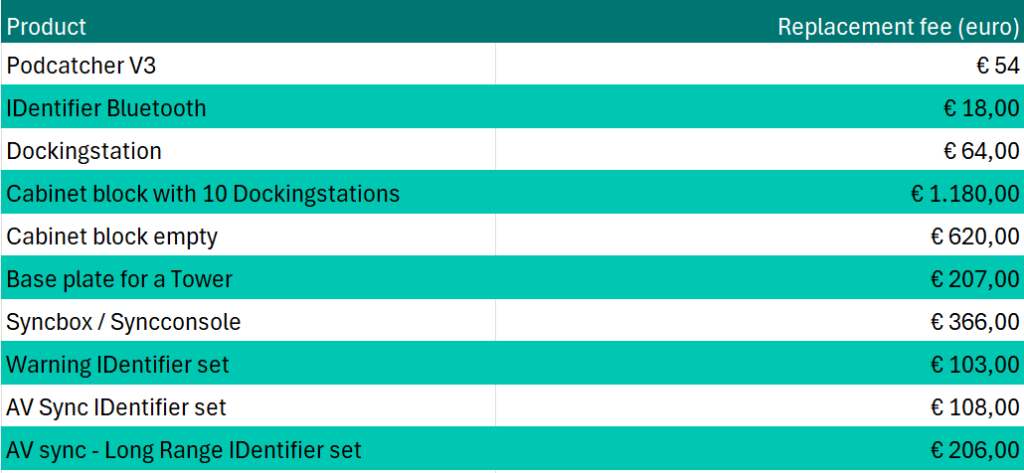
In case your hardware gets lost, stolen or severly damaged we have to charge the replacement fees which you can find in the table below (prices are per piece and in euro’s, ex. VAT)
Podcatcher we receive for repairs often don’t include a description of what’s wrong with them, and sometimes returned players seem to work just fine. To give you a better understanding of the general meaning of the lights on the Podcatchers and the required action, we have made the Podcatcher LED Status sheet. Combining that and the Podcatcher LED Error sheet you can determine whether or not a Podcatcher (in an error state) needs to be sent for repairs.
Although we always replace our Podcatchers (which are in an error state or need to be repaired) free of charge, we would like to prevent you from unnecessarily spending money on shipping costs.
To make optimal use of our system and prevent your Podcatchers from going into an error state it’s important to:
Place a Podcatcher back into the Dockingstation when returned after use, so it can charge again
Firmly push the Podcatcher into a slot when placing it back into the Dockingstation
Place all Podcatchers back into the Dockingstations at the end of the day, so they can charge and sync overnight
Always sync replacement Podcatchers (whether for missing or repaired players), because they do not hold the content yet
You can try syncing a Podcatcher with an error in a different slot to make sure the problem doesn’t lie in the Dockingstation slot
Make sure the Sync Console is up, running and connected to a wired internet connection 24/7
If the Podcatcher has been physically damaged, has a distorted sound or makes a rattling sound when shaken, it needs to be replaced. Hardware defects can’t be solved by syncing the player.
It’s helpful to keep this specsheet at the front desk or somewhere near the Podcatchers, so your staff can see how to handout and take in the Podcatchers.
You can wash them in the washing machine in a laundry bag at maximum of 60 degrees Celsius. We advise to tie the lanyards together (25 pieces per bundle) so they will not get tangled.
The shipping costs for the initial shipment and the return shipment are te be payed by the customer as well as shipment costs for the replacement of missing equipment.
Shipping costs for the shipment of faulty Podcatchers to Guide ID are also to be payed by the customer, but the costs for sending them back are for our account
The daily synchronization which downloads the logs data for the analytics, sends the MMV e-mails and checks the Podcatchers for errors, only take a few minutes each day. If you have made a few small changes which need to be synced, it will not take that long.
When you Sync your content for the first time and all the new content has to written on to the Podcatcher, it can take a long time depending on the amount of content you have.
On average; it will take a Podcatcher as much time to sync as the total amount of audio (in minutes) you’ve uploaded since the last sync.
For instance, if you have an audio tour of 30 minutes in 2 languages, you have about 1 hour of content. It will then take a Podcatcher 1 hour to sync. Important: there are up to 10 Podcatchers in one Dockingstations, and they all sync one after another. So for all 10 Podcatchers to finish the Sync it will take 10x 1 hour = 10 hours in total. If you have multiple Dockingstations, all the Dockingstations start syncing simultaneously.
If you would like to add multiple languages, but you do not have enough time before the opening to Sync all the languages, we advise to upload, publish and sync one or two languages for now. You can add the rest later.
If rebooting your PC does not work and you have a screen and keyboard which you can connect to the PC, check whether the application’s settings file has been corrupted. The file is located on the C: drive > Program Files > Guide ID > Podcatcher Sync > Data > Right-click on the settings file > open it with Notepad. If it’s empty, close the file again and replace that file with the file in; https://help.guideid.com/wp-content/uploads/Settings.zip
After replacing the file, restart the Podcatcher Sync service and/or the PC.

 English
  Nederlands
  Français