When the audio tour isn’t working, there are a few things you should check.
Podcatchers
If a Podcatcher isn’t working as it should, we recommend reading this article instead. Most misbehaving Podcatchers can be brought back in line by synchronizing them.
IDentifiers
If a Podcatcher seems to not respond to one or more IDentifiers, there’s a few things you can try. First you have to make sure if you hear a beep when pointing the Podcatcher at an IDentifier.
The Podcatcher beeps when pointed at the IDentifier, and either plays the “Invalid IDentifier Stop” content or no content at all.
- Make sure you activate a tour by pointing at a Start IDentifier before testing an Object IDentifier. And make sure the Stop you’re testing with is linked to the correct Tour. Read more about Start IDentifiers here.
- Check if the content is published and synced.
- Check if the code written on the back of the IDentifier matches the one linked in the TourEditor.
- Check if the Stop has audio content.
- Publish any unpublished changes in the Tour.
- Sync the content onto the Podcatchers again to be sure.
If that doesn’t work, it’s possible (though rare) that the code the IDentifier sends out is different from what’s printed on the sticker. You can check this by using the Podcatcher to read the code to you. Here you can read how to do that.
The Podcatcher does not beep when pointed at the IDentifier.
This is usually a sign that the battery in the IDentifier is empty. Try with a few different Podcatchers to confirm that this might be happening (and isn’t just the Podcatcher’s fault), then replace the battery. If that doesn’t work, the IDentifier can be sent for repairs.
We hope to be helpful enough with this Knowledge Base, but it’s entirely possible you have a question that isn’t listed anywhere. Should that happen, contact us. We’ll be glad to help you get back up and running with the system.
If it is not possible to read the IDentifier code from the sticker on the back (for example because it is mounted on the wall), you can read the IDentifier code with a Podcatcher.
To do this take the following steps;
- While the Podcatcher is still in the Dockingstation, press and hold the two left buttons (A/B) with both thumbs and take the Podcatcher out of the Dockingstation.
- When all three LEDs are solid, release the buttons.
- Now aim the Podcatcher at the IDentifier(s) and the Podcatcher will tell you the IDentifier code
This also works to read the dipswitch codes for AV-Sync Boxes.
Check if the IDentifier code is added to your stop, if so, is the tour published and synchronized? If so, the batteries of the IDentifier might be empty. You can change the batteries (coin cells # 2032) yourself see this page
You can mount the IDentifier with screws using the ears at the sides of the IDentifier or using double sided tape. Note; the ears can also be removed by breaking them from front to back.
Object IDentifiers
The minimum distance you have to keep in between 2 IDentifiers is 30 cm. The best height is 130 cm from the ground, this way they are easy to trigger for each person (tall/small/kids/visitors in a wheel chair etc.) The best way to mount them is horizontal against the wall / cabinet or post.
Outdoor; make sure the label is attached correct and firm and that the IDentifier is positioned upright (90 degree angle). Also, make sure water can flow away from the IDentifiers during/after rainfall
Indoor; When mounted flat on a table, they are not easy to trigger because of the angle. If you would like to mount them on a flat service always make sure to tilt them towards the visitor, preferably in a 45 degree angle
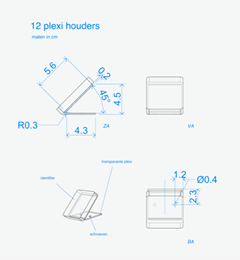
The IDentifier is able to trigger a Podcatcher within 30 cm on average.
If you would like to cover an IDentifier behind glass or in a casing, make sure to always test this first. Keep in mind that thick glass can limit the IR and Bluetooth signal coming from the IDentifier. A metal casing disturbes strongly.
Start IDentifiers
The minimum distance you have to keep in between is 30 cm. With multiple languages it’s best to hang them staggered diagonal from each other so the visitor does not accidentally activate another language when bringing the Podcatcher to his/her ear.
If you only have a limited space to place them, not enough room to place all your language IDentifiers, you can contact our helpdesk so we can make a change in the settings, which makes it possible to place them closer together.
Underneath you find the specsheets of our newest model IDentifier (V3) and our older model IDentifier (V2).
Specsheet IDentifierV3
Specsheet IDentifierV2
Note; the IDentifier V2 will no longer be available in our product range as of the 1st of January 2021. Customers can keep using them on location, but we cannot replace them or send out additional ones.
After a while – a year or two in indoor environments – an IDentifier’s battery will eventually run dry. When this happens, replacing it is fairly simple. This page aims to teach you how to do so.
Object IDentifier
The process of replacing batteries is as follows, depending on the type of IDentifier you have;
V2 – IDentifier
- Remove frontside using a fine flat screwdriver.
- Carefully take out the PCB with transmitter and batteries.
- Replace the 2 CR2032 lithium coin cells (batteries) off the transmitter.
- Re-assemble the IDentifier.
Instruction-sheet Instruction IDentifierV2 Battery
V3 – IDentifier
- Remove frontlabel using a fine small knife.
- Remove the 4 screws with a T6-screwdriver
- Remove the top cover whilst keeping the sealing in the front side.
- Carefully take out the PCB with transmitter and batteries.
- Replace the 2 CR2032 lithium coin cells (batteries) off the transmitter.
- Re-assemble the IDentifier.
Instruction-sheet Instruction IDentifierV3 Battery_
Done!

 English
  Nederlands
  Français