
Syncconsole Installation

Introduction

To synchronize content and usage data of the Podcatchers, a PC needs to be setup as a Sync Console near/at the handout desk which is connected to the Dockingstations and Internet. We will provide this PC to you, but if you need  an extra Sync Console installed (for instance in the office or at a partner) or if you have to re-install your own PC, you can  set up an a regular PC following the steps below. Note: any computer used as a Sync Console must meet these specifications.

Installation

Before a computer can sync Podcatchers, it will need some software so it ‘knows’ how to work with the Guide ID servers and devices. There’s TeamViewer (1)  that lets you (and us) connect to the computer remotely (should it be necessary) and the Sync desktop application (2). Afterwards, you’ll need to associate the desktop app’s serial number with your Site (3) so the computer can synchronize your content.

Attentionif you have not yet received the Docking Stations, you can start the installation steps but you will not be able to complete step 3 because the activation code is not shown and/or the Sync program will say that the Sync service is not running. This is due to a limitation of the Windows driver model. Once you have connected the Docking station(s) and reboot the computer, the activation code will be displayed.

1. Guide-ID TeamViewer

In order for us to be able to help you remotely, you have the option of installing the TeamViewer Host program. Guide-ID can use this program to help you, if there are any problems during the installation of the synchronisation program or at any other point down the line. Installing this program is optional, but we recommend it.

Note; We always recommend to connect the Sycconsole onto your ‘guest network’ so your internal network is protected at all times. Your system administrator will be able to do this for you as it’s their responsibility.  

  1. Download the program ‘TeamViewer_Host_Setup.exe‘.
  2. Find the file in your downloads folder, right-click on it and choose Run as Administrator. Contact your computer/network administrator to obtain these rights if you don’t have them.
  3. On the first screen click ‘Next’ .
  4. You will be asked how you would like to use the program, choose business/commercial and click ‘Next’.
  5. The license agreement will be shown, accept the agreement and click ‘Next’.
  6. You will be asked to choose a password, use the word Podcatcher and fill in a computer name, for example the name of your organization. If you have multiple Sync Consoles, we recommend naming them something descriptive like “Front desk” or “Podcatcher hand-out temporary tour” along with the name. You don’t have to tick the box for ‘add this computer to my list of computers’. Click ‘Next’.
  7. Click ‘Finish’ to complete the installation.
  8. After installation a screen with Your ID will be shown. Send an email to helpdesk@guideid.com with this number and a description of your computer (where it’s located for example).

2. Installation of the Podcatcher Sync application

  1. Download the program ‘Sync Installer.exe‘.
  2. Find the file in your downloads folder, right-click on it and choose Run as Administrator.
    1. Windows may ask you to download a required piece of software (the .NET Framework 3.5 runtime) before it’ll let you run the installer. If this happens, let it install the requirements, and try the installation again.
  3. Click the ‘Install button. The installation process will be run automatically. The installer will let you know when it’s done.
  4. As soon as the installation is finished you will see a green/white Podcatcher icon in your taskbar. If you double-click this icon you will see the sync program.
  5. The sync program should say ‘Warning – This Sync Console has not yet been activated yet!’. Beneath this message you will see an activation code. Copy this code by selecting as you would any other piece of text and press ctrl+c, or write this code down.

If you use a proxy server to connect to the Internet, check the article ‘advanced settings‘.

3. Activate your Sync Console online

  1. Go to the Podcatcher Portal and log in using your Podcatcher Portal account.
  2. Click ‘Sync‘ on the left-hand side of the page.
  3. Click the [ + Add Sync Console ] button to activate a Sync Console and to link it to your site.
  4. A popup window should appear with the following input fields:
    1.  First, select the Sync Console option and click Next.
    2. Sync Console Authentication Key, this is where you fill in the activation code that you copied/wrote down from the previous step.
    3. Sync Console Description, this is where you fill in a name for the Sync Console, for example, ‘Distribution point main desk’.
    4. Number of Docking Stations connected, this is where you fill in the amount of Docking Stations that are connected to the Sync Console. Note: It’s not the amount of Podcatchers!
  5. Add the Console by clicking [ Add Sync Console ]. The list of Sync Consoles should update and the new one appears.

If you have multiple locations where Podcatchers need to be provided with content, you can redo the steps mentioned here above at any location with any computer that complies to the Sync Console specifications. Every installation will have its own unique activation code that you can use to activate the location and to be able to see it in the online Sync App.

Should you run into problems installing the Podcatcher Sync application, try the Sync Console installation troubleshooting page.
Advanced Syncconsole setup

Introduction

Some computers need advanced settings to get the Podcatcher Sync program up and running. In this article you’ll find a couple of configuration options.

Proxy server

Some locations need to connect to the Internet through a proxy server. You can’t change this setting in the Podcatcher Sync program but you can still change it for the application. You can do this as follows:

  • Start the program ‘Notepad
  • Click File -> Open and navigate to the folder where the Podcatcher Sync program is installed. By default, this is ‘C:\Program Files\Guide ID\Podcatcher Sync.
  • Change the file types in the ‘open’-dialog from ‘text files (*.txt)‘ to ‘all files (*.*)
  • Select the file ‘Podcatcher Sync Service.exe.config‘ and open it. The extension .config might not be visible, if you click the wrong one it’ll show some garbled text. Should this happen, try again from the first step.
  • The file should open with readable text and start with <?xml version=”1.0″?>.
  • The last two lines of the file are currently </system.serviceModel> and </configuration>. Add the following information between the last line and the line before the last line:
<system.net>
 <defaultProxy enabled="true">
  <proxy bypassonlocal="true" proxyaddress="http://proxy.domain.org:8888/" />
 </defaultProxy>
</system.net>
  • Replace ‘http://proxy.domain.org:8888/‘ with the URL of your own proxy server.
  • Save the changes.
  • Restart the computer.

Warning IDentifier manual

Preventing your Podcatchers from going missing

Introduction

When a visitor uses a Podcatcher, you can expect them to return it after use. However, some visitors may neglect, or simply forget to do so. To lower the amount of Podcatchers ‘disappearing’ over time, there are two ways to activate a warning signal built into the Podcatcher to alert visitors they should return the device. The first is a special IDentifier called the Warning IDentifier, the second is a Podcatcher setting namely the “idle time Alarm”. You can use either, neither, or both, depending on what you think is appropriate.

Warning IDentifier

The Podcatcher can sound its warning signal when it receives a Warning IDentifier code. This is a special IDentifier that is typically placed near the building exit so visitors should be notified at the right time.

The advantages of this method are that Podcatchers are more likely to be dropped off over time (especially if you have a lanyard or wristband attached), and your staff will know to ask specific visitors to return the player before leaving the building. The disadvantage is that the IR signal doesn’t go through much in the way of cloth or leather, meaning Podcatchers won’t sound the warning signal if it’s been put in a bag or pocket.

Installation of the Warning IDentifier

CAUTION: Avoid looking directly into the Warning IDentifier’s front at close range! The infrared LEDs in the device are invisible to the human eye but are very bright, especially at close range.

Testing:

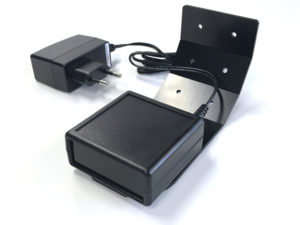
  1. Plug the adapter into a power socket and the adapter plug into the 9V DC input on the Warning IDentifier. Although there also is a RCA connector on the back, you only need to connect the 9V DC adapter plug and nothing else.
  2. The 2 LEDs on the back will blink green for a couple of seconds.
  3. Then the Warning IDentifier will start transmitting alarm codes. The top LED should be red and the bottom led should flash green every time an warning signal code is transmitted (about 4x per second).
  4. Take a Podcatcher from the Docking Station. The warning signal should sound when you are in range of the Warning IDentifier. It will sound for about 120 seconds. You can stop the warning signal sound by pressing any of the buttons on the Podcatcher, but when you are still in range it will sound again!

Configuration:

You can change the Warning IDentifier transmission power by setting the red/white switches at the back of the device.
The change takes place immediately and each increase adds about 2-3 meters of range.

Switch 1 up, all others down = 25% intensity

Switch 1 and 2 up, all others down = 50% intensity

Switch 1, 2 and 3 up, all others down = 75% intensity

Switch 1, 2, 3 and 4 up, all others down = 100% intensity

Mounting:

Podcatchers can only react to the warning signal when they are in visible range of the Warning IDentifier. The Waring IDentifier sends infrared signals and infrared cannot pass through objects,
therefore the Warning IDentifier works best when the Podcatcher is aimed directly at it. It is wise to place the Warning IDentifier in such a way that it is most likely to ‘reach’ a Podcatcher.

When mounting the Warning IDentifier near an exit, it is best to place it at the ceiling facing towards the visitors inside the building, so visitors that are walking towards the exit are most likely to get in range of the Warning IDentifier. When mounting near an entrance it is best to place the device in the other direction,thus facing outside of the building, because if it is facing inside, it is very likely that the Warnng IDentifier would trigger Podcatchers at the handout desk as well.

Please experiment which location and direction/angle works best to reach the Podcatchers, but not interfere with normal operations.

Warning signal after idle time

The Podcatcher can also sound an warning signal when it is engaged in a Tour but has not played audio for a while. By default this functionality is turned off, but you can set it up in the Site Podcatcher settings, under “Podcatcher idle time before alarm starts”.

The advantage of this method is that the warning signal will always sound after a while, unless properly handed in. The disadvantages are that if you set it to sound the warning signal too quickly, visitors may become annoyed; if you set it to sound the warning signal too late, the visitor may already be on the bus back home by the time it goes off. Further, if your site doesn’t collect Podcatchers in docks after visitors finish the tour (such as a drop-off box), they may start to produce a very annoying chorus over time.

Post-Alarm trigger

The Podcatcher can be made to play audio after sounding the warning signal using the Post-Alarm trigger in a stop. This will make the stop play its audio after the warning signal has stopped playing (either due to it playing for its full duration or a button being pressed). This is – as all content is – localized to the language of the tour.

Prevent missing Podcatcher

There are a number of ways to minimize the risk of losing Podcatchers. Below in the spec-sheet you’ll find a number of tips and best practices.

Prevent missing Podcatcher