The minimum distance you have to keep in between 2 IDentifiers is 30 cm. The best height is 130 cm from the ground, this way they are easy to trigger for each person (tall/small/kids/visitors in a wheel chair etc.) The best way to mount them is horizontal against the wall / cabinet or post.
Outdoor; make sure the label is attached correct and firm and that the IDentifier is positioned upright (90 degree angle). Also, make sure water can flow away from the IDentifiers during/after rainfall
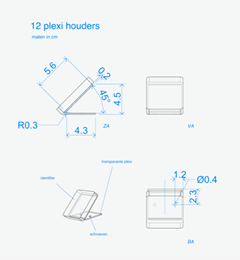
Indoor; When mounted flat on a table, they are not easy to trigger because of the angle. If you would like to mount them on a flat service always make sure to tilt them towards the visitor, preferably in a 45 degree angle
The IDentifier is able to trigger a Podcatcher within 30 cm on average.
If you would like to cover an IDentifier behind glass or in a casing, make sure to always test this first. Keep in mind that thick glass can limit the IR and Bluetooth signal coming from the IDentifier. A metal casing disturbes strongly.
Start IDentifiers
The minimum distance you have to keep in between is 30 cm. With multiple languages it’s best to hang them staggered diagonal from each other so the visitor does not accidentally activate another language when bringing the Podcatcher to his/her ear.
If you only have a limited space to place them, not enough room to place all your language IDentifiers, you can contact our helpdesk so we can make a change in the settings, which makes it possible to place them closer together.
The Podcatcher can sound an warning beep when it receives a signal from the Warning IDentifier, which might help preventing Podcatchers from going missing. In the specsheet you’ll find more information about the Warning IDentifier.
The Syncconsole is the connection between the Podcatcher Portal and the hardware. Standard Syncconsoles delivered by us, will have TeamViewer installed so we are able to connect with the Syncconsole from a distance. If you would like our support, you can always contact our helpdesk. If we have to look into the Syncconsole to resolve a problem, we will inform you first.
We always recommend to connect the Sycconsole onto your ‘guest network’ so your internal network is protected at all times. Your system administrator will be able to do this for you as it’s his responsibility.
This specsheet gives you more information about the Syncconsole we deliver, a NUC.
The Cabinet Block is a stand alone compact charging and synchronization unit, that can hold up to 100 Podcatchers (10 dockingstations).
The Cabinet Tower is a unit that can hold up to 300 Podcatchers. The Tower configuration exists of 4 cabinet blocks; 3 with Podcatchers and one empty block to ensure the right height.
Please take a look at this the specsheet for more information and measurements;
The Dockingstation is a compact charging- and synchronisation station that can hold up to 10 Podcatchers. Please take a look here: Specsheet_Dockingstation for info and measurements.
Note: a Dockingstation can be placed on a flat surface (table-top) or wall-mounted. It is also possible to built the Docks in a piece of furniture. There are a few guidelines to keep in mind when doing that.
Note; the IDentifier V2 will no longer be available in our product range as of the 1st of January 2021. Customers can keep using them on location, but we cannot replace them or send out additional ones.
The Podcatcher is an interactive audio handset. It can be used for all types of interpretation and interaction, anything from a simple audio guide, to a remote control for an interactive exhibition or game. The specsheet can be found here: Specsheet-Podcatcher-2020

 English
  Nederlands
  Français