
Les IDentifiants sont essentiels pour activer le contenu sur les Podcatchers. En approchant l'appareil de l'identifiant, les visiteurs peuvent accéder au contenu associé. L'ajout d'un identifiant à un arrêt permet de le relier au contenu, le premier arrêt de chaque visite étant le point de départ de la visite et nécessitant un identifiant pour chaque langue.
Note : Tout identifiant utilisé pour démarrer une visite et sélectionner une langue ne peut être présent que dans les cas suivants une fois on your site. Otherwise, Podcatchers and PWA wouldn’t know which tour and language to start with. Other IDentifiersmay be used once per tour, but can be used just fine in multiple tours as a non-language IDentifier.
1. Ajout d'identifiants pour les langues de la tournée
Pour ajouter un IDentifiant afin de commencer la visite dans une langue, cliquez sur le premier arrêt et ouvrez la fenêtre d'identification de l'IDentifiant. Réglages d'arrêt.
Enregistrez les paramètres en cliquant sur le bouton Bouton d'enregistrement.
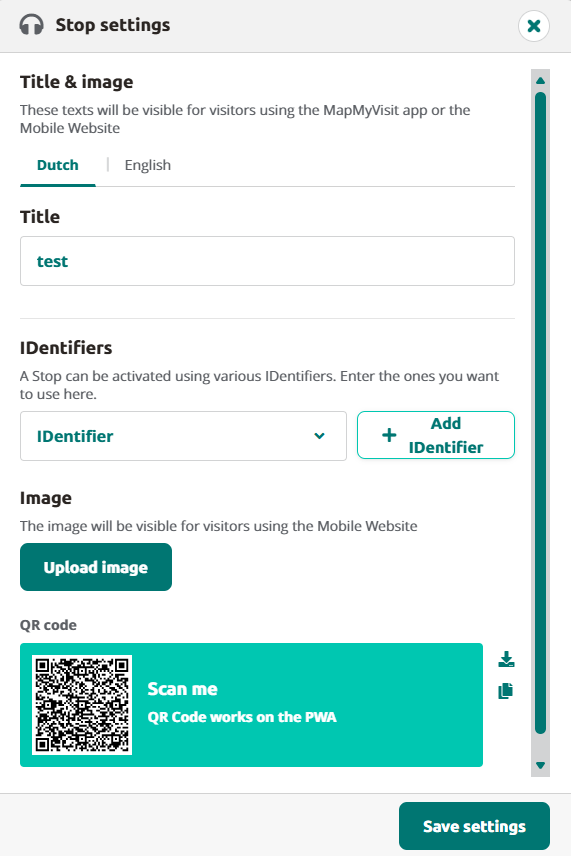
Le code de l'IDentifier se trouve au dos de l'IDentifier.
2. Ajout d'identifiants pour d'autres arrêts
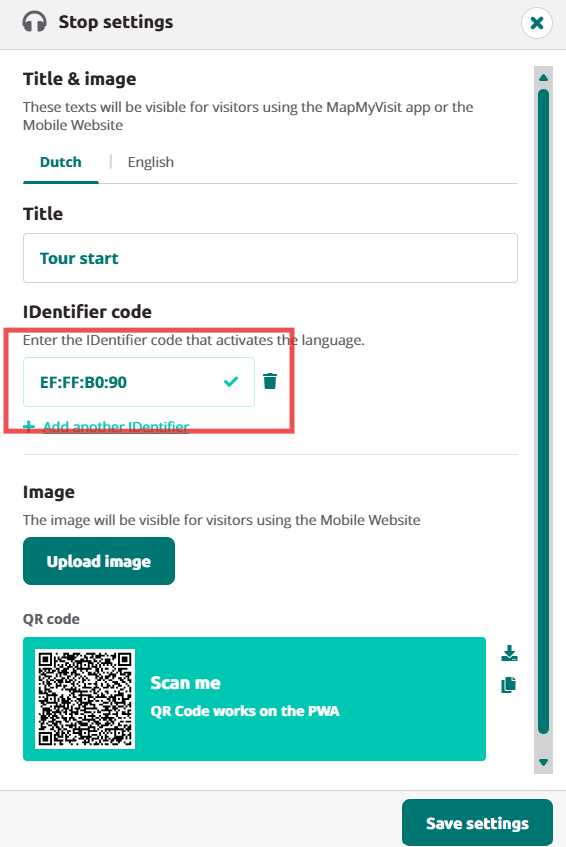
L'ajout d'identifiants à d'autres arrêts est tout aussi simple. Cliquez sur l'arrêt, ouvrez les paramètres de l'arrêt et ajoutez un identifiant en cliquant sur le bouton Ajouter un identifiant et en saisissant le code d'identification.
Remarque : les autres paramètres linguistiques ne s'appliquent pas aux IDentifiants. Ils s'appliquent toutefois au titre de l'arrêt.
3. Ajout d'identifiants pour un arrêt AV-sync
Lors de la création d'un arrêt AV-sync, il suffit de cliquer sur +Ajouter un arrêt, donner un titre à l'arrêt et sélectionner Arrêt de la visite de la Synchronisation Audiovisuelle.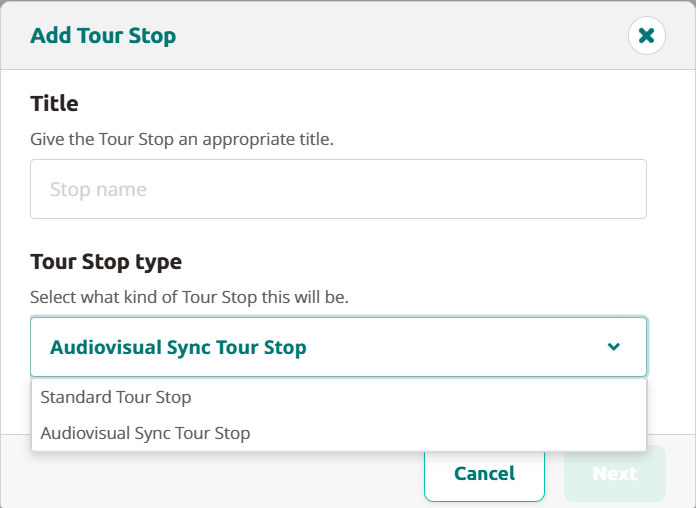
Lorsque vous cliquez sur Suivant, une fenêtre contextuelle s'affiche avec des informations sur l'outil AV-synctool.
Après cela, vous serez redirigé vers l'arrêt, où vous pourrez ajouter le fichier audio créé à partir de l'option AV-sycntool.
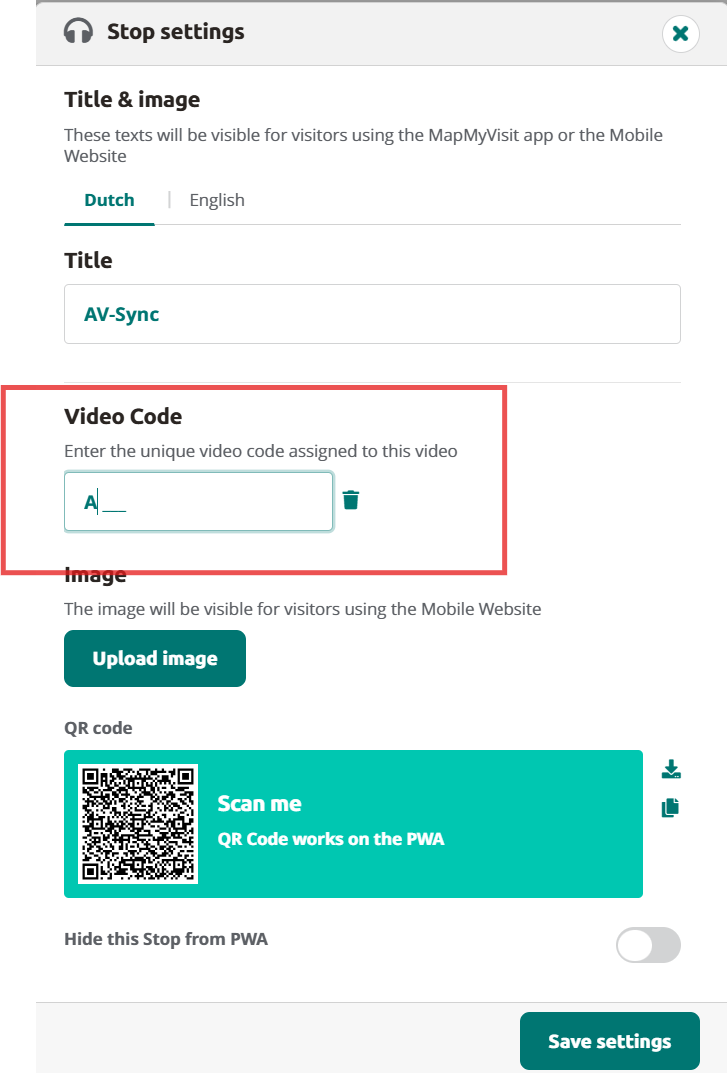
Cliquez sur stop settings pour ajouter le code que vous avez utilisé dans l'AV-synctool et cliquez sur Save settings.
Installez le Brainbox comme indiqué dans la section Manuel Brainbox.
4. Vue d'ensemble du matériel
L'onglet Matériel donne un aperçu rapide des niveaux de batterie de vos IDentificateurs.
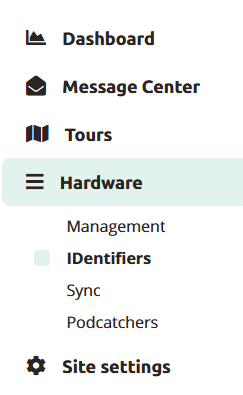
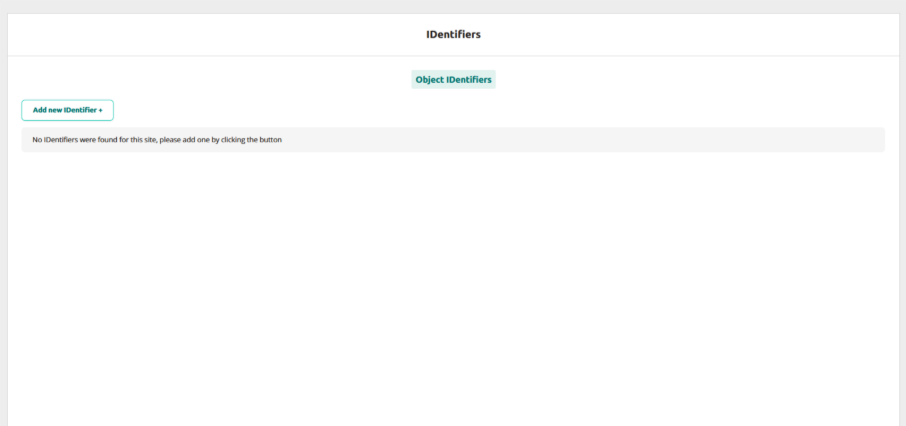
De nouveaux identifiants peuvent également être ajoutés à l'aide de la fonction Ajouter un nouvel identifiant bouton. Vous pouvez ajouter plusieurs IDentifiants à la fois, ou enregistrer les IDentifiants et fermer la fenêtre contextuelle à l'aide des boutons.
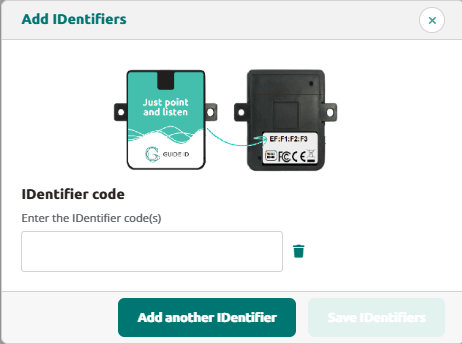
Enfin, vous avez la possibilité de lier l'IDentifier à un arrêt lors de la dernière étape, bien que cela ne soit pas obligatoire.
En suivant ces étapes simples, vous pouvez ajouter et gérer des identifiants pour vos tournées. N'oubliez pas de publier la tournée et synchroniser les Podcatchers.
 Français
  English
  Nederlands