
Introductie
To synchronize content and usage data of the Podcatchers, a PC needs to be setup as a Sync Console near/at the handout desk which is connected to the Dockingstations and Internet. We will provide this PC to you, but if you need an extra Sync Console installed (for instance in the office or at a partner) or if you have to re-install your own PC, you can set up an a regular PC following the steps below. Note: any computer used as a Sync Console must meet deze specificaties.
Installatie
Before a computer can sync Podcatchers, it will need some software so it ‘knows’ how to work with the Guide ID servers and devices. There’s TeamViewer (1) that lets you (and us) connect to the computer remotely (should it be necessary) and the Sync desktop application (2). Afterwards, you’ll need to associate the desktop app’s serial number with your Site (3) so the computer can synchronize your content.
Attentie: if you have not yet received the Docking Stations, you can start the installation steps but you will not be able to complete step 3 because the activation code is not shown and/or the Sync program will say that the Sync service is not running. This is due to a limitation of the Windows driver model. Once you have connected the Docking station(s) and reboot the computer, the activation code will be displayed.
1. Guide-ID TeamViewer
Om ons in staat te stellen u op afstand te helpen, heeft u de mogelijkheid om het TeamViewer Host programma te installeren. Guide-ID kan dit programma gebruiken om u te helpen, indien er problemen zijn tijdens de installatie van het synchronisatie programma of op een ander moment in het proces. Het installeren van dit programma is optioneel, maar wij raden het aan.
Opmerking; Wij raden altijd aan om de Sycconsole op uw 'gast netwerk' aan te sluiten zodat uw interne netwerk te allen tijde beveiligd is. Uw systeembeheerder zal dit voor u kunnen doen aangezien het hun verantwoordelijkheid is.
- Download het programma 'TeamViewer_Host_Setup.exe‘.
- Zoek het bestand in uw downloads map, klik er met de rechtermuisknop op en kies Voer uit als Beheerder. Neem contact op met uw computer/netwerkbeheerder om deze rechten te verkrijgen als u ze niet hebt.
- Klik op het eerste scherm op Volgende .
- U wordt gevraagd hoe u het programma wilt gebruiken, kies dan zakelijk/commercieel en klik op 'Volgende'.
- De licentieovereenkomst zal worden getoond, accepteer de overeenkomst en klik op 'Volgende'.
- U wordt gevraagd om een wachtwoord te kiezen, gebruik het woord Podcatcher en vul een computernaam in, bijvoorbeeld de naam van uw organisatie. If you have multiple Sync Consoles, we recommend naming them something descriptive like “Front desk” or “Podcatcher hand-out temporary tour” along with the name. You don’t have to tick the box for ‘add this computer to my list of computers’. Click ‘Next’.
- Klik op Afwerken om de installatie te voltooien.
- Na installatie een scherm met Uw ID zal worden getoond. Stuur een e-mail naar helpdesk@guideid.com met dit nummer en een beschrijving van uw computer (waar deze zich bijvoorbeeld bevindt).
2. Installation of the Podcatcher Sync application (Sync Console 2.x)
The Sync Console 2.x application is a Windows service that allows Podcatcher V3 hardware to sync with the PP4 Platform. It replaces the legacy Podcatcher Sync service.
The new service can be installed on Windows 10 or 11. If the legacy Podcatcher Sync is already installed, it will be automatically replaced.
- Download the msi installer from GuideID.SyncSetup en run it. Depending on your security configuration, a message similar to this may appear:
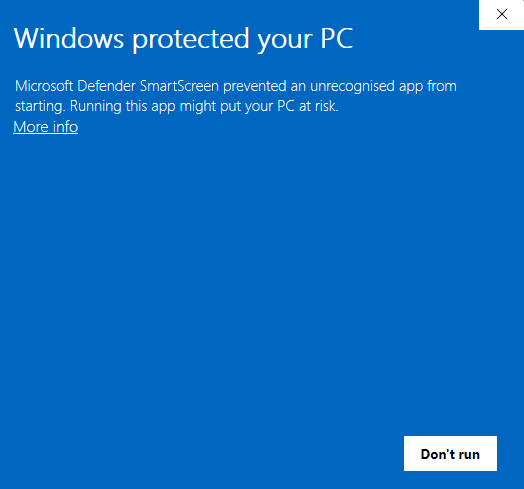
- If the “Run anyway” button is already visible, click it. Else you need to click “More info” first and then click “Run anyway”. You will be greeted by the following screen:
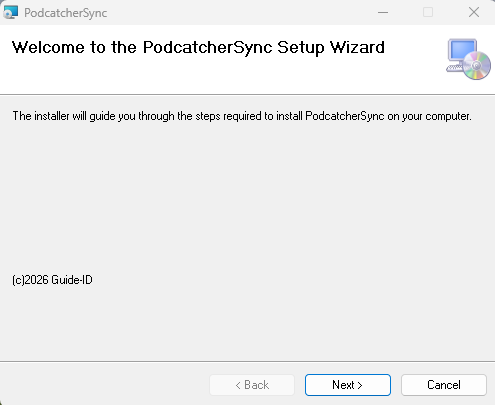
Click “Volgende” to continue. - Select where to install the application. It is recommended to accept the default location. (Let op: the contents of all Podcatcher audio tours will be stored here as well, so make sure there is enough space available.)
Make sure to select “Everyone” and click “Next”: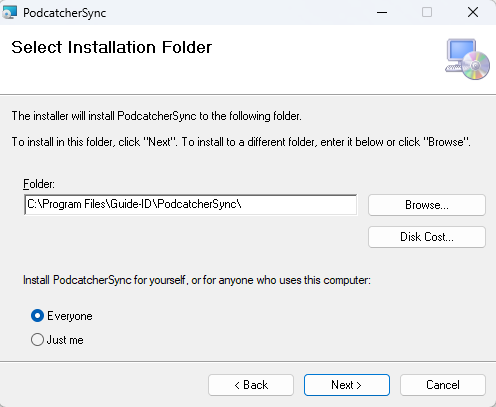
- Klik op “Next”:
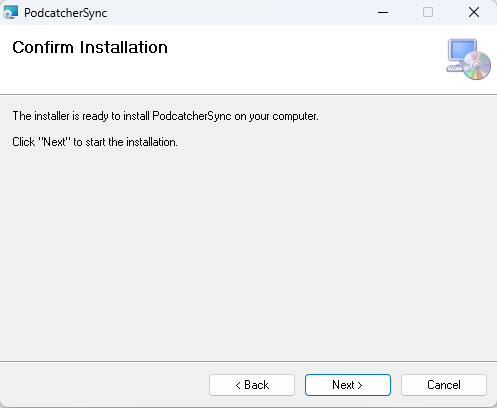
Klik op “Next”: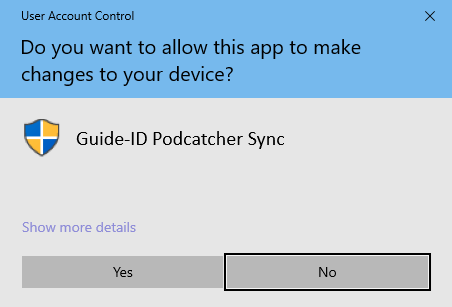
- A warning similar to the one above may appear asking permission to make changes to your device. Click “Yes” of “Allow” or something equivalent to continue installation.
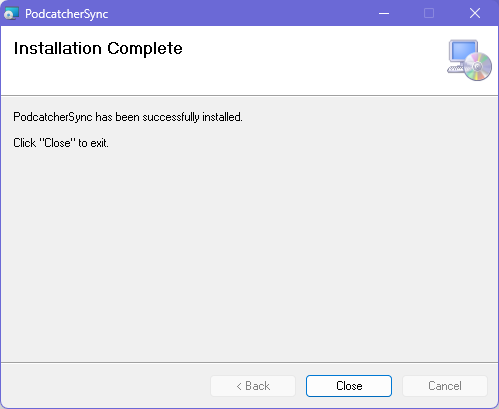
After the application has been installed, click Close.
Identifying the Serial Number and Authentication Key
If the Sync Console still needs to be registered in the Podcatcher Platform, you need to provide a serial number and authentication key.
This information can be retrieved by running the following command from an elevated command prompt (run cmd as administrator):
GuideID.PodcatcherV3Sync.exe -cmd info
The following information appears.
Guide-ID Podcatcher Sync Service version: 2.1.0.0 Sync Console Serial number: scXXXXXXXXXX Authentication key: XXXXX-XXXXX-XXXXX-XXXXX-XXXXX
Take note of the Sync Console Serial number and the Authentication key and enter them in the Platform when registering your Sync Console.
3. Register your Sync Console
- Ga naar de Podcatcher-platform en login using your Podcatcher Platform account.
- Klik op ‘Hardware → Syncaan de linkerkant van de pagina.
- Klik op de [ + Add new Sync Device ] button to register a Sync Console and to link it to your site.
- Er moet een popupvenster verschijnen met de volgende invoervelden:
- Selecteer eerst de Sync Console optie en klik op Volgende.
- Syncconsole Serial Number en Authenticatiesleutel, this is where you fill in the serial number and authentication key that you copied/wrote down from the previous step.
- Syncconsole Daily sync time, this is where you select a time when all Podcatchers should be present in the Sync Console, usually after opening hours.
- Syncconsole BeschrijvingHier vult u een naam in voor de Sync Console, bijvoorbeeld 'Distributiepunt hoofdbureau'.
- Add the Sync Console by clicking Finish button. The list of Sync Consoles should update and the new one appears.
Als u meerdere locaties hebt waar Podcatchers van inhoud moeten worden voorzien, kunt u de hierboven genoemde stappen op elke locatie opnieuw uitvoeren met elke computer die voldoet aan de specificaties van de Syncconsole. Elke installatie heeft zijn eigen unieke activeringscode die u kunt gebruiken om de locatie te activeren en te kunnen zien in de Portal.
Mocht u problemen ondervinden bij het installeren van de Podcatcher Sync-toepassing, probeer dan het Sync Console installatie problemen oplossen pagina.
 Nederlands
  English
  Français