Useful Insights right at your fingertips

Actionable Insights transforms your Podcatcher Pro system data into timely recommendations that help you prevent disruptions and optimize visitor experiences. This intelligent notification system keeps you informed about hardware status and tour performance, allowing you to address potential issues before they affect your guests.

Quick Reference

  • Access Message Center: Dashboard → Message Center icon
  • Email configuration: Profile → Email Preferences
  • Notification Levels: Minor, Moderate, Severe (prioritized by urgency)
  • Key Benefits: Proactive maintenance, reduced downtime, optimized visitor flow
  • Primary Features: Hardware monitoring, tour performance insights, email alerts

How Actionable Insights Works

The Actionable Insights system continuously monitors your Podcatcher Pro environment, analyzing both hardware status and visitor interactions to identify opportunities for improvement. When the system detects an issue or optimization opportunity, it generates a notification with a clear recommendation for action.

Notification System

Actionable Insights categorizes notifications by priority to help you focus on what matters most:

  1. Minor Notifications (Informative)
    • Informational updates that don’t require immediate action
    • Examples: system updates available, infrequently used tour stops
    • Useful for long-term planning and optimization
  2. Moderate Notifications (Requires Attention)
    • Issues that should be addressed to maintain optimal performance
    • Examples: low beacon batteries, missing Podcatcher devices
    • Important for preventive maintenance
  3. Severe Notifications (Requires immediate action)
    • Critical issues requiring immediate attention
    • Examples: offline basecamps, Podcatchers in error state
    • Essential for preventing disruption to visitor experiences

Using the Message Center

The Message Center serves as your central hub for all notifications, providing clear information about each issue and recommended solutions.

Accessing the Message Center

  1. Log in to the Guide-ID platform
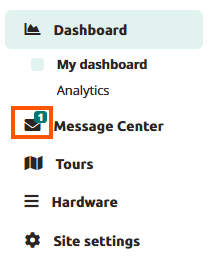
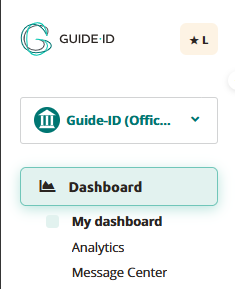
  2. Look for the Message Center header in the top left bar
  3. Click to open your notification dashboard
Understanding Message Center Alerts

Each notification in the Message Center includes:

  • Alert icon indicating the priority level
  • Clear description of the detected issue
  • Actionable recommendation to resolve the problem
  • Timestamp showing when the issue was detected

For example, a typical notification might alert you that “IDentifier with serial number BP.000.433 is low on battery” and recommend that you “Please replace or recharge the battery to keep using this Beacon.”

Note: For a complete reference of all possible notifications and recommended actions, see [Notification Types and Recommendations].

Managing Your Notifications

The Message Center allows you to:

  • Review all active notifications in one convenient location
  • Dismiss notifications once you’ve addressed them
  • Track resolution status as the system automatically removes fixed issues

Accessibility Consideration
The Message Center is designed to present critical information at a glance, making it valuable for busy museum environments, where staff may only have moments between visitor interactions to check system status.

Email Notification System

To ensure you never miss important alerts, Actionable Insights extends beyond the platform with strategic email notifications.

Email Alert Types

  1. Weekly Summary Emails
    • Comprehensive overview of all pending notifications
    • Prioritized by urgency level
    • Provides a convenient way to stay informed even when not logged into the platform
  2. Urgent Alert Emails
    • Sent when critical issues require immediate attention
    • Focus specifically on severe notifications

Customizing Email Preferences

You can tailor your notification experience to match your museum’s needs:

  1. Navigate to Profile -> Email preferences in the Guide-ID platform
  2. Select Notification Preferences
  3. Choose which E-mail types you’d like to be sent.
  4. Save your settings

Key Monitoring Capabilities

Actionable Insights monitors two primary aspects of your museum experience:

1. Hardware Health Monitoring

The system proactively tracks the status of your Guide-ID hardware, including:

  • IDentifier Battery Levels
    • Alerts when batteries reach low thresholds
    • Helps prevent audio tour disruptions in specific exhibit areas
    • Enables planned maintenance rather than emergency responses
  • Podcatcher Device Status
    • Identifies missing devices to maintain inventory
    • Detects Podcatchers in error states
    • Monitors Sync Device connectivity

2. Tour Performance Analysis

Beyond hardware, Actionable Insights helps optimize the content experience with:

  • Usage Pattern Analysis
    • Identifies underutilized or highly popular tour stops
    • Helps you understand visitor engagement patterns
    • Provides insights for content improvements

Troubleshooting Actionable Insights

If you encounter issues with the Actionable Insights system, try these simple solutions:

IssueSolution
Not receiving email notificationsCheck your spam folder and verify your email address is correct in User Settings
Missing expected notificationsConfirm your notification preferences are properly configured, and that you have not dismissed the message
Dismissed notification reappearsThe underlying issue may not be fully resolved

Warning
If you dismiss multiple beacon battery warnings without replacing batteries, you risk unexpected audio tour disruptions for your visitors. Always follow recommended actions when possible.

Success Indicators

You’ll know you’re effectively using Actionable Insights when:

  • Preventable hardware issues decrease across your museum
  • Staff can address potential problems before they impact visitors
  • Your battery replacement process becomes proactive rather than reactive
  • Missing Podcatcher incidents decline

For additional assistance with Actionable Insights, contact Guide-ID support through the platform’s Help Center or email Helpdesk@guide-id.com.
Exporting Analytics Data for Custom Analysis

Download your tour metrics as CSV files for external processing and deeper insights

The Export feature lets you download comprehensive tour analytics data for custom analysis in your preferred tools. Follow these simple steps to access your valuable visitor engagement metrics.

Quick Reference

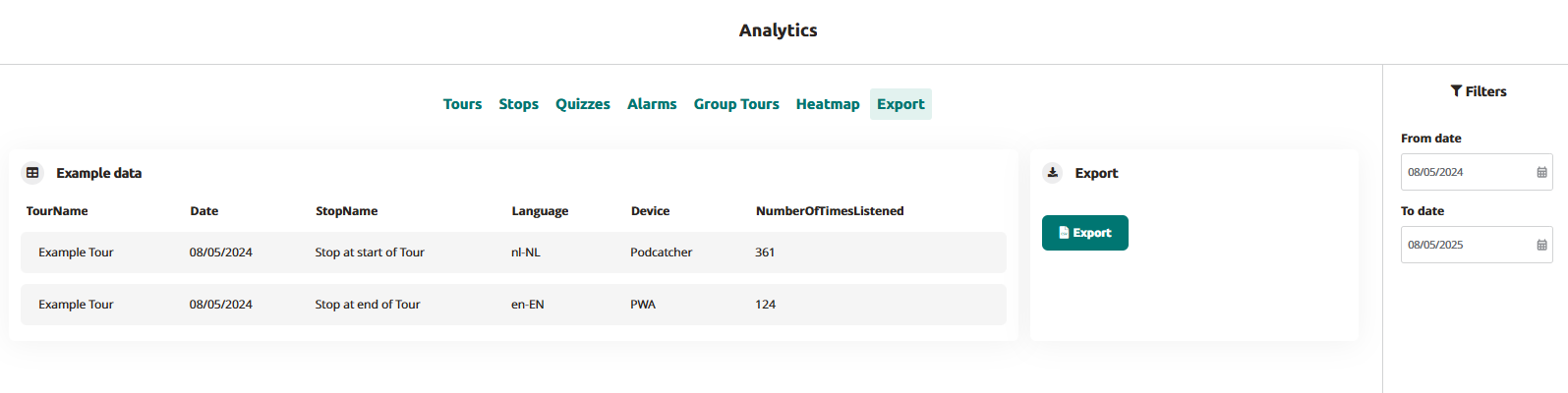
  • Navigate to Analytics → Export in the main menu
  • Set your desired date range using the From/To date selectors
  • Click the “Export” button to generate your data file
  • Download the CSV file when processing is complete
  • Files are named automatically with your site name and date range
  • Use it in your data platform 

Accessing the Export Function

  1. Log in to the Guide-ID platform
  2. Select “Analytics” from the left navigation menu
  3. Click the “Export” tab in the top menu bar

Setting Export Parameters

  1. Use the date filters in the right sidebar:
    • Click “From date” to select your starting date
    • Click “To date” to select your ending date

Generating Your Export

  1. Click the blue “Export” button
  2. Wait briefly while the processing indicator shows your file is being prepared
  3. When complete, the file will automatically download to your device
  4. Files are named “SiteName-Analytics-YYYYMMDD-YYYYMMDD.csv”

Understanding Your Data

Your exported CSV file will contain the following data columns:

  • TourName: The name of the tour as configured in the platform
  • Date: The date when the visitor interaction occurred (YYYY-MM-DD format)
  • StopName: The specific audio stop or beacon point
  • Language: The language code selected by the visitor (e.g., en-EN, nl-NL)
  • Device: The playback device type (Podcatcher or PWA for web app)
  • NumberOfTimesListened: Total play count for each stop

Troubleshooting Export Issues

IssueSolution
CSV file shows incorrect formattingOpen in a dedicated spreadsheet program rather than a text editor
Missing data for specific toursCheck that the tours were active during your selected date range

By exporting your Guide-ID analytics data, you gain the flexibility to perform deeper analysis beyond the platform’s built-in visualizations. This direct access to your visitor engagement metrics empowers data-driven decisions about content development, tour optimization, and resource allocation.

Analytics overview

When you and your visitors use the tours you have created on the Guide-ID Platform, the system automatically collects analytics data.

These metrics are invaluable for evaluating the performance of your tours, stops, and clips, as well as analyzing user engagement with quizzes and surveys.

Finding the analytics page

Upon logging in to the Guide-ID Platform, you will land on the Dashboard. To navigate to the Analytics page, simply locate it in the sidebar below the Dashboard section.

image-20230516-073005

Tours
Within the tours tab, you will find a collection of informative graphs that provide key details about your tours. These include the number of tours played, the total number of stories shared, the duration of each tour, and the average number of stops visited per tour.

Stops

The stops tab offers valuable insights into the most and least played stops, as well as the triggers that prompted their playback. Popular stops typically indicate visitor preferences, while less frequented stops may be situated in less accessible areas or encountered when visitors are fatigued from the tour through the museum.

Clips

This section provides information on the chosen options and how they compare to alternative choices, offering valuable insights into visitor preferences.

Alarms

In the alarms tab, you can monitor the frequency at which alarms were triggered and identify the most commonly activated alarm (if multiple alarms are set up).

Group tours

This is subscription based for Podcatcher Pro clients. For questions please contact our Helpdesk or one of our Business Managers

Heatmap

This section provides information about visitor counts and percentages for the selected tour stops.
You can select a month and year and then choose a specific tour.

The stops for the selected tour are displayed in a table, organized by day.

The table shows listening rates as percentages. To switch between percentage values and visitor counts, click the Toggle Visitor Count/Percentage button.


The color of the table cells varies based on the listening percentages

Export

From the Export tab, you can download analytics data about stops yourself, to be used to create your own displays or to combine with data from other analytics platforms you use for your museum. See our Exporting Analytics Data for more information.

Dashboard Overview

Your dashboard provides a snapshot of the performance metrics related to your audio tours. It helps you evaluate how well they are doing and plan for future improvements.

Tour data

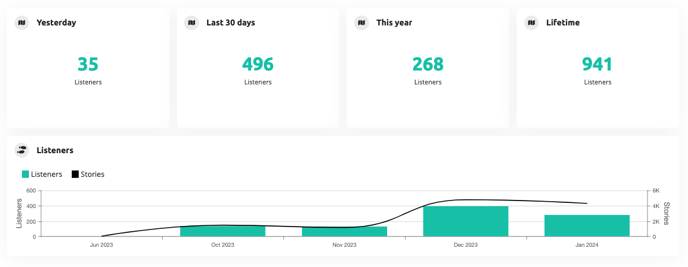
The tour data section shows you how many visitors your site has served with audio tours in the past day, thirty days, this year, and the total number of tours.

image-20240118-151458

Tours played
The tours played graph offers a detailed breakdown of the number of tours served throughout the past year. This information is further segmented based on the platform used, allowing you to analyze tour consumption across different channels such as the Podcatcher and PWA.

To do list

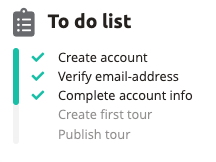
Lastly, the to-do list feature guides you through the necessary steps to ensure your audio tours are ready for your visitors. This convenient checklist helps you stay organized and ensures a seamless experience for your audience.

image-20240118-151259

Hardware notifications

Our platform automatically alerts you when your equipment needs attention. This page explains what each notification means and how to fix it.

Understanding Severity Levels

  • 🔴 High Priority – Act immediately to avoid disruptions
  • 🟡 Medium Priority – Address soon to prevent issues
  • 🟢 Low Priority – Informational, no immediate action needed

Basecamp Offline

🔴 High Priority

What this means

Your Sync Device hasn’t communicated with our system for over 24 hours.

What to do

  1. Check that the Sync Deviceis plugged in and turned on
  2. Verify your internet connection is working
  3. Look for any error lights on the device
  4. Once reconnected, the notification will disappear automatically
  5. Otherwise, please contact support

Why this happens

The Sync Device may have been turned off, lost internet connection, or experienced a technical error.

Podcatcher Malfunction

🟡 Medium Priority

What this means

A Podcatcher with a red light was placed back in the Sync Device. A red light means the device is broken.

What to do

  • Follow our returns and replacements guide to send back the broken Podcatcher and receive a new one
  • Your other Podcatchers should continue working normally

Why this happens

The Podcatcher has experienced a hardware failure and needs to be replaced.

IDentifer Battery Low

🟡 Medium Priority

Message center 6

What this means

An IDentifier’s battery has dropped below one-third capacity. You still have several weeks to months of battery life remaining.

What to do

Why this happens

Battery levels update when a Podcatcher scans the IDentifier and syncs with a Sync Device.

Podcatcher Not Seen for a Week

🟢 Low Priority

What this means

We haven’t detected this Podcatcher in over a week, but less than a month. 

What to do

  • If you have the Podcatcher, place it back in a Basecamp
  • If you’ve already returned it, we may still be processing it – the notification will clear automatically
  • The notification will stop after 30 days

Why this happens

The Podcatcher may have been left out, used for testing, or returned but not yet processed in our system. For more information, see our Missing Podcatchers FAQ.

Message Center

The Message Center will show all kinds of notifications regarding “actionable insights”. This usually means the museum needs to take actions to fix something.

The color bar on the left indicates the severity of the notification:

🟢 GreenLow severity : informational, no action required or at least not immediate
🟠 OrangeMedium severity : action required, however not immediate
🔴 RedHigh severity : immediate action required

 The meaning of the severity may be subject to change as soon as we have actual notifications with different severities.

The icon indicates the type of notification

The message text informs you about what is going on and in some cases what needs to be done to resolve the issue.

The date is when the notification was created. The date is bold when the message is unread.

The allows you to dismiss this notificatoin. You won’t receive any email reminders on this message (if you are subscribed to weekly notifications). After pressing X, the message will disappear from the overview.

The messagelist is seperated into two lists divided by a line seperator (see below) when there are unread messages since the last visit to Message Center. The first list contains the new (unread) messages since the last time this page was loaded. The second list contains the messages which are read. Messages get automatically marked as read when the Message Center page is loaded. So the next time you come to the Message Center page, all these messages are marked as read.

Message Center 2

The Platform checks for new notifications every 15 minutes. If a new notification is available, the number displayed on the message center icon is updated accordingly.

Message Center 3

Supported notifications

IDentifier Battery Low
When a low battery is detected on an IDentifier this notifications will show up per IDentifier.

IDentifier Battery will need to be replaced.

When the IDentifier is deleted from the Hardware IDentifiers page, the notification will be removed.

Message center 6

Podcatcher Error
When the Podcatcher is in error status, this notification will show up per Podcatcher. These Podcatchers will need to be returned.You can reach out the repairs or returning equipment page.

If the Podcatcher moved to a new Sync Device, the old notification will be removed. The new notification with the correct serial number will be created. When the Podcatcher is healthy again, this notification will be removed.

If you click on ‘Basecamp‘ and there is information about the latest docked Basecamp for Podcatcher, they will be navigated to the Basecamp detail page. If ther is no such information available, they will be directed to the Basecamp overview page instead.

Sync Device Offline

When a Sync Device has been offline for more than one day, this notification will show up per Sync Device. Power and network connection should be checked first.
When the Sync Device is online again, this notification will be removed.

This image has an empty alt attribute; its file name is image-86.png

If you click on ‘Sync overview page‘, you will be navigated to the Sync Device overview page.
This notification takes SyncDevice type into account, text message change for each SyncDevice type (SyncConsole, Syncbox).

Lost Podcatcher
If the Podcatchers that have a last seen of over a week ago, this notification of total number of Podcatchers will show up per site.

If there is an Warning IDentifier, it needs to be checked.

Lost Podcatchers checked Periodically.
When a previously lost Podcatcher is seen again, it is removed from the lost count.

Message center 10

When there are no notifications, all is well.

Message center 11

Ajusting tour settings

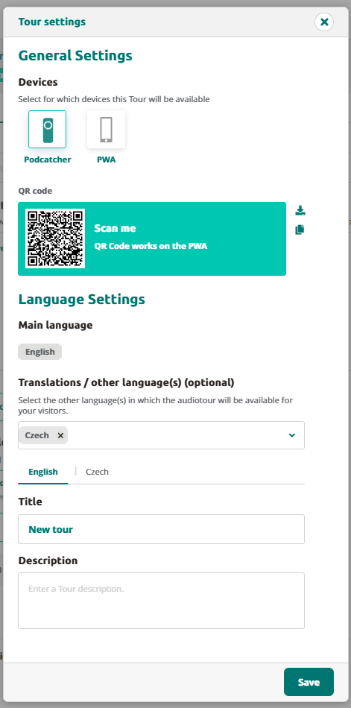
To access the tour settings, go to the tour page and click on Tour Settings located in the top-right corner of the page. This will open up the Tour Settings pop-up. 

The Tour Settings pop-up displays general information about the tour. To apply any changes, make the necessary edits and then click the Save button. 

In the General Settings section, you can select which devices this tour will be available on. 

In the Language Settings section below, you can select which languages the tour will be available in. Please note that it is not possible to change the main language of the tour once it has been set. 

You can also customize the translated title and description of the tour for each available language. 

By adjusting these settings, you can ensure that your tour is optimized for your target audience, making it more accessible and appealing to a wider range of users. 

Podcatcher overview

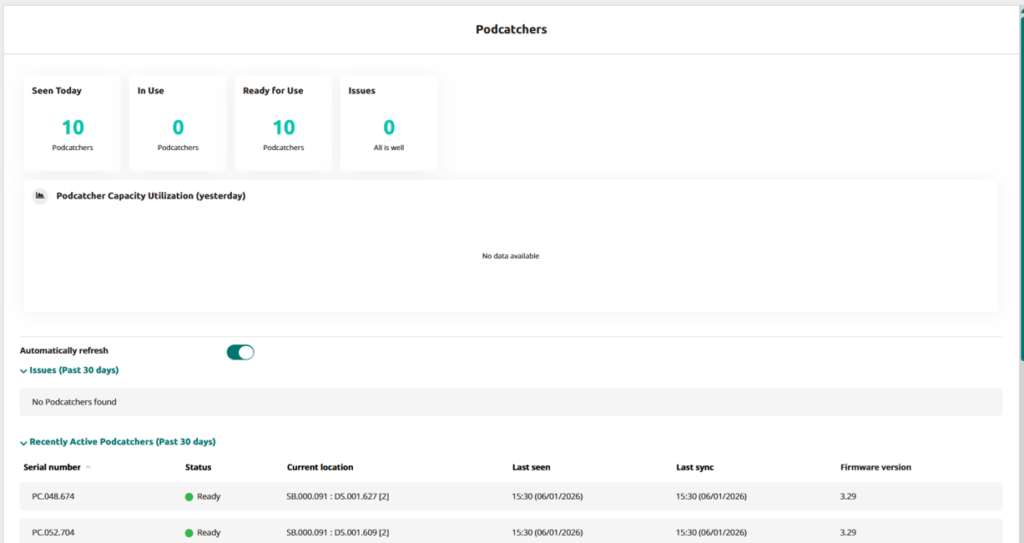
The Podcatcher overview provides you with a quick glance at the latest information about the Podcatchers. This allows you to see the status of the Podcatcher, when it was last synced and seen, and in which Sync Device.

You can access this page following the path on the sidebar.

The overview is divided into two main sections:

Podcatcher data

This section provides a clear snapshot of the current status of your Podcatchers. You can monitor:

  • Seen Today: Podcatchers that have connected to a Sync Device during a sync today.
  • In Use: Podcatchers recognized today that have been removed from the Sync Device and not yet returned.
  • Ready For Use: Podcatchers still in the Sync Device, available for immediate use and without any temporary issues or errors.
  • Issues: Podcatchers currently flagged with an ‘Error’ status.

A utilization graph displays Podcatcher activity from the previous day, highlighting peak usage times and helping you optimize device availability. This information is available in Analytics as well, where you are able to select a date or even view over a longer period of time.

3ed8e58a-7649-4c3c-87a0-91cf6b063ef8

The light green background represents the capacity: the current number of Podcatchers detected on the Site. These are Podcatchers that have been seen in the past 14 days.
The darker green shows the number of Podcatchers that were actually in use by a visitor. (Based on Tour log data).
Hovering the mouse over the graph will pop up the exact numbers.

When usage hits 80% or more of capacity, an ⚠️ is shown.

Podcatcher List

This list includes all Podcatchers assigned to your location, organized into three categories:

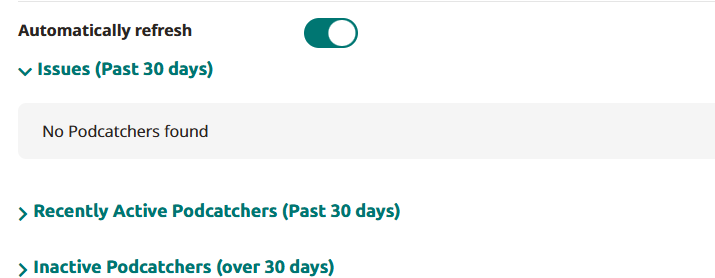
  • Issues (Past 30 days): Contains Podcatchers which have the status “Error” which have been seen within the past 30 days.
  • Recently Active Podcatchers (Past 30 days): Contains Podcatcher which do not have the status “Error” (so warning or Ready) and have been seen within the past 30 days.
  • Inactive Podcatchers (Over 30 days): Contains Podcatchers which have not been seen for more than 30 days. It includes all statuses (“Error”, “Warning”, “Ready”)
Overview when drop down vensters are mostly closed
Overview when certain drop down vensters are opened

For each Podcatcher, the following details are provided:

  • Serial Number: The unique identifier for each Podcatcher, visible here for reference only.
  • Status: Indicates the Podcatcher’s state during the last sync.
    • Ready: The device is available and ready for visitors.
    • Warning: The Podcatcher requires syncing again, or the battery is nearly depleted.
    • Error: The device is not functioning and should be returned. Click “Error” for step-by-step return instructions.
  • Current location: The Sync Device location where the device was most recently detected.
    It shows the Sync Device’s serial number, Dockings station’s serial number and the slot number (shown in parentheses)
  • Last Seen: The date and time the Podcatcher was last connected to a Sync Device.
  • Last Sync: The most recent update when new content was loaded to the device.

Sync

Synchronization of the Podcatchers is the process of updating them with the latest published content, and retrieving Analytics data and diagnostics from the Podcatcher.

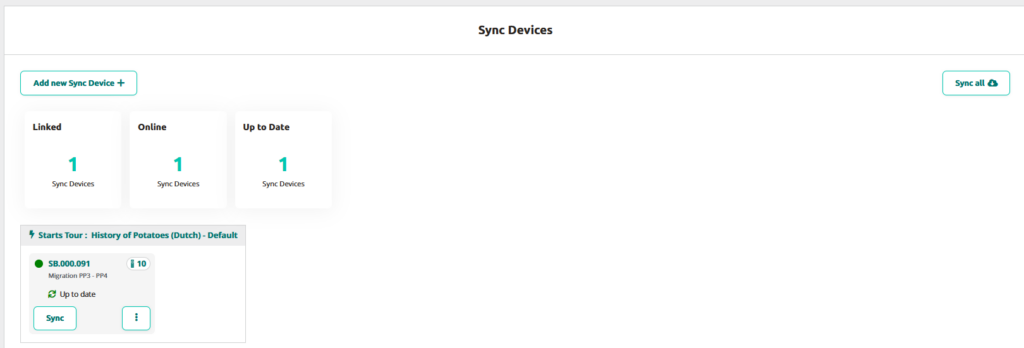
The Sync page will show all the Sync Devices registered at the site.

Add new Sync Device +

With this button you can add one or several Sync Devices. For more information on adding Sync Devices go Syncbox manual or Syncconsole Installation.

Sync all

With this button you can start the synchronisation simultaniously for the added Sync Devices.

Linked

The number of Sync Devices linked/registered to this Site

Online

The number of Sync Devices that are online

Up to Date

The number of Sync Devices that have the latest content

Sync Device settings

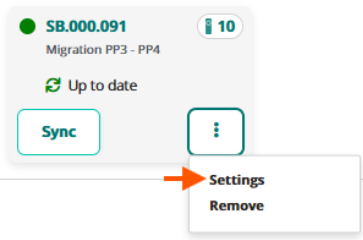
When clicking on the Kebab menu, two options will appear: settings and remove.

To remove the Sync Device from the Platform, simply click on remove.
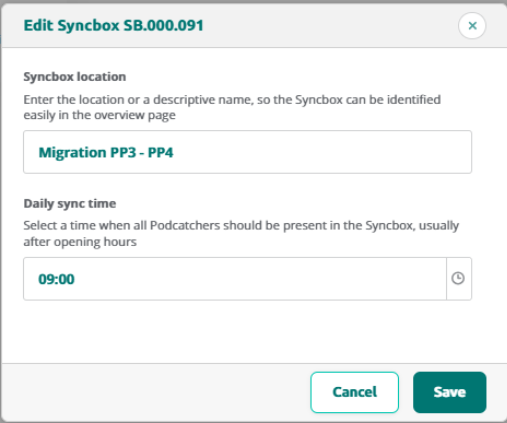
When clicking on settings, you can edit the Sync Device location or daily sync time.

Sync Device Detail overview

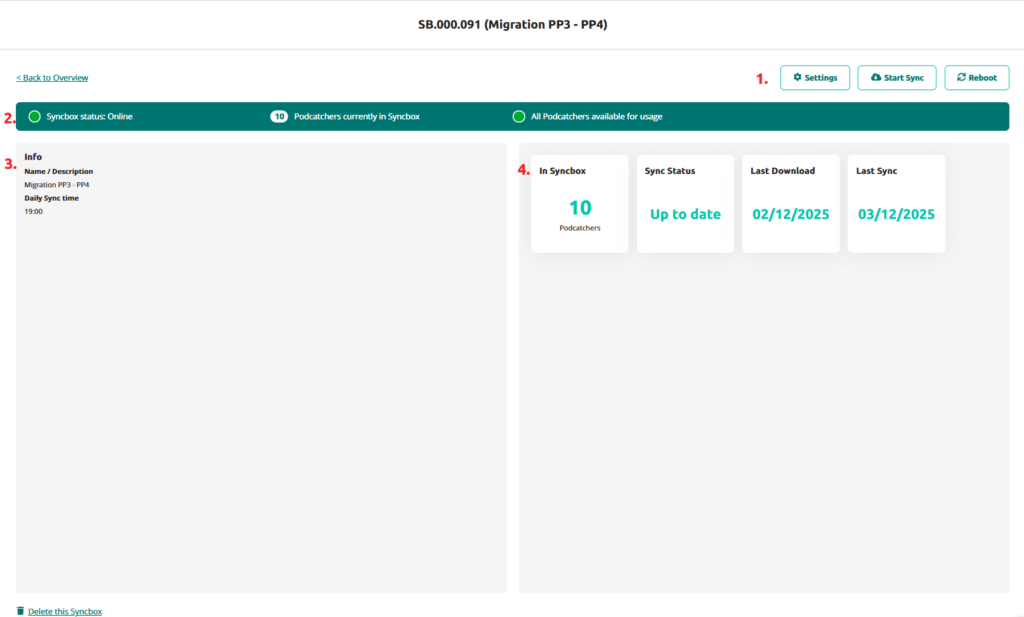
When clicking on Sync Device, the Sync Device detail page will be displayed and information is shown in different segments.

In this overview you will see:

1. Settings

Settings

Here you can edit the location name and sync time

Start Sync

Manually start the synchronisation for that Sync Device

Reboot

Rebooting Sync Device

2. Overview bar lists

  • Offline/Online Status of the Sync Device
  • How many Podcatchers are currently in the Sync Device 
  • If all Podcatchers are ready for usage 

3. Info block

The Sync Device Info block shows the name you’ve provided for the Sync Device and daily sync time. 

4. In Sync Device / Sync Status / Last Download / Last Sync 

This block shows:

In Synbox/ Syncconsole — Displays the current number of Podcatcher devices registered in the system

Sync Status — Indicates whether the device’s content is fully synchronized and up to date

Last Download — Reflects the most recent timestamp when the Sync Device downloaded content

Last Sync — Records the date of the most recent synchronisation event


Click on Back to overview to go back to the main page of the Sync Devices overview.
For information on Dock statuses go to the Podcatcher overview page.


IDentifier overview

The IDentifier overview provides you with a quick glance at the latest information about the IDentifiers.

This allows you to see the status of the IDentifier:

  • IDentifier code
  • What stop it’s connected to
  • what language it’s connected to (start IDentifier)
  • When it was last triggered
  • Battery status

Add IDentifiers

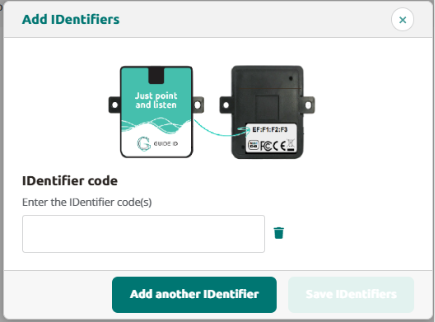
Through this button you can add one or more IDentifiers, so that later on you can easily connect these to your preferred stop. The added IDentifiers will be listed in the overview.

Click on Add new IDentifier+ and fill in the codes which is on the back of the IDentifier. The code should be in a XX:XX:XX:XX format.

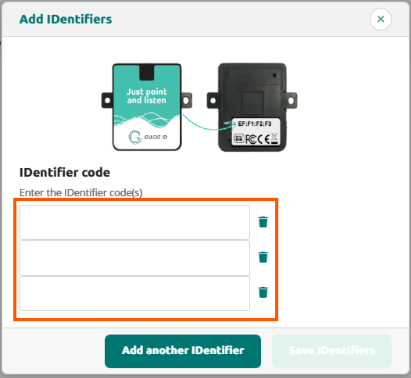
To Add multiple IDentifiers, simply click on Add another IDentifier and fill in the codes of these IDentifiers.

Link IDentifier to stops

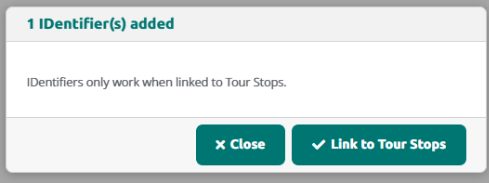
After adding IDentifiers, you can either immediately link it to a stop or do it at a later time.

1.Link directly to a stop

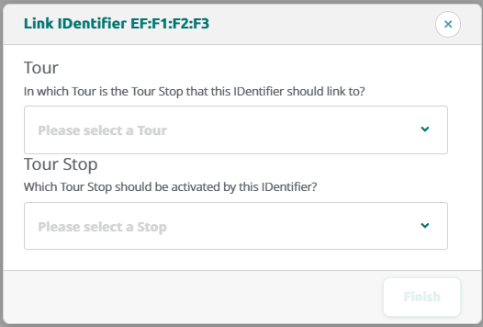
To link it directly, click on Link to Tour Stops to select the Tour and the preferred stop and click finish

2. Linking from overview list

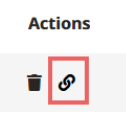
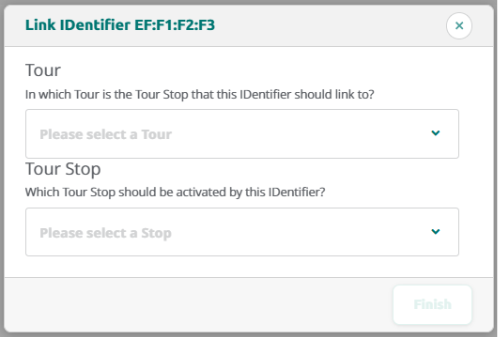
Select an IDentifier from the overview list and click on the link icon in the Action column

Complete the linking process by selecting the Tour and the preferred stop.

Delete or unlink IDentifier

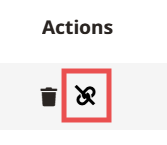
To unlink an IDentifier from a stop, simply click on the unlink icon.
It will disconnect the IDentifier from the stop, but is still shown in the overview. This way you can link it to a new or other preferred stop.

This image has an empty alt attribute; its file name is image-60.png

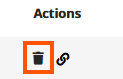
To remove an IDentifier from the IDentifier overview click on the trash icon to delete it from the overview page.