
Introduction
While a Stop is a place in the Site – usually near a piece of art in a museum, it can also be a room or an explanation for visitors – a Clip (or set of Clips) is the content that gets played when a Stop is triggered. This page gives you full control over how Clips flow into one another.
Note: If your Stop should just play one Clip, then you can skip most of the explanation and just use the Script field to add content or upload an audio file.
Stops
Stops correspond to locations in the real world and are used to play the appropriate audio. A Stop has one or more Clips that are linked together with Connections.
Creating a tour
Start Clip
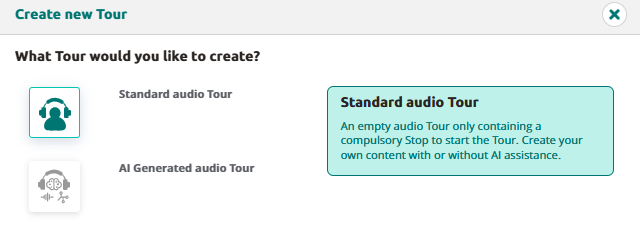
Go to Tours and click on Add new Tour. Select what tour you like to create and click on continue.
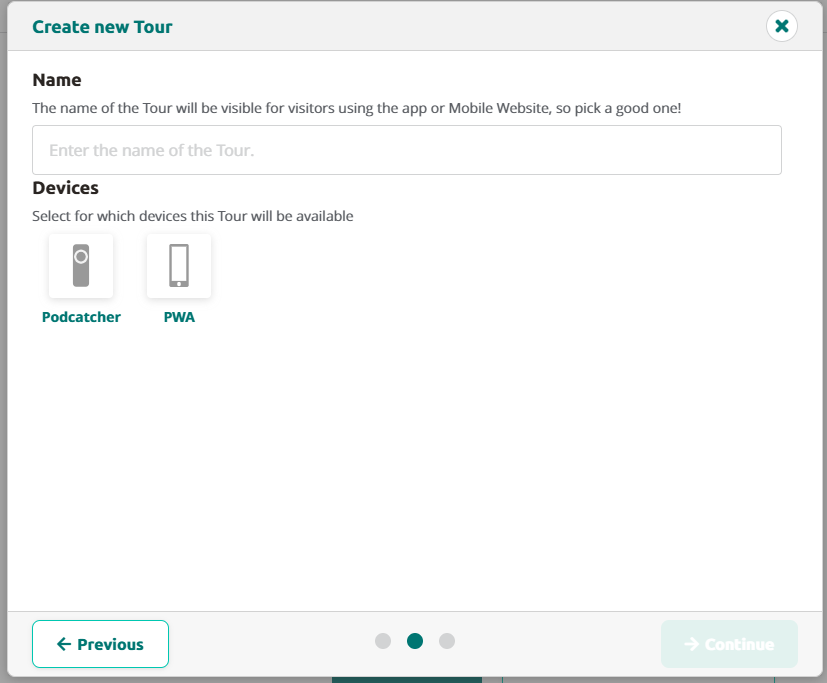
Fill in the name of the tour, this will be visible for visitors using PWA.
Select the desired device. It’s possible to use both Podcatcher and PWA and click on continue.
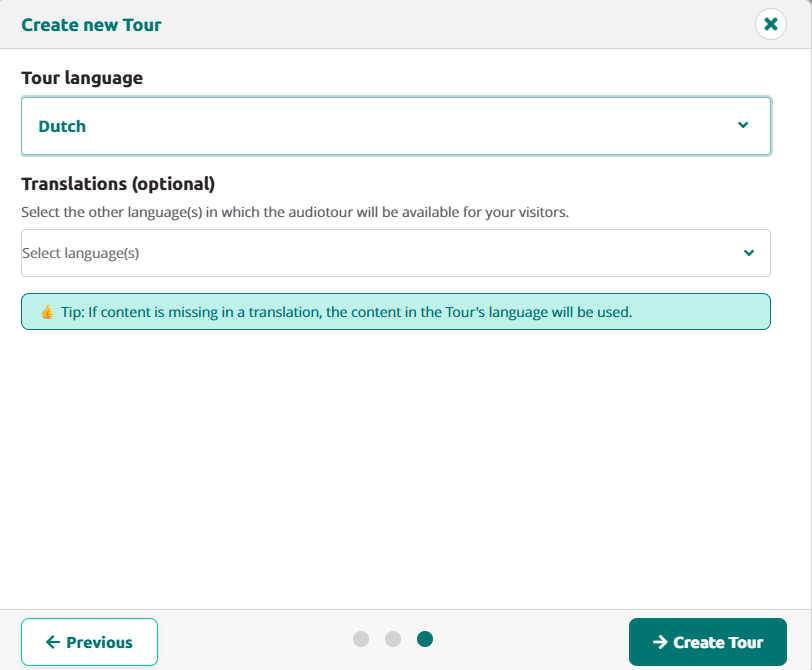
Select the main language.
Select other languages if prefered.
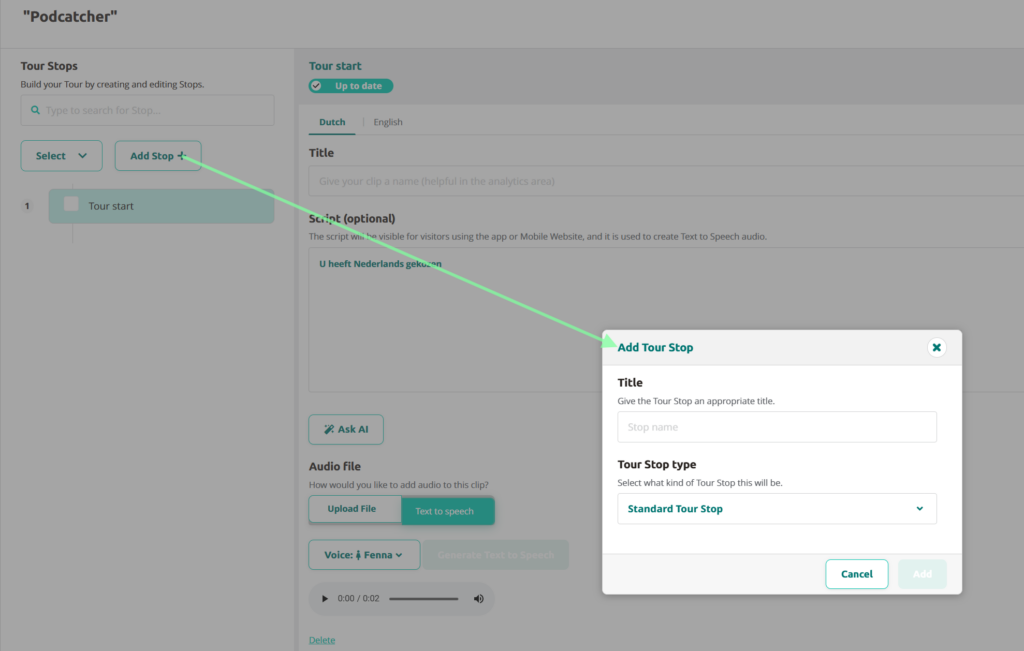
After clicking on create tour, a Stop with Tour Start is created. This is your tour start, a.k.a. you’re language start and is set in the languages you have chosen in the previous step.
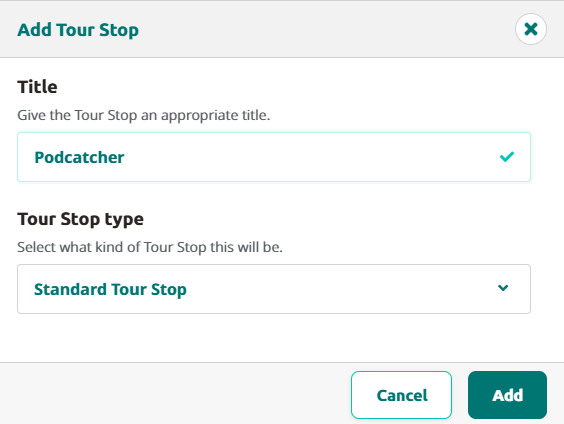
To add more stops, just click on Add Stop.
This way you can add several stops to your tour. Don’t forget to give it a title.
Adding content
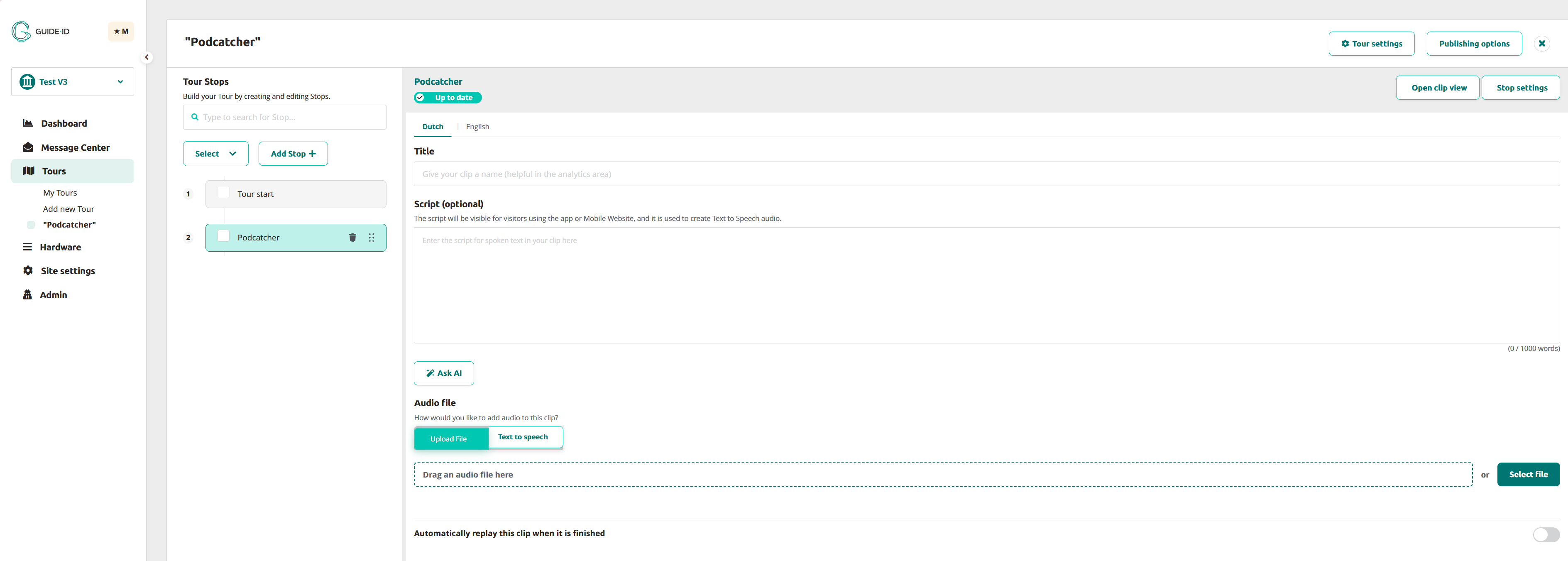
When adding content to a stop, you can choose whether you want to upload audio, or use the AI options with Text-to-Speech. Repeat the process for as many stops as you need to complete the tour.
Uploading audio: Click on select file or just drag the audio file to the uploadfield next to select file.
Ask AI: Enhance or modify your script based on specific needs, such as simplifying text, adjusting the tone, or translating it into another language.
Using Text-to-Speech: With Text-to-Speech you can simply generate the inserted script to audio file when clicking it
For more information on AI and Text-to-Speech Generate content using AI
Your contect is automatically saved when uploading audio or when a script is added.
 English
  Nederlands
  Français