
The IDentifier overview provides you with a quick glance at the latest information about the IDentifiers.
This allows you to see the status of the IDentifier:
- IDentifier code
- What stop it’s connected to
- what language it’s connected to (start IDentifier)
- When it was last triggered
- Battery status

Add IDentifiers
Through this button you can add one or more IDentifiers, so that later on you can easily connect these to your preferred stop. The added IDentifiers will be listed in the overview.
Click on Add new IDentifier+ and fill in the codes which is on the back of the IDentifier. The code should be in a XX:XX:XX:XX format.
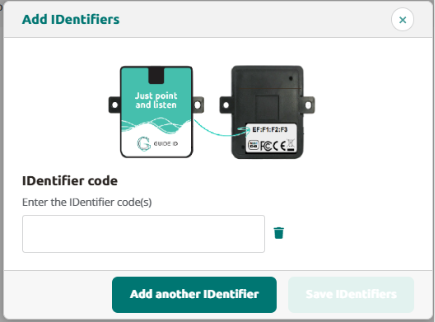
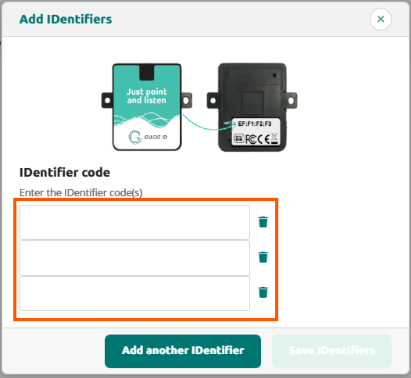
To Add multiple IDentifiers, simply click on Add another IDentifier and fill in the codes of these IDentifiers.
Link IDentifier to stops
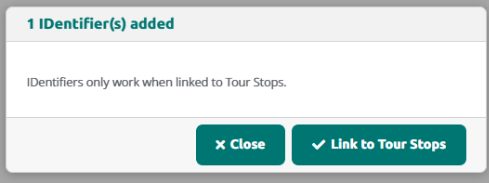
After adding IDentifiers, you can either immediately link it to a stop or do it at a later time.
1.Link directly to a stop
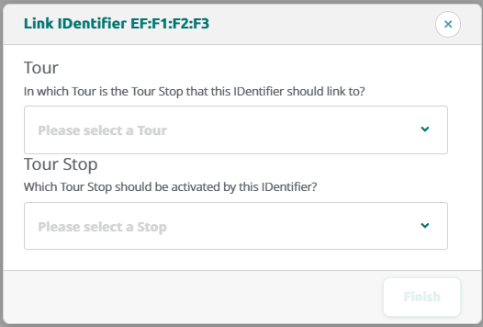
To link it directly, click on Link to Tour Stops to select the Tour and the preferred stop and click finish
2. Linking from overview list
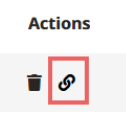
Select an IDentifier from the overview list and click on the link icon in the Action column
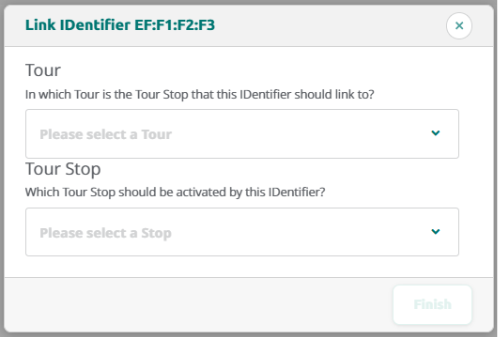
Complete the linking process by selecting the Tour and the preferred stop.
Delete or unlink IDentifier
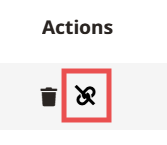
To unlink an IDentifier from a stop, simply click on the unlink icon.
It will disconnect the IDentifier from the stop, but is still shown in the overview. This way you can link it to a new or other preferred stop.
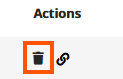
To remove an IDentifier from the IDentifier overview click on the trash icon to delete it from the overview page.
 English
  Nederlands
  Français