Podcatcher overview

The Podcatcher overview provides you with a quick glance at the latest information about the Podcatchers. This allows you to see the status of the Podcatcher, when it was last synced and seen, and in which Sync Device.

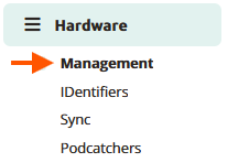
You can access this page following the path on the sidebar.
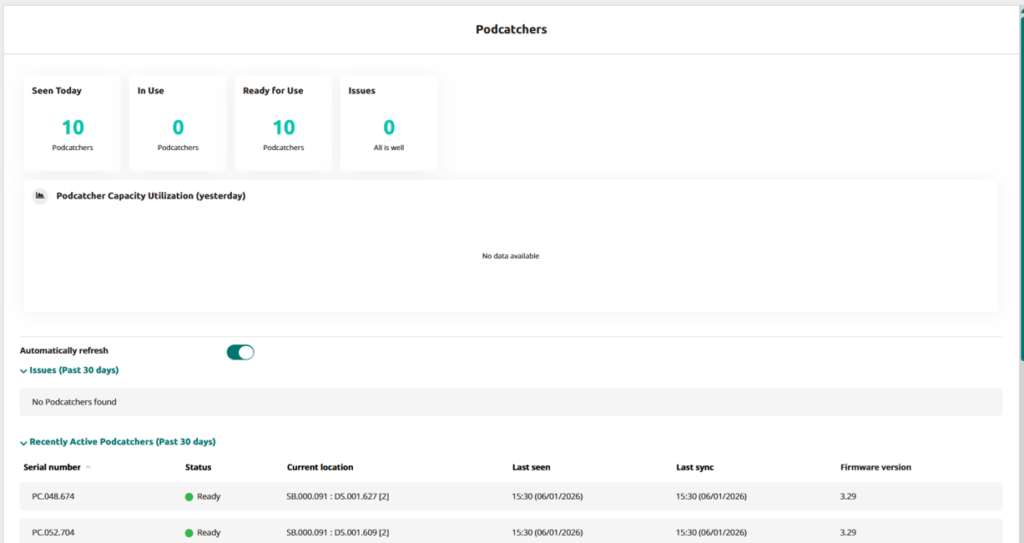
The overview is divided into two main sections:

Podcatcher data

This section provides a clear snapshot of the current status of your Podcatchers. You can monitor:

  • Seen Today: Podcatchers that have connected to a Sync Device during a sync today.
  • In Use: Podcatchers recognized today that have been removed from the Sync Device and not yet returned.
  • Ready For Use: Podcatchers still in the Sync Device, available for immediate use and without any temporary issues or errors.
  • Issues: Podcatchers currently flagged with an ‘Error’ status.

A utilization graph displays Podcatcher activity from the previous day, highlighting peak usage times and helping you optimize device availability. This information is available in Analytics as well, where you are able to select a date or even view over a longer period of time.

3ed8e58a-7649-4c3c-87a0-91cf6b063ef8

The light green background represents the capacity: the current number of Podcatchers detected on the Site. These are Podcatchers that have been seen in the past 14 days.
The darker green shows the number of Podcatchers that were actually in use by a visitor. (Based on Tour log data).
Hovering the mouse over the graph will pop up the exact numbers.

When usage hits 80% or more of capacity, an ⚠️ is shown.

Podcatcher List

This list includes all Podcatchers assigned to your location, organized into three categories:

  • Issues (Past 30 days): Contains Podcatchers which have the status “Error” which have been seen within the past 30 days.
  • Recently Active Podcatchers (Past 30 days): Contains Podcatcher which do not have the status “Error” (so warning or Ready) and have been seen within the past 30 days.
  • Inactive Podcatchers (Over 30 days): Contains Podcatchers which have not been seen for more than 30 days. It includes all statuses (“Error”, “Warning”, “Ready”)
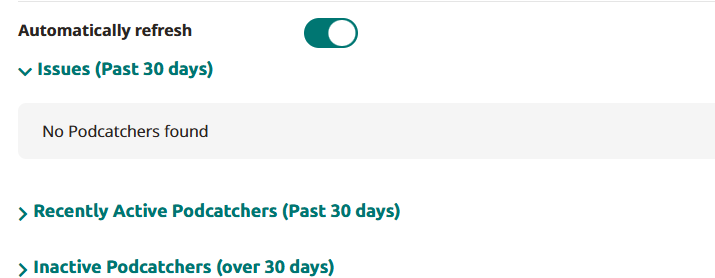
Overview when drop down vensters are mostly closed
Overview when certain drop down vensters are opened

For each Podcatcher, the following details are provided:

  • Serial Number: The unique identifier for each Podcatcher, visible here for reference only.
  • Status: Indicates the Podcatcher’s state during the last sync.
    • Ready: The device is available and ready for visitors.
    • Warning: The Podcatcher requires syncing again, or the battery is nearly depleted.
    • Error: The device is not functioning and should be returned. Click “Error” for step-by-step return instructions.
  • Current location: The Sync Device location where the device was most recently detected.
    It shows the Sync Device’s serial number, Dockings station’s serial number and the slot number (shown in parentheses)
  • Last Seen: The date and time the Podcatcher was last connected to a Sync Device.
  • Last Sync: The most recent update when new content was loaded to the device.
Sync

Synchronization of the Podcatchers is the process of updating them with the latest published content, and retrieving Analytics data and diagnostics from the Podcatcher.

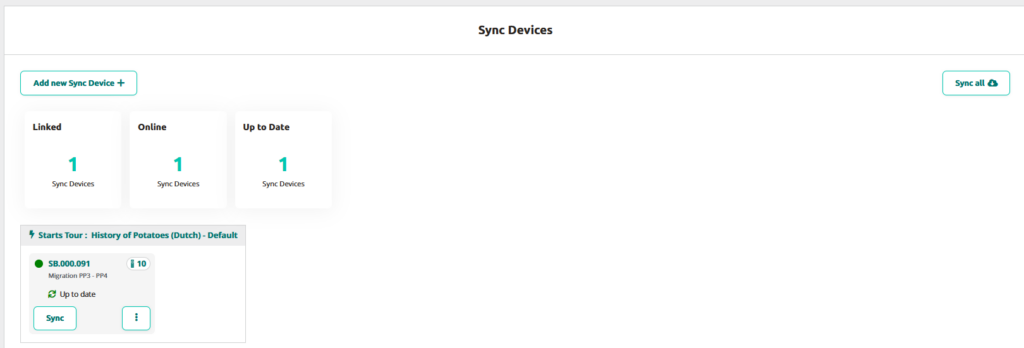
The Sync page will show all the Sync Devices registered at the site.

Add new Sync Device +

With this button you can add one or several Sync Devices. For more information on adding Sync Devices go Syncbox manual or Syncconsole Installation.

Sync all

With this button you can start the synchronisation simultaniously for the added Sync Devices.

Linked

The number of Sync Devices linked/registered to this Site

Online

The number of Sync Devices that are online

Up to Date

The number of Sync Devices that have the latest content

Sync Device settings

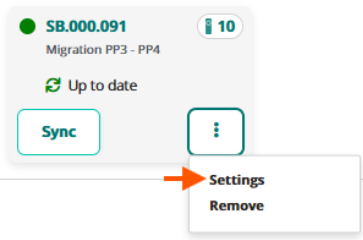
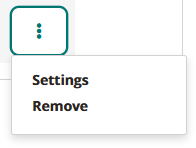
When clicking on the Kebab menu, two options will appear: settings and remove.

To remove the Sync Device from the Platform, simply click on remove.
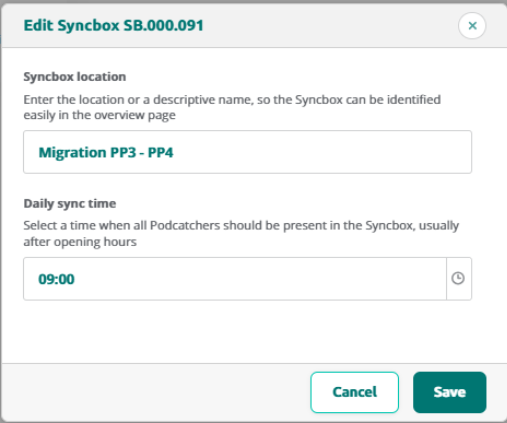
When clicking on settings, you can edit the Sync Device location or daily sync time.

Sync Device Detail overview

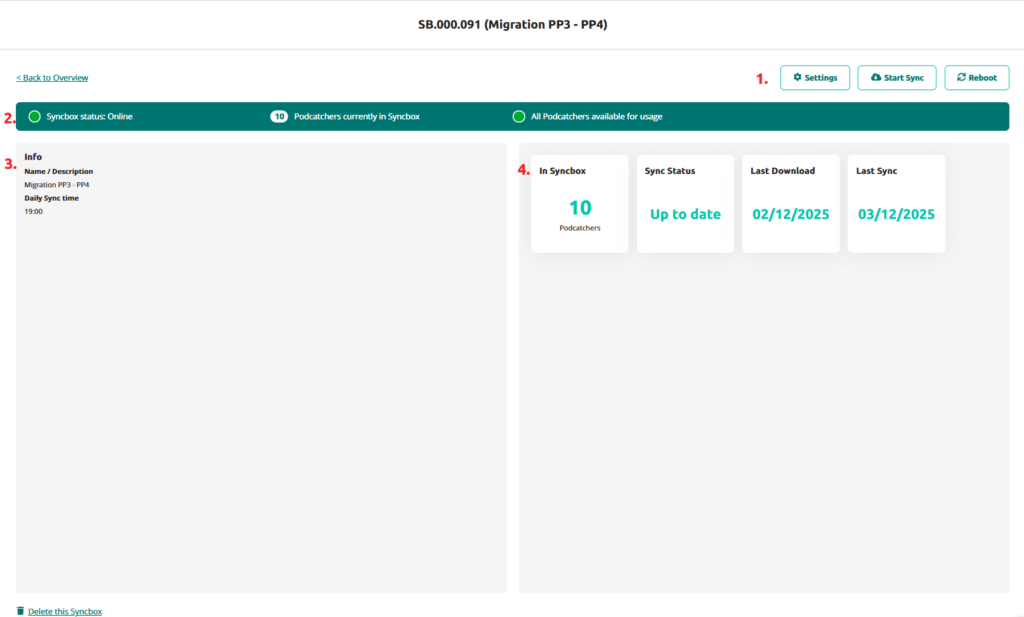
When clicking on Sync Device, the Sync Device detail page will be displayed and information is shown in different segments.

In this overview you will see:

1. Settings

Settings

Here you can edit the location name and sync time

Start Sync

Manually start the synchronisation for that Sync Device

Reboot

Rebooting Sync Device

2. Overview bar lists

  • Offline/Online Status of the Sync Device
  • How many Podcatchers are currently in the Sync Device 
  • If all Podcatchers are ready for usage 

3. Info block

The Sync Device Info block shows the name you’ve provided for the Sync Device and daily sync time. 

4. In Sync Device / Sync Status / Last Download / Last Sync 

This block shows:

In Synbox/ Syncconsole — Displays the current number of Podcatcher devices registered in the system

Sync Status — Indicates whether the device’s content is fully synchronized and up to date

Last Download — Reflects the most recent timestamp when the Sync Device downloaded content

Last Sync — Records the date of the most recent synchronisation event


Click on Back to overview to go back to the main page of the Sync Devices overview.
For information on Dock statuses go to the Podcatcher overview page.


IDentifier overview

The IDentifier overview provides you with a quick glance at the latest information about the IDentifiers.

This allows you to see the status of the IDentifier:

  • IDentifier code
  • What stop it’s connected to
  • what language it’s connected to (start IDentifier)
  • When it was last triggered
  • Battery status

Add IDentifiers

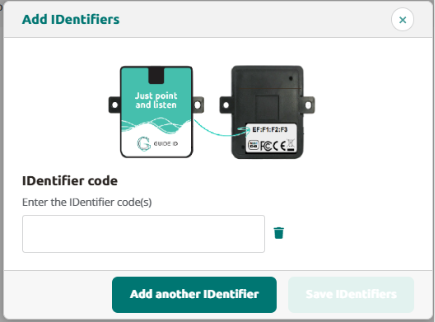
Through this button you can add one or more IDentifiers, so that later on you can easily connect these to your preferred stop. The added IDentifiers will be listed in the overview.

Click on Add new IDentifier+ and fill in the codes which is on the back of the IDentifier. The code should be in a XX:XX:XX:XX format.

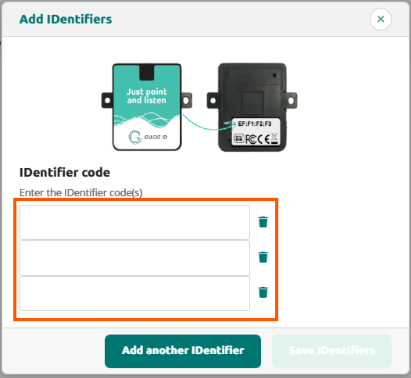
To Add multiple IDentifiers, simply click on Add another IDentifier and fill in the codes of these IDentifiers.

Link IDentifier to stops

After adding IDentifiers, you can either immediately link it to a stop or do it at a later time.

1.Link directly to a stop

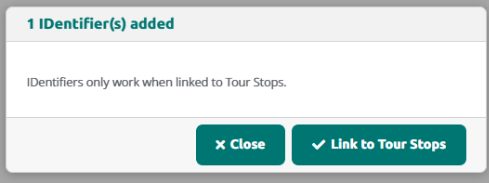
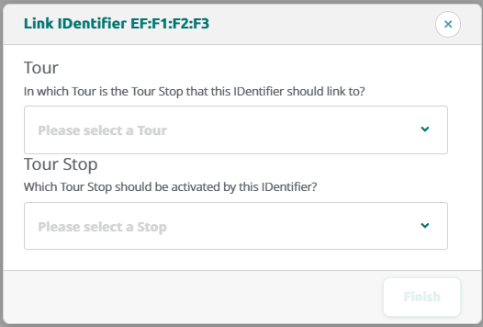
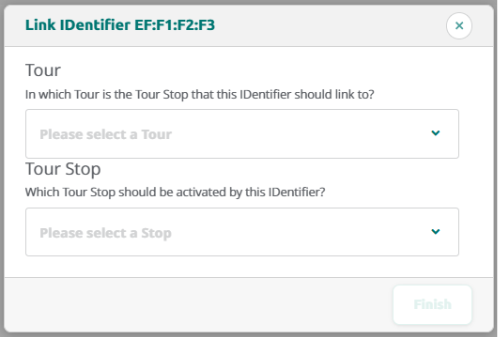
To link it directly, click on Link to Tour Stops to select the Tour and the preferred stop and click finish

2. Linking from overview list

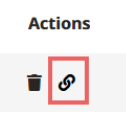
Select an IDentifier from the overview list and click on the link icon in the Action column

Complete the linking process by selecting the Tour and the preferred stop.

Delete or unlink IDentifier

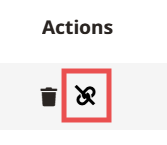
To unlink an IDentifier from a stop, simply click on the unlink icon.
It will disconnect the IDentifier from the stop, but is still shown in the overview. This way you can link it to a new or other preferred stop.

This image has an empty alt attribute; its file name is image-60.png

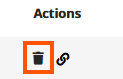
To remove an IDentifier from the IDentifier overview click on the trash icon to delete it from the overview page.


Hardware management

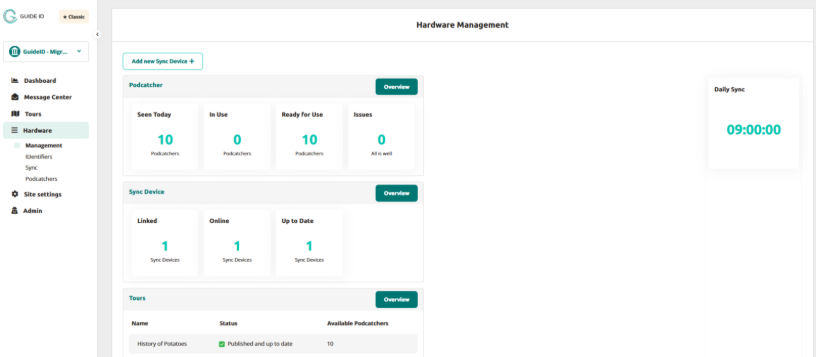
Hardware management gives you a quick overview of the Podcatcher-, Sync device- and tour status and can be accessed by clicking Management on the sidebar of the Platform.


Within the hardware management page we see 4 sections: Podcatcher, Sync Device, Tours and Daily sync time. 


Podcatcher

Within the Podcatcher section we can see several blocks of metrics:

Seen Today 

This number shows the total Podcatchers seen today.  

In Use 

This number shows the total Podcatchers currently in use. 

Ready for Use 

This number is the amount of Podcatchers without issues currently docked in a Sync Device. 

Issues 

This number is the amount of Podcatchers which have issues. 

Overview 

If you click on the overview button, you’ll be redirected towards the Podcatcher overview page.


Sync Device

Within the Sync Device section, we can see several blocks of metrics:

Linked 

Sync Devices which have been linked to your site. 

Online 

Sync Devices which have had contact with the platform. 

Up to Date 

Sync Devices which are up to date. 

Overview 

This redirects to the Sync Device overview page. 

Tours

Within the Tours section we can see several metrics regarding your tours:

Name 

This is the Tour name in the default language. 

Status 

This represents the current publish status. 

Available Podcatchers 

This represents on how many Podcatchers this tour can be found. 

Overview 

This navigates towards the Tour overview page. 

Daily Sync

This represents the time the automated ‘Daily Sync’ takes place which is entered when adding the Sync device to the Platform and can be edited if prefered. Go to Hardware > Sync and click on the 3 dots in the Sync Device metric, click on settings and you’ll be able to edit the time to your preference.