
Actionable Insights transforms your Podcatcher Pro system data into timely recommendations that help you prevent disruptions and optimize visitor experiences. This intelligent notification system keeps you informed about hardware status and tour performance, allowing you to address potential issues before they affect your guests.
Quick Reference
- Access Message Center: Dashboard → Message Center icon
- Email configuration: Profile → Email Preferences
- Notification Levels: Minor, Moderate, Severe (prioritized by urgency)
- Key Benefits: Proactive maintenance, reduced downtime, optimized visitor flow
- Primary Features: Hardware monitoring, tour performance insights, email alerts
How Actionable Insights Works
The Actionable Insights system continuously monitors your Podcatcher Pro environment, analyzing both hardware status and visitor interactions to identify opportunities for improvement. When the system detects an issue or optimization opportunity, it generates a notification with a clear recommendation for action.
Notification System
Actionable Insights categorizes notifications by priority to help you focus on what matters most:
- Minor Notifications (Informative)
- Informational updates that don’t require immediate action
- Examples: system updates available, infrequently used tour stops
- Useful for long-term planning and optimization
- Moderate Notifications (Requires Attention)
- Issues that should be addressed to maintain optimal performance
- Examples: low IDentifier batteries, missing Podcatcher devices
- Important for preventive maintenance
- Severe Notifications (Requires immediate action)
- Critical issues requiring immediate attention
- Examples: offline basecamps, Podcatchers in error state
- Essential for preventing disruption to visitor experiences
Using the Message Center
The Message Center serves as your central hub for all notifications, providing clear information about each issue and recommended solutions.
Accessing the Message Center
- Log in to the Guide-ID platform
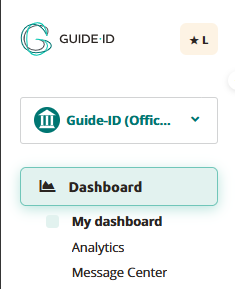
- Look for the Message Center header in the top left bar
- Click to open your notification dashboard
Understanding Message Center Alerts
Each notification in the Message Center includes:
- Alert icon indicating the priority level
- Clear description of the detected issue
- Actionable recommendation to resolve the problem
- Timestamp showing when the issue was detected
For example, a typical notification might alert you that “IDentifier with serial number BP.000.433 is low on battery” and recommend that you “Please replace or recharge the battery to keep using this IDentifier.”

Note: For a complete reference of all possible notifications and recommended actions, see [Notification Types and Recommendations].
Managing Your Notifications
The Message Center allows you to:
- Review all active notifications in one convenient location
- Dismiss notifications once you’ve addressed them
- Track resolution status as the system automatically removes fixed issues
Accessibility Consideration
The Message Center is designed to present critical information at a glance, making it valuable for busy museum environments, where staff may only have moments between visitor interactions to check system status.
Email Notification System
To ensure you never miss important alerts, Actionable Insights extends beyond the platform with strategic email notifications.
Email Alert Types
- Weekly Summary Emails
- Comprehensive overview of all pending notifications
- Prioritized by urgency level
- Provides a convenient way to stay informed even when not logged into the platform
- Urgent Alert Emails
- Sent when critical issues require immediate attention
- Focus specifically on severe notifications
Customizing Email Preferences
You can tailor your notification experience to match your museum’s needs:
- Navigate to Profile -> Email preferences in the Guide-ID platform
- Select Notification Preferences
- Choose which E-mail types you’d like to be sent.
- Save your settings
Key Monitoring Capabilities
Actionable Insights monitors two primary aspects of your museum experience:
1. Hardware Health Monitoring
The system proactively tracks the status of your Guide-ID hardware, including:
- IDentifier Battery Levels
- Alerts when batteries reach low thresholds
- Helps prevent audio tour disruptions in specific exhibit areas
- Enables planned maintenance rather than emergency responses
- Podcatcher Device Status
- Identifies missing devices to maintain inventory
- Detects Podcatchers in error states
- Monitors Sync Device connectivity
2. Tour Performance Analysis
Beyond hardware, Actionable Insights helps optimize the content experience with:
- Usage Pattern Analysis
- Identifies underutilized or highly popular tour stops
- Helps you understand visitor engagement patterns
- Provides insights for content improvements
Troubleshooting Actionable Insights
If you encounter issues with the Actionable Insights system, try these simple solutions:
| Issue | Solution |
|---|---|
| Not receiving email notifications | Check your spam folder and verify your email address is correct in User Settings |
| Missing expected notifications | Confirm your notification preferences are properly configured, and that you have not dismissed the message |
| Dismissed notification reappears | The underlying issue may not be fully resolved |
Warning
If you dismiss multiple IDentifier battery warnings without replacing batteries, you risk unexpected audio tour disruptions for your visitors. Always follow recommended actions when possible.
Success Indicators
You’ll know you’re effectively using Actionable Insights when:
- Preventable hardware issues decrease across your museum
- Staff can address potential problems before they impact visitors
- Your battery replacement process becomes proactive rather than reactive
- Missing Podcatcher incidents decline
For additional assistance with Actionable Insights, contact Guide-ID support through the platform’s Help Center or email Helpdesk@guide-id.com.
 Tours
Tours


 English
  Nederlands
  Français