Avec la migration vers notre plateforme Podcatcher, nous avons transformé le site web mobile en PWA (Progressive Web App).
La PWA offre plusieurs fonctions pratiques conçues pour simplifier l'accès à la fois pour vous et pour vos visiteurs.
Accès PWA
Trouver la page
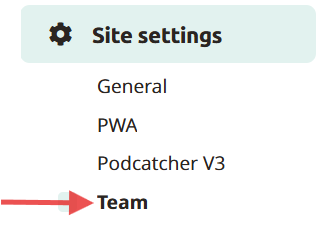
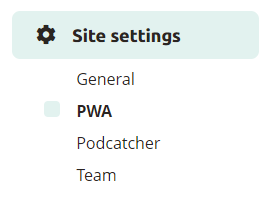
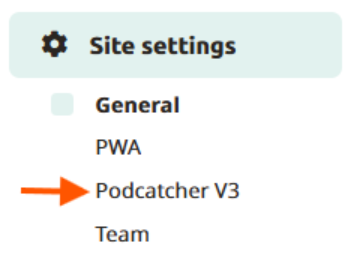
Pour accéder aux paramètres de la PWA et à ses options d'accessibilité, naviguez vers Paramètres du site et sélectionnez PWA (site web mobile).
Code QR
Au lieu de taper manuellement le code, les visiteurs peuvent facilement scanner un code QR. Pour ce faire, vous pouvez afficher le code sur des imprimés près du point de départ de la visite ou sur votre comptoir. Il suffit de cliquer sur le bouton de téléchargement pour obtenir une version évolutive du code QR. Lorsqu'un smartphone scanne le code QR à l'aide d'une application dédiée ou de l'appareil photo de l'appareil, les visiteurs sont automatiquement redirigés vers la page de votre site web mobile.
Conception
Pour améliorer la reconnaissance du site, il est fortement recommandé de télécharger une image de couverture pour votre PWA. Cliquez sur le bouton "Télécharger une image" pour commencer, sélectionnez une image à télécharger et recadrez-la au rapport d'aspect spécifié. En cliquant sur "Enregistrer", vous pouvez immédiatement observer les changements appliqués.
En utilisant ces fonctionnalités PWA, vous pouvez améliorer l'accessibilité pour les visiteurs, simplifier l'accès via des URL personnalisées et des codes QR, et améliorer l'attrait visuel de votre site avec une image de couverture personnalisée.
Comment activer la PWA
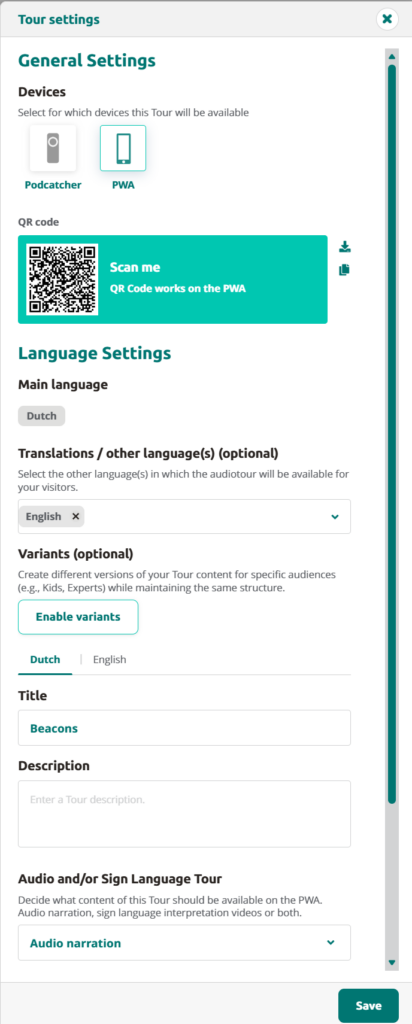
Pour activer PWA, il suffit d'aller dans Tours, de sélectionner le tour que vous voulez rendre disponible pour PWA et d'aller dans les paramètres du tour.
Pour activer PWA, cliquez sur PWA. Si elle est entourée d'un cadre vert, elle est activée. Si la bordure verte ne s'affiche pas, c'est que PWA n'est pas actif. Cliquez ensuite sur Enregistrer en bas à droite.
Pour utiliser le code QR, copiez ou téléchargez le code QR à partir des paramètres de la visite. Vous pouvez également trouver le code QR via Paramètres du site > PWA.
Lorsque le visiteur scanne le code QR avec son téléphone portable, il voit apparaître ce qui suit :
Le visiteur sera informé de l'environnement dans lequel il se trouve lorsqu'il utilise le PWA et il lui sera conseillé d'utiliser un casque ou des écouteurs.
Si la PWA est activée pour plusieurs visites, le visiteur peut sélectionner la visite qu'il souhaite écouter.
En fonction de la langue disponible pour la visite, le visiteur peut sélectionner la langue souhaitée.
Pour écouter l'arrêt souhaité, le visiteur sélectionne l'arrêt.
Ensuite, ils peuvent écouter l'arrêt.

-1.png?width=242&height=242&name=6%20(1)-1.png)
.png?width=390&height=389&name=1%20(1).png)
.png?width=390&height=390&name=2%20(1).png)
.png?width=390&height=389&name=3%20(1).png)
.png?width=390&height=389&name=4%20(1).png)
.png?width=390&height=389&name=5%20(1).png)
 Français
  English
  Nederlands